Routine home-workstation backup users
If you mainly copy lesson plans, documents, presentations and ordinary media, start with capacity and a USB connection that fits your workstation rather than choosing by peak speed alone.


Choose an external SSD with enough usable capacity for the teaching resources you intend to retain and a connection that works with your home workstation; advertised transfer speed is less useful if the workstation cannot support it. Consider a rugged model if the drive regularly travels, and plan to disconnect the backup when it is not in use. If the files contain personal information, choose an encryption setup that meets your organisation's requirements.
If you mainly copy lesson plans, documents, presentations and ordinary media, start with capacity and a USB connection that fits your workstation rather than choosing by peak speed alone.
If you retain large collections of video, images, audio or scanned resources, measure the folders and consider how many versions you want to keep before selecting a capacity.
If the drive travels or holds personal information, consider handling, encryption and a disconnected backup routine as well as storage capacity. The Information Commissioner's Office advises on encrypting personal information held on backup media, while the National Cyber Security Centre advises disconnecting an external backup device when it is not in use.
Measure the files you want to keep, then check your workstation's ports and any other devices that must read the backup. Decide whether personal information or regular travel calls for additional protection.
| Concern | What to check | Who this matters to |
|---|---|---|
| Usable capacity | Measure the folders and retained versions, allow for growth, and check the exact capacity variant. Some labelled capacity is used for formatting. | If I keep adding teaching videos and earlier versions, I need room for the whole archive rather than just today's files. Around 33% of consumers put archive capacity first. |
| Connections and file format | Check the workstation's USB port, supplied cable or adapter, and whether the drive's format works with every device that must read it. | When I move resources between a home workstation and another device, the backup needs to connect and open on both. For around 25% of consumers, compatibility is the primary concern. |
| Personal-information protection | Check your organisation's removable-media policy, a compatible encryption method and how you will retain access to recovery credentials. | If my teaching files include personal information, I need a way to protect the portable copy if it is lost. That protection comes first for around 25% of consumers. |
| Travel and handling | If the SSD leaves home regularly, check the model's stated ingress and drop-test conditions; keep a separate backup copy. | I would pay closer attention to physical protection if I regularly carried the backup between home and school. Around 17% of consumers make travel resilience their primary concern. |
The stated maximum may depend on the workstation's interface and cable. Samsung says the T7 Shield's maximum speeds require USB 3.2 Gen 2, a compatible cable and UASP mode.
Identify the workstation's port and connection before comparing speed claims. For scheduled folder backups, establish the capacity and device compatibility you need first.
Malware affecting a computer can also affect connected storage. The National Cyber Security Centre advises keeping an external backup device disconnected when it is not in use.
Make the copy, safely eject and disconnect the SSD, and keep another independent copy of important materials.
Ingress and drop claims reflect particular tests, not every accident. Samsung says T7 Shield resistance can vary in actual conditions and that liquid, dust and drop damage are excluded from its stated warranty coverage.
Choose ruggedness if the drive regularly travels, but handle it carefully and retain another backup.
A lost removable drive can expose the information it holds. The Information Commissioner's Office identifies encryption of personal information on USB and backup media as protection against unauthorised access.
Check your school or employer's policy, choose a suitable encryption method and keep the password or recovery key separate from the drive.
The T7 Shield line is relevant when a backup drive regularly travels and stated physical-protection features matter.
The X9 Pro line is relevant to growing archives or backups that need to move among compatible devices.
The XS1000 line is relevant to routine backups where supplied USB-A and USB-C connection options are useful.
These portable SSDs offer capacity options for home-workstation backups; the Samsung T7 Shield also illustrates a choice for a drive that travels. Check each variant against your folders, workstation connection and any requirements for protecting personal information.
 No image available
Consider this 2 TB variant if it leaves enough room for the teaching folders and earlier versions you intend to keep.
The title specifies USB Type-C 3.2 Gen 2. Check the workstation's port and your intended encryption setup before relying on it for personal information.
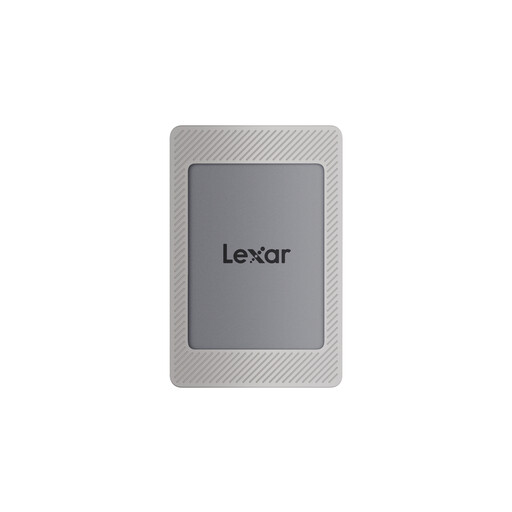 No image available
Consider this 2TB variant if your retained resource library fits and you also need to use the drive with a compatible PC or Mac.
Its title states USB 3.2 Gen 2 and speeds up to 1050MB/s read and 1000MB/s write; those are advertised maxima, not a promise of speed on every workstation. Check the required file format before moving files between devices.
 No image available
Consider this 1TB variant if the backup regularly travels and that capacity accommodates your retained teaching files.
Its title specifies USB Type-C 3.2 Gen 2. Samsung UK states IP65 testing and a 3m drop test for the T7 Shield model, subject to test conditions; do not treat those claims as protection against every accident. Confirm a suitable encryption method before storing personal information.
 No image available
This 2TB portable SSD is a capacity option for a teaching-resource backup that stays within that size as files accumulate.
Check the cable connection against your workstation and confirm a suitable file format and encryption setup if the backup will contain personal information.
Choose a capacity after measuring the folders you will copy and allowing room for growth and retained versions. Crucial notes that formatting and other purposes use some of a drive's labelled capacity, so do not plan to fill the entire stated amount with files.
Disconnect it when it is not in use if you intend it to serve as an offline backup. The National Cyber Security Centre warns that viruses can affect connected storage and advises keeping an external backup device disconnected between uses.
You need a cable or adapter that fits the ports on the devices you will actually use. Kingston lists a USB-C-to-USB-A cable and a USB-A-to-USB-C adapter with the XS1000; check the supplied connections of the exact SSD variant you choose.
Plan suitable encryption if the removable backup contains personal information. The Information Commissioner's Office says encryption helps protect information on USB and backup media, particularly if a device is lost or stolen; also follow your school or employer's policy and manage recovery credentials securely.
No: an IP rating describes protection under specified test conditions, not unlimited exposure. Samsung says the T7 Shield's IP65 result comes from controlled testing and that resistance may vary in actual conditions; check the terms for the exact model and keep another backup copy.