What matters when choosing?
Start with where the files need to be accessible: beside one computer, on a drive you carry, or across the household network. Then size the storage for the files and backups you intend to keep.
Portable hard drive
Choose it when: You want to carry a photo or document archive between computers without setting up networked storage.
Trade-off: Transfer performance still depends on the connection and the files being moved; a USB-C connector alone does not establish the speed.
Desktop hard drive
Choose it when: A large archive or computer backup will usually remain at a desk.
Trade-off: A powered desktop model needs a suitable socket and is less convenient to carry.
Portable SSD
Choose it when: You regularly carry storage or move large photo and video folders.
Trade-off: Its quoted maximum speed depends on compatible computer hardware and a suitable cable.
Networked local storage
Choose it when: Several household devices need access to a central file library.
Trade-off: A NAS adds network setup and administration, and still needs a separate backup plan.
| Concern |
What to check |
Who this matters to |
| Archive capacity |
Total the files and devices you intend to cover, then leave room for growth and backup history. For a Mac Time Machine disk, Apple Support recommends at least twice the Mac’s storage capacity. |
As photos, videos and older backups accumulate, I want enough room to keep the copies I need. Archive capacity comes first for roughly 29% of consumers. |
| Portable transfers |
Check the computer’s USB generation and the supplied cable; treat a drive’s maximum speed as conditional on the connection. |
When moving large folders between computers, I want a drive that is practical to carry without assuming every port delivers its rated speed. Around 21% of consumers put portable transfers first. |
| Shared access |
Confirm which devices need file access, which need automatic backups, and whether the household can accommodate network setup. |
If several of us need the same library, I would rather manage central access than pass a drive between devices. Shared access is the primary need for about 21% of consumers. |
| Backup resilience |
Check which folders the backup software includes, test a restore and plan another destination for irreplaceable files. |
I need to know I can restore important files even if a local device is lost or fails. For roughly 29% of consumers, backup resilience is the first concern. |
Portable drives on Joybuy
These portable SSD and hard-drive options are relevant if you want to carry photo or computer-file copies between devices. Compare their stated capacities with your own files and backup plans, and check the connection required by each model.
 No image available
Samsung Portable SSD T7 2 TB Grey
A portable option for carrying selected photo and file copies between devices.
2 TB capacity; USB Type-C 3.2 Gen 2 connection. Check your computer’s port and backup software before relying on it for regular backups.
View on Joybuy
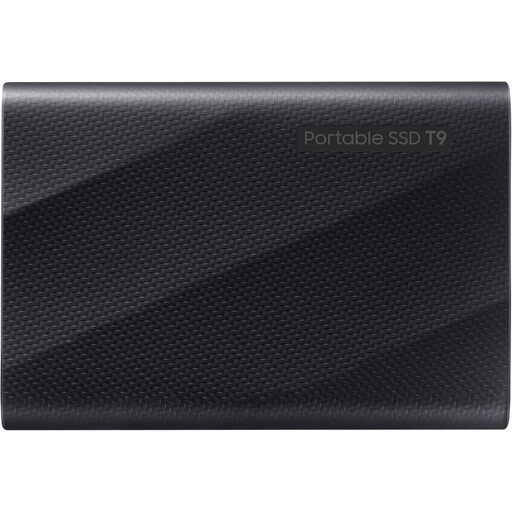 No image available
Samsung MU-PG4T0B 4 TB Black
Consider this portable SSD if your file collection calls for 4 TB of carryable storage.
USB Type-C 3.2 Gen 2x2 connection. Confirm that your computer supports the connection you intend to use; keep another copy of irreplaceable files.
View on Joybuy
 No image available
Samsung T7 Shield Portable SSD 1 TB Blue
This portable SSD suits carrying a selected file copy when 1 TB meets your storage needs.
USB 3.2 Gen 2 connection. Samsung’s T7 Shield resistance claims reflect controlled tests, not a guarantee against damage; check your host connection and maintain another backup.
View on Joybuy
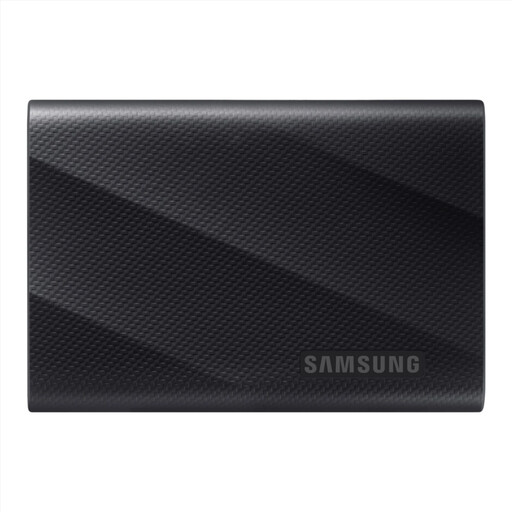 No image available
Samsung MU-PG2T0B 2 TB Black
A portable 2 TB option for keeping selected photo and computer files together.
USB Type-C 3.2 Gen 2x2 connection. Check the computer interface and file-system requirements for the devices you will use.
View on Joybuy
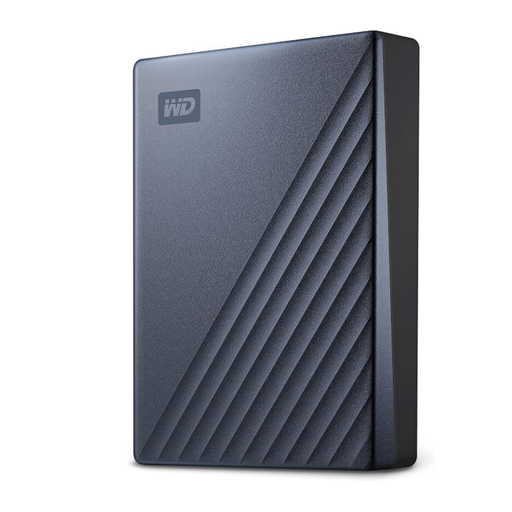 No image available
Western Digital My Passport Ultra 5 TB Blue
This portable external hard drive is an option for carrying a larger photo and file archive.
5 TB capacity. Confirm its format for the computers you intend to use, and keep a separate copy of important files.
View on Joybuy
Common questions
How large should a drive be for Time Machine?
Apple Support recommends a backup disk with at least twice the Mac’s storage capacity for Time Machine. That guidance is for a Mac backup disk, not a universal rule for selected folders or several computers; allow for the data and backup history you intend to retain.
Will an external drive automatically back up every file?
No: the drive must be used with a configured backup routine that covers the files you need. Microsoft Support says Windows File History backs up files in its included libraries, while Apple’s Time Machine requires a selected backup disk; check the folders covered and try restoring a file.
Can one external drive be used with both Windows and macOS?
It can be possible, but the drive’s format and the intended software determine how you can use it. Check the exact model’s format and both operating systems’ requirements before copying important files; Seagate says its Expansion Desktop drive needs reformatting for Time Machine.
What should I keep if an external drive develops a fault?
Keep proof of purchase, the model and serial details, and a record of the problem. Citizens Advice explains that a manufacturer’s warranty or guarantee adds to, rather than replaces, legal rights for faulty goods; the available remedy depends on the circumstances of the purchase and fault.


