Keepers of a growing family archive
If photos, scanned paperwork and computer files are filling your devices, work out how much space the collection needs and how you will maintain another copy. Transfer speed alone will not settle that decision.


For a growing home archive, consider a portable hard disk drive (HDD) when you need to carry a substantial file collection, a portable solid-state drive (SSD) for frequent transfers on compatible connections, or a desktop drive for files that mostly stay at home. Keep another copy separate from the computer and check device connections, formatting and backup-software requirements before buying; no single drive protects against every loss event.
If photos, scanned paperwork and computer files are filling your devices, work out how much space the collection needs and how you will maintain another copy. Transfer speed alone will not settle that decision.
If files need to move between Windows PCs, Macs or phones, check each device’s connection and the drive’s intended role. A format suitable for exchanging files is not automatically suitable for every backup tool.
If you regularly move recent media, a portable drive and supported transfer speed may matter more to you than a stationary archive setup. Check the host port and cable before relying on a stated maximum speed.
Choose whether the drive will hold an archive, move active files or serve a backup routine, then plan where an additional copy will live. Cloud storage can provide a separate location, while an offline or off-site copy addresses risks that a permanently connected drive may share with the computer.
| Concern | What to check | Who this matters to |
|---|---|---|
| Archive capacity | List the photos, records and backups you intend to keep; compare their current size with the exact drive capacity and allow for growth. | If years of photos and records are accumulating, I need room for the collection as well as future copies. Around 36% of consumers put archive capacity first. |
| Device compatibility | Check ports, cables, file format and the requirements of any Windows or Mac backup software before changing a drive’s format. | When files must work across our household’s devices, I need a setup that does not leave a backup unusable on the computer that needs it. Compatibility is the primary concern for around 29% of consumers. |
| Backup routine | Decide what gets copied, how updates happen and where a separate copy will be kept; check that important files can be restored. | If I might forget manual copying, I need a manageable routine and a copy apart from the live computer. Around 21% of consumers put that routine first. |
| Portable transfers | Match the drive interface to the computer’s port and cable; read any handling claims alongside their test conditions. | When I carry recent photos or videos between locations, I want transfers that suit my actual devices. Portable access is the leading need for around 14% of consumers. |
Seagate documents exFAT for file exchange between macOS and Windows, but Apple Support says Time Machine cannot back up to a disk formatted for Windows. Changing a disk’s format can erase its contents.
Decide whether the drive is for file exchange or a particular backup tool. Copy existing files elsewhere before reformatting, and check whether separate volumes or drives are appropriate.
Reformatting without another copy can mean losing files already on the drive.
The National Cyber Security Centre describes incidents affecting original files and connected backup locations, including removable drives and cloud accounts. A second location is not necessarily separate from the same connected incident.
Maintain another copy and consider keeping at least one backup offline or digitally disconnected between updates.
Seagate advises ejecting a drive before unplugging it because the computer may still be carrying out file operations.
Use the operating system’s eject or safely remove option before disconnecting the cable.
Samsung’s stated maximum speeds for the T7 Shield depend on a USB 3.2 Gen 2 host, a compatible cable and UASP support. Another connection may not deliver those figures.
Check the intended computer’s port and the cable you will use before making transfer speed the deciding factor.
Its My Passport portable and My Book desktop lines are relevant to different places a household might keep its files.
Seagate presents its One Touch family across portable HDDs, SSDs and desktop drives.
The T7 Shield line is relevant when a portable SSD will carry files between locations.
These portable HDDs, portable SSDs and a desktop drive offer local-storage options for family files. Choose a drive for its intended role, then arrange any separate cloud, offline or off-site copy your backup plan needs.
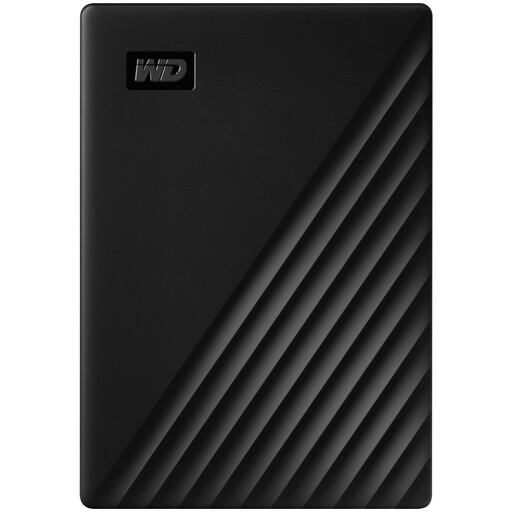 No image available
Consider this portable HDD if you need to carry a local copy of a growing photo and document collection.
Check the connection and your intended backup software before using it with a Mac.
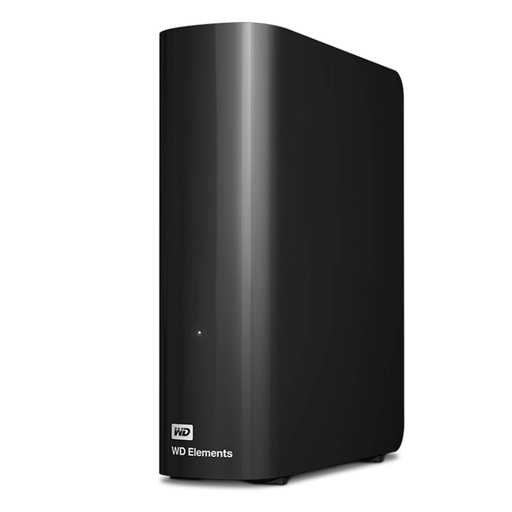 No image available
Consider this desktop drive for a large file collection that will mainly stay at home.
Check its power and connection requirements, along with the formatting needed for your chosen backup tool.
 No image available
This portable SSD suits carrying recent files and making frequent transfers when the connected device supports its interface.
It is specified as USB 3.2 Gen 2. Samsung’s maximum-speed figures for this T7 Shield variant require a compatible host, cable and UASP support.
 No image available
Consider this portable HDD for keeping a local copy of household photos and documents that you may need to move between locations.
Check the intended computer’s connection and any Mac formatting or backup requirements before use.
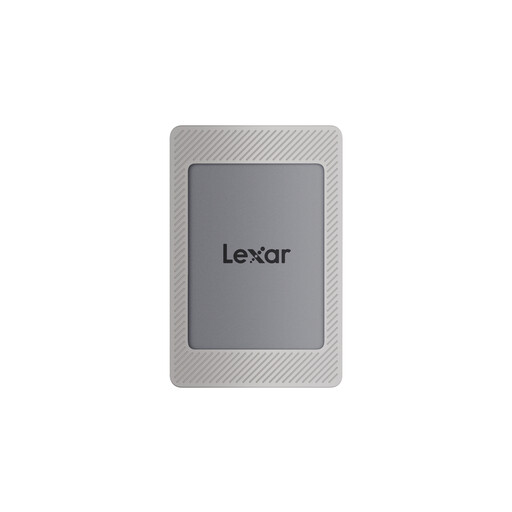 No image available
Consider this portable SSD if you want to move a larger collection of recent files among compatible devices.
Its stated interface is USB 3.2 Gen 2, with maximum read and write figures of 1,050 and 1,000 MB/s. Check the host and cable before relying on those speeds; check the attachment requirements if buying it for an iPhone 15 or 16.
Not without planning the drive’s separate roles. Seagate documents exFAT for reading and writing files on both systems, while Apple Support says Time Machine cannot back up to a disk formatted for Windows; check whether separate volumes or drives suit your setup, and copy existing files elsewhere before reformatting.
Yes, Microsoft says File History can make regular backups to an external drive or network location. Check which libraries and other folders are included so the files you care about are actually part of the routine.
No single drive protects against every loss event. The National Cyber Security Centre describes a backup as a copy kept in a separate safe location and recommends considering three copies on two devices, with one off-site; it also advises keeping at least one backup offline or digitally disconnected when not in use.
Check the exact model’s warranty, included cable, software and operating-system requirements, and whether any recovery service is included. Seagate specifies a two-year limited warranty and two-year Rescue Data Recovery Services for its listed 8 TB One Touch desktop model; do not assume those terms apply to another model.