Home photo archivists
You want a separate copy of photos, documents and a growing media library, rather than simply somewhere to move files when your computer fills up.


Choose an external hard disk drive (HDD) when you need substantial space for a regular local backup and transfer speed is secondary; choose a portable solid-state drive (SSD) when you frequently carry and move large photo or video folders, provided your computer's connection supports the speed you need. A USB flash drive is better suited to smaller transfers, while cloud storage can provide a separate copy alongside a local backup. Whichever route you take, moving files off a full laptop is not the same as keeping a recoverable backup.
You want a separate copy of photos, documents and a growing media library, rather than simply somewhere to move files when your computer fills up.
Your laptop is full, and you need room for older files or active projects while keeping practical access to them.
You regularly carry substantial photo or video folders and need to consider the computer port, cable and how the drive will be handled in transit.
Decide whether you need a dependable backup, room for a growing library or frequent transfers before comparing drive specifications.
Choose it when: You need substantial space for a mostly stationary photo archive or routine local backup.
Bear in mind: An HDD is less suited to frequent rapid transfers than an SSD, and one local drive should not be your only copy.
Choose it when: You often move large folders or carry working files between locations.
Bear in mind: Advertised transfer speeds depend on the host connection and cable; capacity still needs to fit your files.
Choose it when: You need to hand off a small document set or selected photos between devices.
Bear in mind: Its limited space and risk of being lost make it a poor sole home for a large photo archive.
Choose it when: You want a separate copy away from the computer and local drive, alongside your local setup.
Bear in mind: Access and automatic backups depend on your account, its security and a suitable internet connection.
| Concern | What to check | Who this matters to |
|---|---|---|
| A recoverable backup | Decide how you will make regular copies, where you will keep the drive when disconnected and how you will test a restore. | If my laptop or files are lost, I need a separate copy I can actually restore. Around 31% of consumers would put backup resilience first. |
| Capacity for growth | Compare your current files with the drive's capacity and allow for growth. For Time Machine, Apple advises a backup device with at least twice the Mac's storage capacity. | A full laptop and an expanding photo library leave me needing space for both today's files and future backups; roughly 31% of consumers would make capacity their primary concern. |
| Large-file transfers | Check the computer's USB capability and whether the cable supports the SSD's stated connection speed. | When I move substantial photo or video folders regularly, transfer time and carrying the drive matter most. Around 23% of consumers would prioritise speed and portability. |
| Format and privacy | Confirm the intended operating systems, backup-disk format and whether the exact drive supports the password protection you need. | I need the drive to work with my backup setup without risking existing files, or I need to protect personal data if it is lost; about 15% of consumers would put compatibility and privacy first. |
Moving the only copy of a photo folder from a full laptop to an external drive frees space but does not protect the folder if that drive fails or disappears.
Keep a separate copy, disconnect a local backup when it is not being updated and try restoring selected files. The NI Cyber Security Centre recommends copies on different devices, including one kept offline in another location.
A fast SSD cannot reach its stated connection-dependent speed if the laptop port or cable does not support the required mode.
Check the computer's USB specification and the supplied cable. For example, Samsung says the T7 Shield's stated maximum speeds require a USB 3.2 Gen 2 host and cable, with UASP enabled.
Changing a drive's format for a backup setup can erase files already stored on it. Apple says a Windows-formatted disk may need reformatting for Time Machine, which permanently removes its contents.
Make a separate, checked copy of those files before reformatting, then choose a format for the drive's intended use.
Password protection creates an access risk as well as protecting a lost drive. Western Digital warns that data on a supported drive cannot be recovered if its WD Security password is forgotten; the drive must be erased before reuse.
Keep the password and any applicable recovery information securely, away from the encrypted drive.
Relevant if you are comparing external HDDs, portable drives and desktop options for personal files and local backup.
Relevant if you are considering My Passport portable HDDs or My Book desktop storage and want to assess backup software or password protection.
Relevant if you carry large photo or project files and are considering a portable SSD such as the T7 Shield.
Relevant if you are comparing compact portable SSDs for carrying and transferring files.
These portable HDDs and SSDs address local storage for a growing file library or transfers between devices. Choose capacity for the files you intend to keep, and check your computer connection and backup method before relying on any drive as a separate copy.
 No image available
Consider this portable SSD if you need 4 TB for a substantial file library and frequently move files. It specifies USB Type-C 3.2 Gen 2; check your computer's port and cable before choosing it for transfer speed.
 No image available
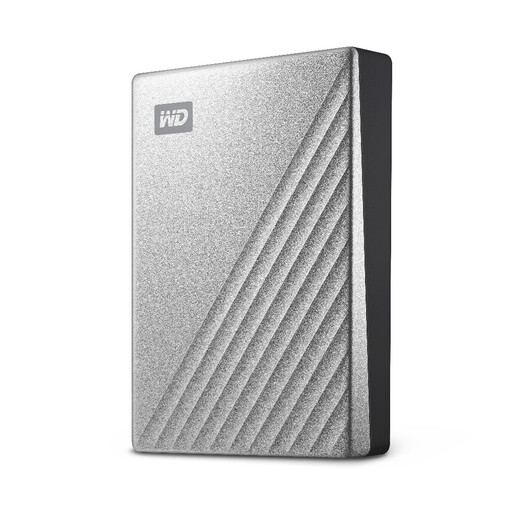
Consider this portable HDD if your priority is space for a growing photo or file archive: the listed capacity is 5 TB. If you plan to use it for scheduled backups or with a Mac, check the exact model's software and backup compatibility.
 No image available
This 4 TB portable HDD is an option for keeping a substantial local copy of photos and documents. For a Mac backup, check the drive's format and the backup software you intend to use before putting files on it.
 No image available
Consider this 1 TB portable SSD for moving files when you also want the T7 Shield's stated IP65 and drop-test features. Samsung's maximum transfer-speed specifications require a compatible USB 3.2 Gen 2 host, cable and UASP; its resistance claims are not a guarantee against damage.
 No image available
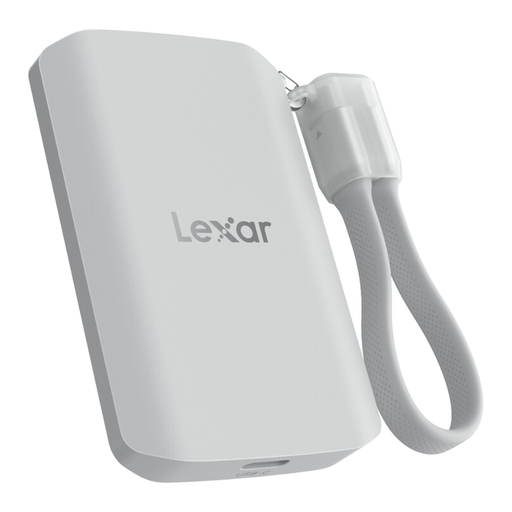
Consider this 1 TB portable SSD if you move large folders and can check whether your computer supports USB 3.2 Gen 2x2. Its listed read and write speeds are up to 2,000 MB/s; the product name also specifies IP65 and MagSafe attachment, so confirm phone compatibility if you plan to use those features.
No: one external drive can hold a backup copy, but it should not be the only protection for irreplaceable photos. The NI Cyber Security Centre recommends three copies on two different devices, with one kept offline in a different location. Disconnect a local backup when it is not being updated and check that you can restore files from it.
Apple advises a backup device with at least twice the Mac's storage capacity for Time Machine. That guidance is for a Time Machine backup, not every archive of selected files; for selected folders, consider the data you have now and room for growth.
It may be possible, but decide how the drive will be formatted before copying files to it. Apple says a Windows-formatted disk may need reformatting for Time Machine, which permanently erases its contents; APFS or APFS Encrypted is its preferred Time Machine format. Copy existing files elsewhere before making changes to the disk.
You may lose access to the files, depending on the drive's security system. Western Digital says data protected by WD Security on supported drives cannot be recovered if the password is forgotten, and the drive must be erased before reuse. Keep password and recovery information secure and separate from the drive.