What to check before buying
Start with the files you need to protect and how often they change, then check capacity, connection and the backup routine before choosing a drive.
| Priority |
What to check |
Your needs |
| Recoverable backups |
Choose a destination separate from the computer; set up a schedule where available; restore a sample file or folder after setup. |
I want recent photos and documents to be available after a computer failure, accidental deletion or malware incident. |
| Capacity |
Measure the folders you plan to protect before buying; allow room for future files and backup history. For a dedicated Mac Time Machine disk, Apple advises at least twice the Mac's storage capacity. |
My archive needs room to grow, and I do not want a new drive to fill immediately. |
| Connection and format |
Check the computer port and supplied cable; confirm whether the disk is for shared Windows/Mac files or dedicated Time Machine use. Reformatting erases stored files. |
I need the drive to connect without an unexpected adapter and fit the way our household uses Windows or Mac computers. |
| Portability and transfer routine |
Choose a portable HDD for a sizeable local archive that may move occasionally, a portable SSD for repeated large transfers, or a desktop drive for a fixed home archive. Confirm any quoted SSD speed against the host and cable conditions. |
I want storage that matches how often I transfer files and whether the drive will stay beside one computer or travel with me. |
Joybuy product options
These Joybuy options cover portable hard drives and portable SSDs for creating a separate local copy of household photos and documents.
 No image available
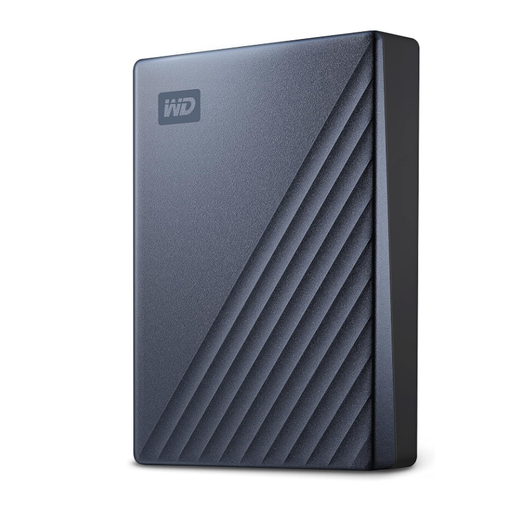
Western Digital My Passport Ultra 5TB Portable HDD
A portable local-copy option for a growing household photo and document archive.
Stated 5TB capacity, USB-C connectivity and a USB-C-to-USB-A adapter. The listing states that backup software can be configured for scheduled local backups.
It is pre-formatted for Windows; Mac use requires reformatting, which erases existing content. Keep another copy away from the home for off-site protection.
Joybuy
 No image available
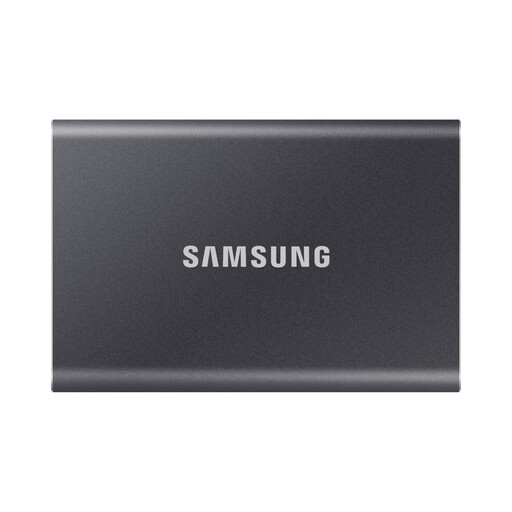
Samsung Portable SSD T7 4TB USB 3.2 Gen 2
Consider this portable SSD when you regularly move large photo collections between computers.
Stated 4TB capacity, USB 3.2 Gen 2, up to 1,050MB/s read and 1,000MB/s write, with USB-C-to-C and USB-C-to-A cables.
Its maximum speeds depend on a compatible USB 3.2 Gen 2 host and cable. Confirm the file-system setup before using it for a dedicated Mac Time Machine workflow.
Joybuy
 No image available
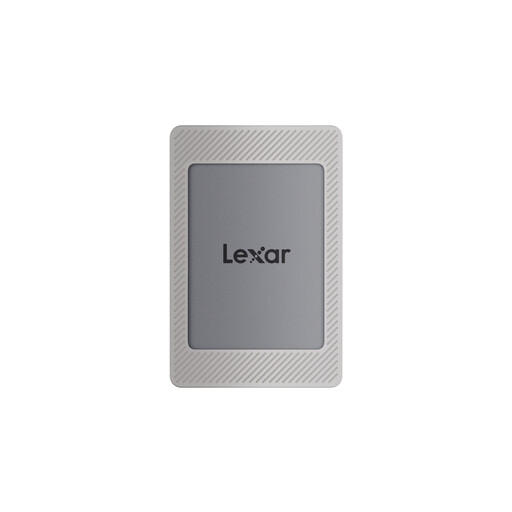
Lexar ES4 Portable SSD with Magnetic Set 2TB
A portable option for households moving files across computers and compatible Type-C devices.
Stated 2TB capacity, USB 3.2 Gen 2, up to 1,050MB/s read and 1,000MB/s write, plus USB-C-to-C and USB-A-to-USB-C cables.
Confirm the exact phone, tablet, operating system and file-management workflow before treating it as a direct mobile backup destination. Formatting may be needed for the intended system.
Joybuy
 No image available
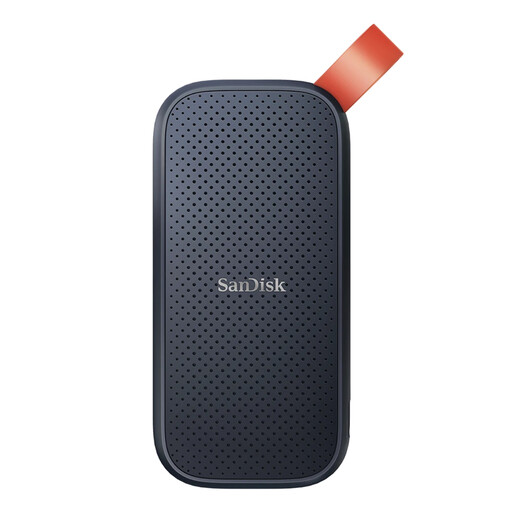
SanDisk Portable SSD 2TB
A compact local-storage choice for carrying a photo and document backup between computers.
Stated 2TB capacity, up to 800MB/s read speed, a USB cable and 2-metre drop protection.
Check the supplied connector, cable standard and file system against your computer before buying or formatting. Maintain a separate off-site or cloud copy for important files.
Joybuy
 No image available
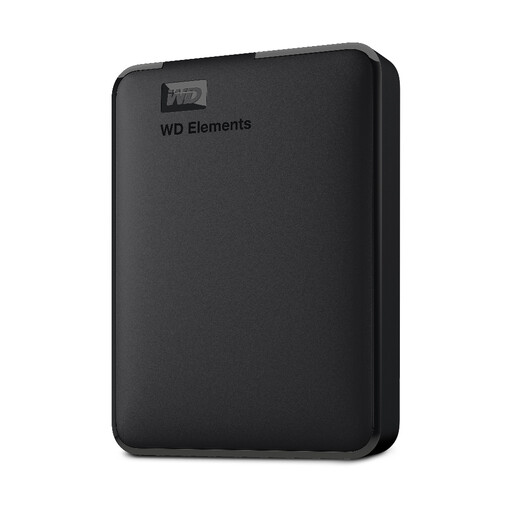
Western Digital Elements Portable 4TB
A high-capacity portable hard-drive option for periodic laptop or desktop backups.
Stated 4TB capacity, USB 3.2 Gen 1/USB 3.0 connectivity, a Micro-B drive connector and an included USB-A cable.
It is stated to be recognised automatically by Windows 10+; Mac users may need to reformat it. Set up a backup schedule and keep an additional off-site copy of irreplaceable files.
Joybuy
Frequently asked questions
How much external-drive capacity should I buy for a Mac Time Machine backup?
For a dedicated Time Machine disk, Apple advises using storage with at least twice your Mac's storage capacity. This guidance is specific to Time Machine rather than manually copied folders, and Apple recommends using the Time Machine disk only for Time Machine backups.
Can one external drive be used by both Windows and Mac computers?
Yes, for ordinary shared file storage, provided you use a suitable format. Apple Support identifies ExFAT as a Windows-compatible choice for disks over 32GB; copy files elsewhere first because formatting erases the disk. A shared Windows-formatted disk is not a dedicated Time Machine disk without reformatting.
Is dragging folders to an external drive enough for backup?
It can create a separate copy, but it only reflects the time you last copied the files and relies on you repeating the task. Windows File History can regularly back up selected libraries to an external drive or network location, while Time Machine can make Mac backups automatically after setup.
Should I leave my external backup drive connected all the time?
Leave it connected when an automated backup system needs access, but disconnect it when a backup is not being performed if your routine allows. The NI Cyber Security Centre advises this to reduce the risk of the backup being stolen or damaged with the computer.
Is cloud storage a replacement for an external backup drive?
Cloud backup can provide a separate-location copy and can be automated, but it does not necessarily replace the convenience of a local restore copy. UK cyber-security guidance notes that an online backup can remain unaffected if an external drive is destroyed in a fire, so a local-and-off-site arrangement is useful for important files.


