Buying priorities
Start with the files you need to protect, then check the connection path and backup routine before choosing capacity or headline transfer speeds.
| Priority |
What to check |
Your needs |
| Transfer speed and capacity |
Compare the drive capacity with current files, future growth and versioned backups. Check the host port, cable and USB standard before relying on stated read and write figures. |
I need enough room for a growing media library, while large imports, copies or editing should not be held back by an incompatible connection. |
| Portable handling |
For a drive carried in a bag, compare SSD and HDD construction. Check any stated drop or ingress rating and its test conditions rather than assuming all portable drives offer the same protection. |
I want a local copy I can carry between locations without making routine knocks an afterthought. |
| Device compatibility |
Confirm the exact USB-A or USB-C connection, adapter needs, filesystem, partition layout and power requirement. For phone use, check the device model and storage or OTG support. |
I need the drive to mount and transfer files on my own phone, tablet, Mac or Windows PC before it becomes part of my backup routine. |
| Backup routine |
Check whether File History, Time Machine or another backup tool can use the destination. Confirm important folders are included, leave room for backup history and test a sample restore. |
I want regular copies rather than occasional manual transfers, plus an independent copy for files that would be difficult to replace. |
Joybuy product options
Joybuy product options for portable SSD storage, suited to carrying photo and file collections between compatible devices. Check capacity, host connection, filesystem and backup coverage before relying on any drive as your only copy.
 No image available
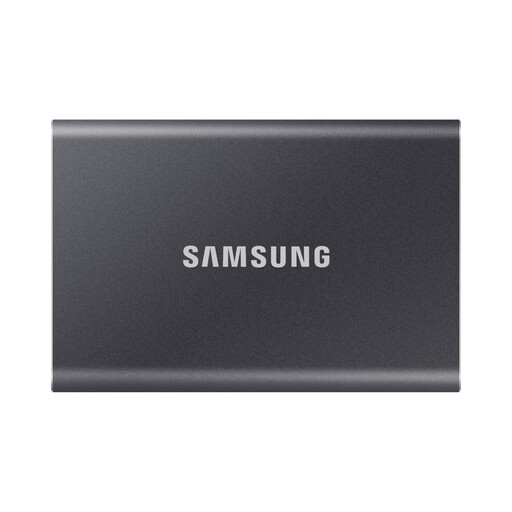
Samsung Portable SSD T7 4 TB USB Type-C 3.2 Gen 2 Grey
A portable option for a large photo, video and document collection that also needs faster copying between compatible computers.
The listing states 4TB capacity, USB 3.2 Gen 2, up to 1,050MB/s read and 1,000MB/s write, with USB-C-to-C and USB-C-to-A cables included.
Actual speeds depend on the host port and cable path. Check formatting and partition compatibility before using it as the only copy of important files; the listing does not describe water or dust resistance.
Joybuy
 No image available
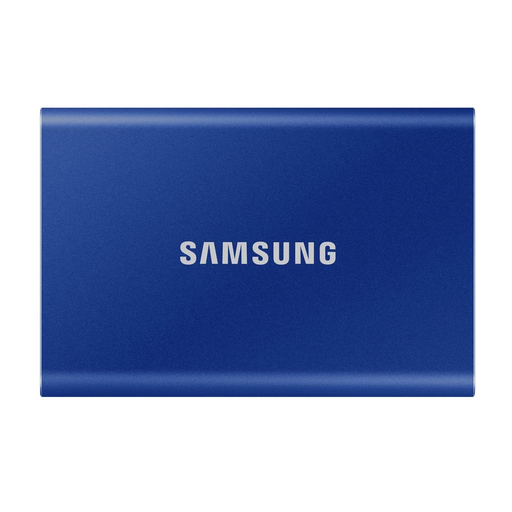
Samsung Portable SSD T7 2 TB USB Type-C 3.2 Gen 2 Blue
This compact SSD suits carrying a sizeable local copy and moving files between compatible computers.
The listing states 2TB capacity, USB 3.2 Gen 2, up to 1,050MB/s read and 1,000MB/s write, plus USB-C-to-C and USB-C-to-A cables.
Slower USB ports reduce achievable speed. The listing says it is not water- or dust-proof, so check that its handling limits and filesystem suit your workflow.
Joybuy
 No image available
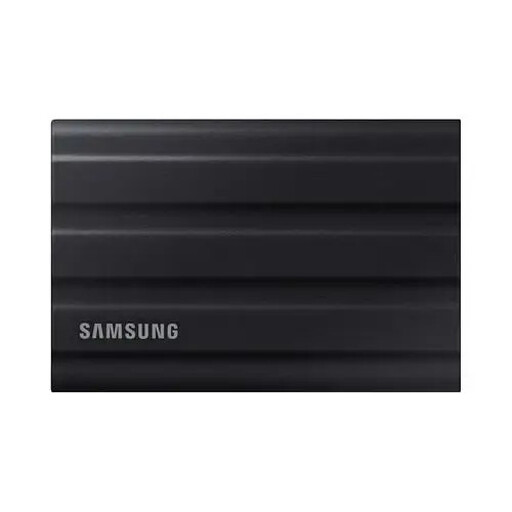
Samsung MU-PE1T0S 1TB USB Type-C 3.2 Gen 2 Black
A portable SSD for travel-heavy photo and video transfers where stated dust, water and drop protection are relevant.
The listing states 1TB capacity, USB Type-C, USB 3.2 Gen 2, up to 1,050MB/s read and 1,000MB/s write, IP65 resistance and up to 3m drop resistance.
IP65 protection is stated for temporary water exposure and not submersion. Compare 1TB with the source data and planned backup history, and check that the host and cable can support the required USB mode.
Joybuy
 No image available
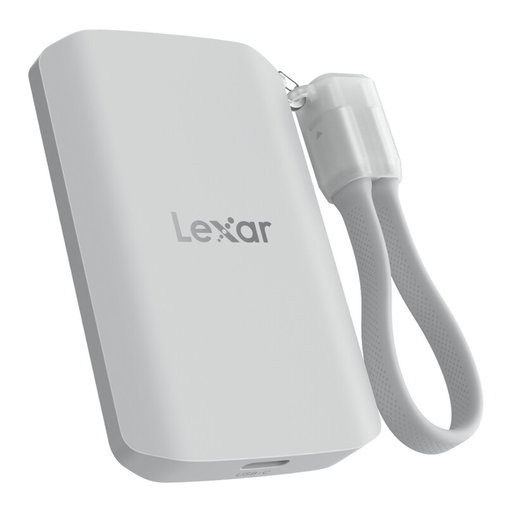
Lexar ES5 Portable SSD 1TB USB 3.2 Gen 2x2
This option is aimed at compatible mobile-led photo and video workflows as well as laptop storage.
The listing states 1TB capacity, USB 3.2 Gen 2x2, up to 2,000MB/s read and write, IP65 resistance, up to 3m drop resistance and app-based media auto backup.
Performance may be lower on hosts without USB 3.2 Gen 2x2. Direct Apple ProRes recording is stated only for iPhone 15/16 Pro series, while the listed app does not support iCloud backup.
Joybuy
No image available
Samsung Portable SSD T7 1 TB USB Type-C 3.2 Gen 2 Blue
A compact transfer and local-storage option for files and media shared between compatible computers.
The listing states 1TB capacity, USB 3.2 Gen 2, up to 1,050MB/s read and 1,000MB/s write, with USB-C-to-C and USB-C-to-A cables included.
Check whether 1TB leaves enough room for a growing archive and versioned backups. The listing states that the drive is not water- or dust-proof, and phone use depends on formatting, partitioning and device support.
Joybuy
Frequently asked questions
Can I connect an external drive directly to an iPhone for photos and files?
Yes, if the iPhone, connector or adapter, drive power requirement, partition layout and filesystem are compatible. Apple Support lists APFS, encrypted APFS, Mac OS Extended, exFAT, FAT32 and FAT among supported formats, requires one data partition, and notes that external HDDs often need their own power source.
Is exFAT useful for a drive shared between devices?
It can be a practical starting format for a cross-device transfer drive because Apple Support lists exFAT for iPhone external storage and Crucial UK ships the X9 in exFAT. Check every intended device and backup app before reformatting, as formatting erases existing data.
How large should a Mac Time Machine backup drive be?
Apple Support recommends a storage device with at least twice the storage capacity of the Mac. A dedicated Time Machine disk leaves room for backup history, although older backups are deleted when the disk becomes full.
Can a Windows external drive back up files automatically?
Yes. Microsoft Support says File History can make regular copies to an external drive or network location and restore earlier versions. Check that folders holding important files are included in the configured libraries.
Does an external drive alone make a complete backup plan?
No. An external drive can provide a useful local copy, but the UK National Cyber Security Centre says backups are not ransomware-resistant by default. Keep a separate recoverable copy and periodically test that important files can be restored.


