Laptop and phone photo-library owners
If your laptop is filling with photos and videos, a portable or desktop drive can provide another local destination. Choose where the backup copy will live separately from the files you use day to day.


For a growing photo and video library, choose a portable hard drive if you need to carry substantial local storage, a portable SSD if frequent large transfers make connection speed important, or a desktop drive if the library mainly stays at one workstation. A network-attached storage device can bring several household devices together, while cloud storage can provide a separate copy alongside local storage; both require their own setup and safeguards. Whichever route you choose, the National Cyber Security Centre’s guidance is to keep a backup separate from the original files rather than rely on one device.
If your laptop is filling with photos and videos, a portable or desktop drive can provide another local destination. Choose where the backup copy will live separately from the files you use day to day.
If you regularly transfer footage away from home, consider the space you need to carry and the ports and cables on your devices. A faster drive is useful only when the connection can support the workflow.
A network-attached storage device, or NAS, can provide a shared location for computer backups and phone uploads. Synology describes these functions for its DS223; the enclosure also needs compatible disks and a separate backup destination.
Start with the size of the library and how you move files, then decide how you will keep a separate copy. A drive with enough space is not, by itself, a complete backup routine.
| Priority | What to check | Your needs |
|---|---|---|
| Separate copies | Decide which files are originals and where an additional copy will stay. Check that recent files can be restored; disconnect removable backup media when it is idle, as advised by the National Cyber Security Centre. | I do not want moving my photos onto a drive to leave that drive holding the only copy. |
| Capacity | Compare the current library with the drive’s stated capacity, allowing for new photos, video projects and any backup versions you intend to retain. Check the capacity of the exact variant. | My collection keeps growing, so I need space for what I have now and what I expect to keep. |
| Transfer workflow | Check the drive interface, computer port and cable together. Samsung says the stated maximum speeds for its T7 Shield require a USB 3.2 Gen 2-capable host and cable; performance varies with the host configuration. | When I regularly move large video files, transfer time matters more to me than it would for an occasional archive copy. |
| Device compatibility | Check the required connector, operating systems and file format before transferring files. Apple documents ExFAT for disks over 32 GB intended for both Mac and Windows use; erasing a disk to change its format deletes its contents. | I use more than one computer and need to know whether each can access the drive without risking files already on it. |
| Location and power | Decide whether the storage must travel or can remain at a desk. For a desktop drive, check its power supply and the space available at the workstation. | Some files need to come with me; the rest can stay at my usual desk. |
| Shared access | For a NAS, check compatible disks, phone-upload and computer-backup features, account access and a further backup destination. Synology describes scheduled computer-folder backups for its DS223. | Several people or devices need a common place for media, and I can manage a network device rather than connect a drive each time. |
If the originals are deleted after transfer, the external drive may become the only place those files exist. The National Cyber Security Centre defines a backup as a copy stored in a separate safe location.
Keep another copy elsewhere, check that recent files can be restored and disconnect removable backup media when it is not being used.
A quoted maximum does not describe every computer-and-cable combination. Samsung says the T7 Shield’s stated maximum transfer speeds depend on a compatible host and cable.
Check your computer port, the cable and the requirements of the exact SSD before deciding whether its speed suits your work.
Erasing a drive to change its format deletes its contents, according to Apple Support.
Copy files you need to another location and check that the copy opens before reformatting. For a disk over 32 GB shared between Mac and Windows, Apple documents ExFAT as an option.
A NAS can receive files from several devices, but files held only on that NAS still depend on one system.
Plan a separate destination for NAS data and check that you can restore from it.
A NAS enclosure also needs compatible storage disks, as well as time to set up and maintain access to the device.
These examples illustrate different storage routes; a feature described for one model should not be assumed to apply to every product from the same brand.
The portable T7 Shield SSD line is relevant when compact storage and frequent media transfers matter.
The Expansion Desktop range is a desk-based local-storage route rather than a drive intended for regular travel.
The two-bay DS223 is a NAS option for bringing household media and computer backups into one location.
Western Digital has portable and desktop hard-drive lines relevant to local media storage.
These options cover portable hard drives, portable SSDs and a desktop hard drive for keeping a local photo and video library. Choose a separate backup destination as part of the same plan.
 No image available
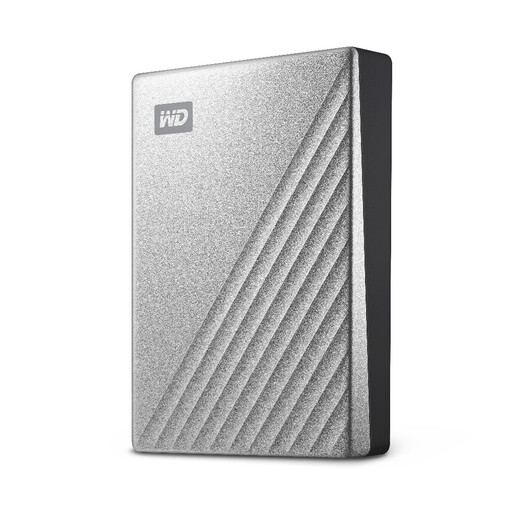
Consider this 4TB portable drive for a library you need to carry between locations. Compare its capacity with your files and check the connection and file-system setup against your computer; keep another copy of important media separately.
 No image available
This 1TB portable SSD is an option for carrying media and making frequent transfers. Check whether 1TB holds the files you intend to keep and whether your device and cable support the stated connection; do not use it as the only copy.
 No image available
The 2TB capacity may suit a portable working collection if it covers your current files and expected growth. Confirm the connector and operating-system compatibility for your devices before choosing it, and arrange a separate backup copy.
 No image available
This 10TB desktop drive is a local-storage option for a library kept mainly at one workstation. Check its power, connection and file-system requirements for your setup, and keep an additional copy outside the drive.
 No image available
This 4TB portable hard drive is an option when the local library needs to travel. Check your computer’s USB connection and file-system requirements before moving files, and retain a backup elsewhere.
No. The National Cyber Security Centre defines a backup as a copy stored in a separate safe location. Keep an additional copy away from the original files, check that recent files can be restored and disconnect removable backup media when it is not in use.
Yes, if its connection and file format suit both computers. Apple documents ExFAT for disks over 32 GB intended for Mac and Windows use. Changing a drive’s format erases it, so safeguard existing files first.
Microsoft says File History can make regular backups to an external drive or network location. Check that it includes the folders holding your photos and videos, and add media folders outside the standard libraries if needed.
No. For the T7 Shield, Samsung says the stated maximum speeds require a compatible USB 3.2 Gen 2 host and cable, and performance varies with the host configuration. Check the requirements of the exact drive against your laptop and cable.