What should you check first?
Start with the files you actively use, then decide how you will retain a separate copy. An SSD, hard drive, flash drive, cloud account and home storage hub solve different parts of that task.
Portable SSD
Consider it when: You regularly carry or work with large active project folders.
Keep in mind: Advertised transfer speeds depend on the computer port and connection; one drive is still only one copy.
External hard drive
Consider it when: You want a place for completed projects, source media or a separate backup, particularly if the drive will mostly stay at home.
Keep in mind: Check the connection and format before making it part of your backup routine.
USB flash drive
Consider it when: You need to carry a presentation or move a manageable set of files between computers.
Keep in mind: Use it for transfer rather than as the only location for assessed work.
Cloud storage
Consider it when: You need cross-device access or an off-device copy and your account and university rules permit the intended use.
Keep in mind: Online-only files need an internet connection, and university-managed accounts can have restrictions or an end date.
Home storage hub
Consider it when: Several devices need a shared home location and you are willing to manage the network setup.
Keep in mind: A hub also needs a separate backup destination; it is not necessary for a simple one-computer transfer task.
| Concern | What to check | Who this matters to |
|---|
| Active large files |
Measure a working folder, including source files and exports; check capacity, ports and the connection needed for stated speeds. |
If I edit large video, CAD or design folders away from my main computer, I need room and convenient access without repeatedly clearing files. Around 36% of consumers put active large-file work first. |
| Independent backup |
Choose a separate destination; check that copies complete and that essential files can be restored. |
Losing my laptop must not mean losing the only copy of assessed work. For around 29% of consumers, a recoverable backup is the primary concern. |
| Retained capacity |
Count completed projects, source media and versions you plan to keep; check the drive capacity and connection. |
When finished projects accumulate, I want to retain their source files without relying on my laptop alone. Keeping larger archives is the first concern for around 21% of consumers. |
| Cross-device access |
Check ports and drive format, which cloud files work offline, and university rules for sensitive data. |
If I switch between campus and personal devices, I need files to open where I work, including when I am offline. Around 14% of consumers primarily need dependable access across devices. |
Joybuy storage options
These portable SSDs suit active-file storage, the flash drive suits transfers, and the hard drive offers space for retained project folders. Choose capacity against your own files and keep a separate backup of irreplaceable work.
 No image available
Samsung T7 Shield Portable SSD, 1 TB, Blue
Consider this portable SSD for carrying active project folders if 1 TB accommodates your files and expected growth.
The product name specifies USB 3.2 Gen 2. Check the connection on the computers you use, and keep a separate backup.
View on Joybuy
 No image available
Samsung Portable SSD T7, 2 TB, Grey
The 2 TB capacity may suit larger active project folders if it covers your source files, exports and versions.
The product name specifies USB Type-C and USB 3.2 Gen 2. Samsung says advertised maximum T7 speeds depend on the host device and connection; keep another copy of important files.
View on Joybuy
 No image available
SanDisk Portable SSD, 2 TB
This is another portable option for active files when 2 TB fits the folders you need to carry.
Check the connector against your devices before buying, and keep a separate recoverable copy of assessed work.
View on Joybuy
 No image available
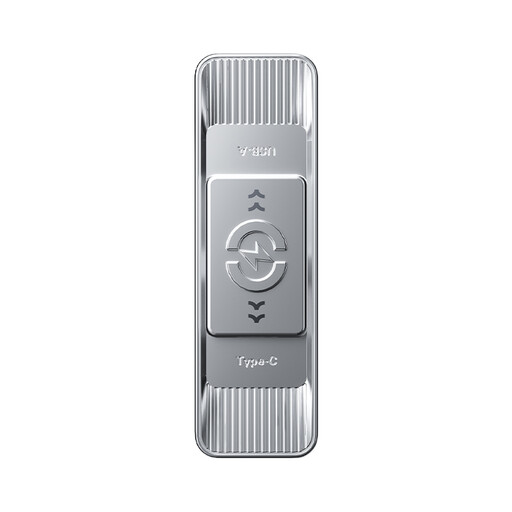
MOVESPEED YSUSP05-512GSR USB Flash Drive, 512 GB, Silver
Consider this flash drive for moving files between compatible computers, rather than storing the only copy of your coursework.
Its product name specifies USB-A and Type-C interfaces and USB 3.2 Gen 1. Check the format required by the devices you use.
View on Joybuy
 No image available
Western Digital Elements Portable Hard Drive, 4 TB, Black
The 4 TB capacity is worth considering for retained project folders or a backup set if it accommodates the files you plan to keep.
The product name specifies USB 3.0. Check the drive format for your computer before copying files, and do not make this drive the sole copy of important work.
View on Joybuy
Frequently asked questions
How much external storage do I need for university projects?
Measure your current working folders, then account for source files, exports, versions and future projects. Essay-based work generally needs less space than media-heavy design work; the useful capacity depends on the files and software you actually use.
Can cloud storage be my only coursework backup?
Do not assume that a synced cloud folder is a complete backup. The National Cyber Security Centre describes a backup as a copy kept in a separate safe location; check that the right folders have synced and that you can recover them, and keep another copy where needed.
Can I use the same external drive with a Mac and a Windows PC?
Yes, if the drive has a suitable format and connection for both computers. Apple recommends ExFAT when formatting a disk over 32 GB for use with Windows; formatting erases existing files, so copy them elsewhere first.
Can sensitive coursework go in a personal cloud account?
Check your university’s current rules before uploading confidential, participant or research data. Requirements vary: the University of Dundee, for example, requires research data to be stored using secure university IT facilities, but its policy should not be assumed to apply to every institution.
What happens to files in my university cloud account when I leave?
Account access and file-retention rules depend on your institution, so arrange another permitted copy before access ends. Oxford University Centre for Integrative Neuroimaging says files in the relevant OneDrive account are deleted 60 days after its single-sign-on account expires; check the rules for your own account rather than relying on that timeframe.


