What matters when choosing?
Start with the sensitivity of the files and the recipient’s access requirements. Then measure the handover folder and decide whether frequent transport or quicker copying makes an SSD worthwhile for your workflow.
| Concern | What to check | Who this matters to |
|---|
| File protection |
Check whether the scans contain personal information, how encryption is enabled and how the recipient will receive the password separately. |
If my handover contains sensitive client scans, I need to limit access if the drive is misplaced. Around 40% of consumers put file protection first. |
| Recipient access |
Confirm the recipient’s operating system and ports, whether they need to write to the drive, and how they will unlock it. |
I need the client to open the files and perhaps add revisions without changing computers. Recipient access is the primary concern for around 30% of consumers. |
| Transport and archive size |
Measure the complete folder, including originals and index files; check carrying conditions and the computer and cable needed for rated transfer speeds. |
When I carry a sizeable archive between locations, I need enough space and a drive suited to the journey. Around 30% of consumers prioritise transport and capacity. |
Joybuy product choices
These portable SSD and HDD choices cover different archive sizes and carrying needs for a scanned-document handover. Check the recipient’s ability to connect to and unlock the exact drive before transferring client files.
 No image available
Samsung Portable SSD T7 4 TB, Grey
Consider this portable SSD if the measured scan archive calls for 4 TB of storage. Its title specifies USB 3.2 Gen 2 Type-C connectivity; for sensitive files, configure and test password access before handover.
View on Joybuy
 No image available
Samsung Portable SSD T7 2 TB, Blue
This 2 TB portable SSD is a choice when that capacity accommodates the complete handover folder. It has USB 3.2 Gen 2 Type-C connectivity; set up and test optional password protection if the scans require it. This model is not described as waterproof or dustproof.
View on Joybuy
 No image available
Samsung T7 Shield MU-PE1T0S 1 TB, Black
Consider this SSD when a 1 TB archive will travel between locations. Samsung states that the T7 Shield underwent IP65 and 3-metre-drop testing; these ratings do not provide damage cover. Its quoted maximum speeds require a suitable host, cable and UASP, while password protection needs setting up and testing before handover.
View on Joybuy
 No image available
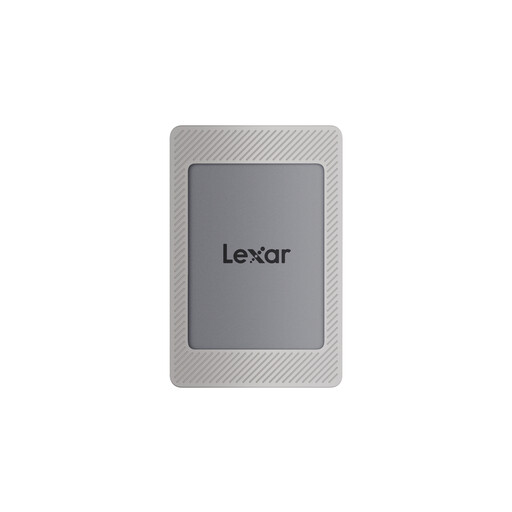
Lexar ES4 Portable SSD with Magnetic Set 2 TB
This 2 TB SSD is another portable option for a measured scan archive. Its title specifies USB 3.2 Gen 2 and up to 1,050 MB/s read and 1,000 MB/s write speeds; confirm that the receiving computer can connect to and unlock the chosen setup before handover.
View on Joybuy
 No image available
Western Digital My Passport 2 TB, Black
Consider this 2 TB portable HDD when the archive fits and careful transport is practical. Set up and test password access if the files require protection; the drive description identifies NTFS formatting and a downloadable driver for macOS use, so confirm the client’s read/write workflow.
View on Joybuy
Common questions
Do client scans mean I must buy an encrypted drive?
Not automatically for every handover: the appropriate security measures depend on the information and its risks. For personal information, the Information Commissioner’s Office advises using encryption when storing or transmitting it, so decide how the files will be protected and how the authorised client will unlock them.
Should I use an SSD or an HDD for scanned documents?
An SSD is worth considering for frequent carrying or sizeable batches that you need to copy promptly; check the computer and cable before relying on a quoted maximum speed. A portable HDD is another route when archive capacity is the priority and you can transport it carefully. Measure the complete handover folder before choosing either.
Can a Mac client write to a drive prepared on Windows?
That depends on the drive’s file system, not just whether the Mac can connect to it. Seagate’s One Touch documentation says macOS can read NTFS volumes but cannot natively write to them; agree whether the client must add files, then test the chosen format.
How should I give the client the drive password?
Use a separate, agreed channel rather than attaching the password to the drive or placing it in the same package. The Information Commissioner’s Office advises keeping passwords away from encrypted devices; also agree who will retain access after handover.
What should I do with the working copy afterwards?
Keep copies according to the applicable retention policy and client agreement. If storage media later leaves your control, consider an appropriate sanitisation process: the National Cyber Security Centre explains that sanitisation reduces the likelihood of retrieving stored data.


