Families gathering photos from several devices
A local drive gives you a destination for copies from phones and computers. Decide how you will update those copies and where you will keep one away from the original devices.


Choose a portable hard drive for a carryable copy of a growing photo library, an external SSD if you regularly move large videos between compatible devices, or a desktop hard drive for a large archive that stays at home. If the drive will travel with sensitive files, consider access protection as well as capacity. Whichever drive you choose, keep another copy separate from the original device and check that you can restore your files.
A local drive gives you a destination for copies from phones and computers. Decide how you will update those copies and where you will keep one away from the original devices.
If you transfer videos frequently or carry files between computers, consider an SSD alongside the drive’s capacity. Check the ports and cables you will actually use; a phone connection also needs to suit that phone.
If a drive may be lost while travelling, password- or PIN-based access protection is worth considering. Keep a separate copy too: restricting access to a lost drive does not help you recover its files.
Start with how often you will move files and whether the drive will stay at home, then check capacity, device compatibility and your plan for keeping a separate copy.
| Priority | What to check | Your needs |
|---|---|---|
| Capacity and location | Check the space your photos and videos already occupy and leave room for new files. Compare a carryable drive with a desktop model that needs a fixed place and, where specified, mains power. | Our shared photo library keeps growing, but the drive can stay near a home computer. A desktop hard drive may fit that routine; if we need to take the copy elsewhere, portability matters more. |
| Transfer routine | Consider how often you copy large videos or work from the drive. Which? describes SSDs as generally faster than HDDs, while noting their higher cost; check the host port and cable before relying on a stated maximum speed. | I move large video files regularly and would use a portable drive between devices. For occasional archive copies, I would put less weight on transfer speed. |
| Device compatibility | Check the connector, cable, file system and write support on every device that will add files. For direct phone transfers, check the phone’s connection and any adapter; confirm restrictions on a managed Chromebook. | Photos come from both phones and computers, so the drive needs to work with the devices doing the copying—not just the computer used to set it up. |
| Recoverable copies | Decide when to update the drive, where to keep a copy apart from the original and how to test restoration. The NI Cyber Security Centre recommends three copies on two different devices, with one kept offline. | I want to be able to open the photos if a phone or computer becomes unavailable. A drive kept beside that device should not be the only other copy. |
| Access protection | Check whether a travelling drive offers password or PIN protection and how you will retain access credentials. Encryption restricts access but does not create another copy. | If family photos travel alongside sensitive personal files, I want to limit access if the drive is lost without making the backup impossible to restore. |
A drive stored with the original device can be affected by the same loss or damage. The NI Cyber Security Centre recommends keeping a copy offline as part of a separate-copy arrangement.
Update a separate copy regularly, disconnect an external drive when a backup is not running and periodically restore a few files to check that they open.
Apple warns that erasing or formatting a drive deletes the files on it. A format that works for reading files on one computer may not allow the household’s other devices to write to it.
Check the existing format and each device’s write support before setup. Make another copy of any files you need to keep before reformatting.
If the drive holds the only accessible copy of your photos, erasing it can leave those files unavailable.
Samsung says maximum T7 transfer speeds depend on a compatible host, cable and USB connection. That figure may have little bearing on a routine of occasional photo copies.
Check your computer or phone port and the cable you will use. Give transfer speed more weight if you move large files frequently; otherwise, compare the capacity you need.
PIN- or password-based protection controls access to a drive; it cannot replace a separate backup if the drive is lost or fails.
Keep another copy apart from the encrypted drive and store the access details securely so the person restoring the files can use them.
Losing the required PIN or password can prevent access to the backup when it is needed.
These examples illustrate different drive types and features; a brand’s inclusion does not make every model suitable for the same household.
PCMag UK’s 2026 external-drive roundup includes the portable WD My Passport 6TB and the desktop WD My Book.
Samsung’s T7 and T7 Shield lines are portable SSD options for households that move files between compatible USB devices.
PCMag UK’s 2026 roundup includes a Seagate One Touch 8TB among its external-drive selections.
The iStorage diskAshur DT² is a desktop hard drive with PIN authentication and AES-XTS 256-bit hardware encryption, according to iStorage.
These portable HDDs, portable SSDs and one desktop HDD offer different ways to keep a local copy of household photos. Compare the listed capacity and connection with your devices, then plan where another copy will live.
 No image available
A portable SSD to consider if you move a large photo or video library between devices. The title specifies 4 TB and USB 3.2 Gen 2; check the host port and cable before relying on maximum-speed claims, and confirm the file system and phone compatibility for your setup.
 No image available
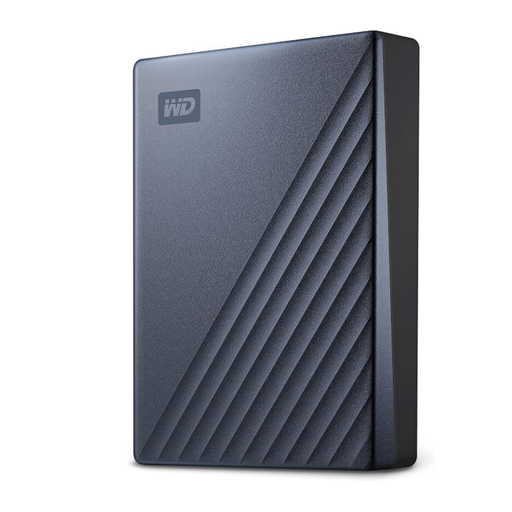
A portable hard drive for a growing collection copied periodically from household computers. Its stated capacity is 5TB; check the format and write support on each intended device, and safeguard another copy before any reformatting for Mac use.
 No image available
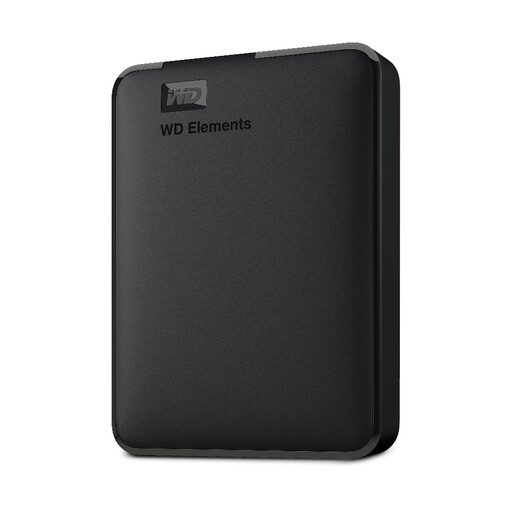
A carryable HDD option for periodic copies of photos and videos. Its title states 2TB and USB 3.0; check the drive’s format and write compatibility before using it across your particular computers or phones.
 No image available
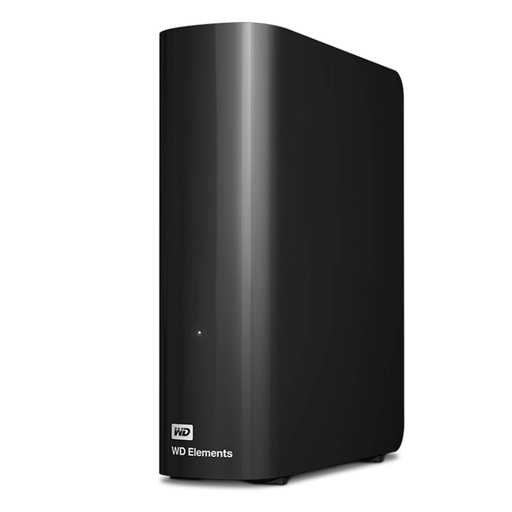
A desktop option for a large household photo and video collection that stays in one place. Its stated capacity is 10TB; allow for a mains connection, and protect another copy of your files before any reformatting needed for Mac use.
 No image available
A portable SSD to consider when you regularly carry a smaller photo or video collection. Its title states 1 TB and USB 3.2 Gen 2; do not treat the product’s protection claims as permission to submerge it, and check your host connection, file system and phone compatibility.
No. A drive holding separate files is an extra copy, but one kept beside the original device can be affected by the same event. The NI Cyber Security Centre recommends three copies on two different devices, with one kept offline; update your copies and test that you can restore files.
Choose a file system that supports the way both computers need to use the drive before moving your photos. Apple identifies ExFAT and MS-DOS (FAT) as Windows-compatible formats and warns that a Mac may read an NTFS drive without being able to write to it; formatting erases files already on the drive.
Yes, Apple documents exporting unmodified photo and video originals to connected external storage. Check your iPhone’s Lightning or USB-C connection, any adapter needed and whether the storage device works with that setup; unlock the phone when required.
Google says Chromebooks support external storage including SD cards and USB hard drives. Check the particular drive and connection, and confirm any restrictions if the Chromebook is managed by a school or employer; safely eject removable storage after use.
Do not plan to use the same storage device for both. Apple says a Photos library cannot be stored on a device used for Time Machine backups; its guidance for moving a Photos library calls for Mac-formatted external storage such as APFS or Mac OS Extended (Journaled).