Households keeping photos and documents
If losing these files would matter, plan for a copy stored separately from the computer. The National Cyber Security Centre distinguishes a backup from storage added in the same place.


Choose how you will keep a separate backup copy before choosing a drive. A portable hard drive can be disconnected and stored elsewhere after copying a large collection; a portable SSD suits frequent transfers when the connection supports it; and a mains-powered desktop drive suits a fixed home archive. Whichever you choose, a drive kept connected beside the computer should not hold your only extra copy of important files.
If losing these files would matter, plan for a copy stored separately from the computer. The National Cyber Security Centre distinguishes a backup from storage added in the same place.
Decide whether a drive is for sharing files or for dedicated Mac backups. Apple says Time Machine cannot back up to a Windows-formatted disk, so the drive’s intended role matters before you format it.
Compare the space needed for files and older copies with how often you carry the drive. For transfer speed, check the laptop port and cable as well as the drive’s stated USB connection.
Start with where the extra copy will live, then size the drive and check that it works with your backup software and connections.
| Priority | What to check | Your needs |
|---|---|---|
| Separate copies | Decide when a removable drive will be disconnected and where another copy will be kept. The National Cyber Security Centre warns that an incident can affect both a computer and its connected USB backup drive. | I want my important files to remain recoverable if the computer and a connected drive are affected together. |
| Capacity and history | Measure the files you intend to copy and allow for the older versions you want to retain. For Time Machine, Apple recommends a disk with at least twice the Mac’s storage capacity; that is not a universal rule for manual copies. | My photo and document collection needs room to grow, and I may want to restore an earlier version rather than just the latest file. |
| File-system fit | Choose the drive’s role before formatting it. Apple says Time Machine cannot use a Windows-formatted disk; check the intended setup before using one drive for both shared files and Mac backups. | We use both Windows and Mac, so I need to know whether this is a shared file drive or a dedicated backup disk. |
| Connection and location | Check the computer port, cable and any hub against the drive’s USB specification. A portable drive is easier to move between locations; a desktop drive needs a fixed place and mains power. | I may carry a copy away from home, or leave a larger archive in one place. If I regularly copy large files, transfer time matters too. |
The National Cyber Security Centre warns that ransomware can affect connected USB storage as well as files on the computer.
Disconnect a backup drive when it is not in use, or rotate copies between locations. Check periodically that you can restore important files.
Apple says Time Machine cannot back up to a Windows-formatted disk. Reformatting a drive can erase files already on it.
Copy existing files elsewhere first. Decide whether you need a shared file drive, a dedicated Time Machine disk or separate drives for those jobs.
The connection can limit transfers: Seagate notes the effect of using a slower USB port, while Samsung’s stated T7 Shield maximum requires compatible USB 3.2 Gen 2 hardware, cable and UASP support.
Check the whole connection path, including any hub. Speed does not make a connected copy independently protected.
The National Cyber Security Centre notes that connected credentials or authorised clients can put a cloud backup at risk.
If you use cloud storage alongside a physical drive, protect the account and keep another copy of irreplaceable files physically separate or offline.
Seagate’s Expansion Portable and Expansion Desktop lines illustrate removable and fixed-location hard-drive choices for household archives.
Samsung’s T7 Shield is a portable SSD line to consider when frequent large-file transfers matter.
Transcend’s ESD310 portable SSD addresses setups that use both USB Type-A and Type-C connections.
These portable SSDs, portable hard drives and a desktop hard drive offer different ways to keep a physical copy. Choose a capacity and connection for your files, then plan where a separate copy will be kept.
 No image available
A portable SSD option for a household collection and regular file transfers. Check that 4 TB covers the files and backup history you want, and confirm the intended Mac backup setup before use.
 No image available
A portable SSD for moving files when 1TB is sufficient for the intended copies. Check the computer and cable before relying on a stated maximum transfer speed, and keep another copy separately.
 No image available
A portable hard drive for a Mac-centred file collection. Windows use is described as requiring a downloadable HFS+ driver; confirm the intended setup and Time Machine readiness. Check the applicable warranty term before choosing this variant.
 No image available
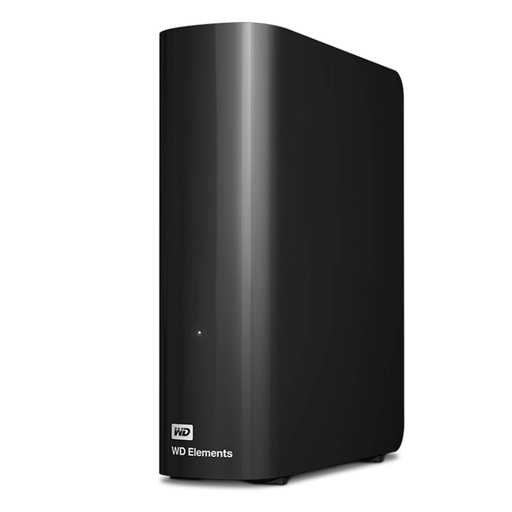
A fixed-location hard drive for a larger household archive. It needs mains power, and Mac use is described as requiring reformatting; copy any existing files elsewhere before doing so. Keep another backup copy away from the connected drive.
 No image available
A portable hard-drive option for removable copies of household files. Check whether 4TB allows for the history you want; Mac use may require reformatting, so confirm the intended file system and backup setup first.
No. The National Cyber Security Centre defines a backup as a copy kept in a separate safe location and warns that an incident can affect both a computer and connected USB storage. Disconnect or rotate a copy so it is not always exposed alongside the original files.
Apple recommends a backup disk with at least twice the storage capacity of your Mac. That is a Time Machine guideline, not a sizing rule for every manual file copy; consider how many older versions and devices the disk must accommodate.
A drive can serve shared files, but decide its job before formatting it. Apple identifies ExFAT as Windows-compatible while saying Time Machine cannot back up to a Windows-formatted disk; reformatting can erase files already on the drive.
Microsoft says File History backs up libraries and can restore earlier versions. Choose an external drive or network location in File History, and check whether folders outside your libraries need to be added to the backup arrangement.
No. Connector shape alone does not establish the transfer speed. Check the drive, computer port, cable and any hub; manufacturer-stated maximum speeds can require a particular USB connection and host support.