What matters when choosing a drive?
Start with the size of the files and backup history you intend to keep, then check how the SSD will connect and how often you can back up and restore files.
| Concern |
What to check |
Who this matters to |
| Backup capacity |
Measure the files and accounts to protect; allow space for growth and retained versions if your backup tool keeps them. |
As family photos and videos grow, I want space for current files and later backups. Around 37% of consumers put capacity first. |
| Connection and setup |
Match the computer’s port to the supplied cable or adapter, and check that your intended backup tool can use the drive. |
If our computers have different USB ports, I need a connection I can use whenever it is time to back up. For around 27% of consumers, straightforward setup is the primary concern. |
| Physical protection |
Check the exact model’s stated protection conditions and warranty exclusions if the drive will be carried or stored away from a desk. |
When I move the backup between locations, I worry about knocks and exposure during transport. Physical resilience comes first for around 18% of consumers. |
| Repeatable backups |
Check the computer’s USB capability before relying on a quoted speed, and plan when to back up and test a restore. |
I need backups and occasional restores to fit a routine I can maintain, rather than depend on memory alone. Around 18% of consumers make that practicality their first concern. |
Brands and product lines to consider
These product lines illustrate different connection, protection and formatting considerations; check the exact model and variant before applying a specification to a purchase.
Kingston
Kingston’s XS1000 is a compact portable SSD to consider when a household uses both USB-A and USB-C connections.
- Kingston lists 1 TB and 2 TB XS1000 versions with a USB-C-to-USB-A cable and USB-A-to-USB-C adapter.
- Its stated speeds of up to 1,050 MB/s read and 1,000 MB/s write depend on the interface used; check the computer’s port before relying on those figures.
Samsung
Samsung’s T7 Shield is a portable SSD line to consider when the backup drive will be carried or stored where dust, splashes or knocks are plausible.
- Samsung states an IP65 rating and a 3 m drop-test condition for the T7 Shield.
- Samsung says resistance can vary outside controlled tests and that related liquid, dust and drop damage is not covered by its warranty.
Crucial
Crucial’s X9 Pro is worth considering when the drive’s format and use across computers are important to the backup setup.
- Crucial says the X9 Pro ships in exFAT and lists other file-system options available through reformatting.
- Compatibility depends on the host and format; reformatting erases data already on the drive.
Joybuy product choices
For a family-computer backup, compare these portable Samsung SSDs against the size of your files and the USB connection on your computer. Plan separately when to disconnect the drive and where to keep another copy.
 No image available
Samsung Portable SSD T7 4 TB Grey
Consider this 4 TB variant if the files and backup history you plan to retain call for that capacity.
USB Type-C, USB 3.2 Gen 2 (3.1 Gen 2). Check the family computer’s port and the cable needed to connect it.
View on Joybuy
 No image available
Samsung Portable SSD T7 2 TB Grey
Compare this 2 TB variant with the size of the household files you will protect and any backup versions you intend to keep.
USB Type-C, USB 3.2 Gen 2 (3.1 Gen 2). Confirm that the computer has a suitable connection.
View on Joybuy
 No image available
Samsung Portable SSD T7 1 TB Blue
This 1 TB variant is an option to assess against a smaller planned backup set; allow for future files and retained versions.
USB Type-C, USB 3.2 Gen 2 (3.1 Gen 2). Check port and cable fit before purchase.
View on Joybuy
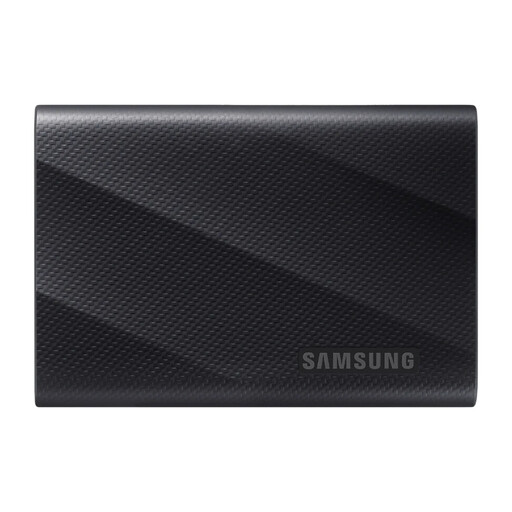 No image available
Samsung MU-PG1T0B 1 TB Black
Consider this 1 TB model only after comparing its capacity with the files and backup history you intend to retain.
USB Type-C, USB 3.2 Gen 2x2. Check the computer’s USB capability before choosing it for that interface.
View on Joybuy
 No image available
Samsung MU-PE1T0S 1 TB Black
If the backup drive will be moved regularly, check this model’s stated protection conditions alongside whether 1 TB meets your capacity needs.
USB Type-C, USB 3.2 Gen 2 (3.1 Gen 2). Physical protection does not replace a separate backup copy.
View on Joybuy
Frequently asked questions
How much SSD capacity do I need for a family-computer backup?
Choose capacity by measuring the folders and user accounts you intend to protect, then allowing room for growth and any older versions your backup software retains. Include photos, videos and documents in that check; the advertised capacity will not all be available for files after formatting.
Can Windows File History back up to an external SSD?
Yes. Microsoft says File History can make regular backups to an external drive. Select the drive in File History and check that the folders you need are covered, including any files outside its usual locations.
Can I use an external SSD with Time Machine on a Mac?
Yes, provided the external storage connects through a compatible Mac port and is set up for Time Machine. Apple describes a connected external device as a common Time Machine backup disk; check the port and any adapter needed before choosing a drive.
Should I leave the backup SSD connected?
Disconnecting a separate backup SSD after a completed backup helps keep it apart from the computer between runs. The National Cyber Security Centre advises against permanently connecting backup devices and recommends checking that you can restore files; make sure your planned backup schedule still happens.
Is one external SSD enough for irreplaceable family files?
No: an external SSD can be one backup layer, but the drive itself can fail, be lost or be affected alongside the computer. The NI Cyber Security Centre recommends at least three copies on two different devices, with one kept offline in a different location.


