Households short on desk space
You want a compact drive that can connect to the family computer without making an already crowded desk harder to use.


Choose an external SSD by checking how much backup space your family needs and which connection the computer can use, then consider its footprint on the desk. A compact USB 3.2 Gen 2 drive suits routine backups; a more rugged enclosure matters if you will move the drive, while a USB 3.2 Gen 2x2 speed rating is useful only with a compatible computer. Disconnect the drive between backup sessions so it does not remain exposed alongside the computer.
You want a compact drive that can connect to the family computer without making an already crowded desk harder to use.
You need room for the files you have now and any older versions you intend to retain, rather than choosing by transfer speed alone.
You can disconnect and store the SSD between backup sessions. The National Cyber Security Centre advises against leaving a backup device connected when it is not in use.
Start with the size of the files and older versions you want to keep, then check the computer’s port, the backup routine and where the drive will be stored.
| Concern | What to check | Who this matters to |
|---|---|---|
| Usable capacity | Measure the files to be backed up, allow for retained versions and leave room beyond the current total. | If our family photos and videos will keep growing, I need room for older copies as well as today’s files. Around 40% of consumers put backup capacity first. |
| Footprint and connection | Check the drive’s dimensions, the computer’s USB port and whether the necessary cable or adapter is available. | On a crowded desk, I want a drive that fits beside the computer and connects without an awkward setup; around 30% of consumers prioritise compactness and connection. |
| Recurring backups | Check that the intended backup software can use the drive and that the computer’s USB port supports the speed tier you are considering. | When several people’s files need regular copies, I want a routine that makes it practical to restore an earlier version. That is the primary need for around 20% of consumers. |
| Separate storage | Decide where to keep the drive after each backup and whether its handling conditions call for a more protective enclosure. | If I will store the drive away from the computer, I need to remember to reconnect it for backups and protect it between sessions; around 10% of consumers put backup separation first. |
A quoted transfer rate depends on the computer’s port and the connection in use. Kingston says its XS2000 needs USB 3.2 Gen 2x2 for its advertised performance and will not reach that rate on a Mac.
Identify the family computer’s USB specification before choosing a faster speed tier; give capacity and the backup routine priority if those are the tighter constraints.
The National Cyber Security Centre warns that viruses can affect storage connected to an infected computer. A drive that stays attached is therefore not fully separate from the computer it protects.
Complete and check each backup, then disconnect the SSD and store it safely. Keep another copy of irreplaceable files rather than relying on this drive alone.
Crucial says the X9 ships formatted as exFAT and that reformatting erases data already on the drive.
Check the file system required by your backup software and copy any files you need elsewhere before reformatting.
Samsung states that the T7 Shield’s resistance and drop ratings come from controlled tests and that liquid, dust and drop damage are not covered under its warranty.
Choose protection for the way you will carry or store the drive, but keep it in a protected location and maintain a separate backup copy.
The X9 line offers a compact USB-C option for a family computer kept on a small desk.
The T7 Shield line is worth considering when the backup drive will be carried or stored away from the desk.
The XS2000 line is a compact option to examine if the computer has USB 3.2 Gen 2x2 and backups regularly involve large transfers.
These portable SSDs offer different stated capacities and connection options for a family-computer backup. Choose the capacity against your own files and retained versions, and check the computer’s port and intended backup software before buying.
 Image unavailable
Consider the 4 TB variant if the files and older versions you plan to keep call for that capacity.
Its name specifies USB Type-C and USB 3.2 Gen 2. Check the computer’s port, your backup software and where the drive will be stored.
 Image unavailable
The 2 TB variant is an option if it leaves sufficient room for the household backup set and retained versions.
Its name specifies USB Type-C and USB 3.2 Gen 2. Confirm the connection and backup workflow for the family computer.
Image unavailable
Consider the 1 TB variant only after allowing for the family’s current files, future additions and any older copies you want to retain.
Its name specifies USB Type-C and USB 3.2 Gen 2. Check that the family computer and intended backup software can use it.
 Image unavailable
Consider this 1TB model if the backup drive will be moved or stored separately, after checking that its capacity suits the files you need to protect.
Its name specifies USB Type-C and USB 3.2 Gen 2. Check the connection and backup workflow, and do not treat a protective enclosure as a replacement for another copy.
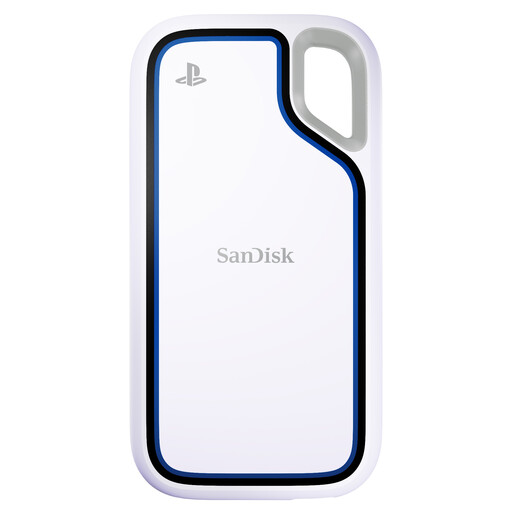 Image unavailable
This 1TB model names PC use alongside PlayStation 5 use; for family-computer backups, check the PC connection and whether the capacity covers the files and versions you want.
Confirm that the intended backup software can use the drive before making it part of a recurring routine.
Choose capacity from the files you will back up, the older versions you want to retain and room for growth, rather than from the computer’s storage label alone. Kingston explains that a labelled 1TB drive can appear as about 931.32GB in Windows before some space used for formatting and other functions.
Yes, Microsoft says File History can make regular backups to an external drive or network location. Check which folders it will include, select the intended drive and make sure you can reconnect it for each planned backup.
No, not between sessions if you are relying on it as a separate backup copy. The National Cyber Security Centre advises disconnecting backup storage when it is not in use because viruses can also affect connected devices; reconnect it for backups and store it safely afterwards.
No. Kingston says its XS2000 requires USB 3.2 Gen 2x2 for the advertised performance, and that Macs do not use that protocol for the stated speed. Check the computer’s exact USB capability rather than relying on the connector shape.