What should you check?
Start with where the original files live and how often they change. That determines whether a portable drive, an automatic backup routine or an additional off-device copy addresses the task.
| Priority | What to check | Your needs |
|---|
| Capacity |
Measure the current photo and video library; allow for files you expect to add; check whether other folders also need backing up. |
My collection is still growing, so the drive needs room beyond today’s files. |
| Device compatibility |
Check the computer and phone ports, cable or adapter, and drive format. Apple identifies ExFAT as Windows-compatible and requires a single data partition for iPhone external-storage access. |
I need to move files between my actual devices, not just connect a cable that fits. |
| Backup routine |
Check which folders the chosen software copies and when the drive must be connected. Microsoft says Windows File History can make regular backups of libraries including Pictures and Videos after setup. |
New photos arrive often; I would rather set up a repeatable backup than rely on occasional manual copying. |
| Separate copies |
Decide where another copy will live and when to disconnect a local backup. The National Cyber Security Centre defines a backup as a copy stored in a separate safe location and advises connecting offline backups only when needed. |
If my computer or portable drive is lost, I still want another copy of important files. |
| Portability and protection |
Decide whether the drive will travel or normally stay at one desk. Check the exact model’s stated resistance conditions and whether access protection is needed for sensitive files. |
I carry the drive outside the home, so physical protection and control over who can open its files matter to me. |
| Transfer and recording requirements |
Match the drive interface to the host port and cable. For direct iPhone ProRes recording, check Apple’s requirements for the supported phone and recording setting rather than relying on a headline transfer rate. |
Large video transfers or direct recording are part of my workflow; a speed figure alone does not establish that my setup will work. |
Brand and model references
These references point to different storage workflows; features and compatibility must be checked on the particular model and variant.
Crucial
The X10 is a portable-SSD option for a media library that needs to move between locations.
- Check the chosen X10 capacity against the size of the library and its expected growth.
- Confirm the host port needed for the transfer mode you intend to use; do not assume the same speed on every computer.
Samsung
The T7 Shield is a portable option to assess when a drive will be carried regularly.
- Samsung UK specifies USB 3.2 Gen 2 and up to 1,050/1,000MB/s sequential read/write speeds for the T7 Shield, subject to the host configuration.
- Check the exact variant’s resistance conditions and security setup; neither replaces a separate copy.
Synology
BeeDrive is relevant when a regular, low-effort backup routine matters more than manually moving files.
- Assess its backup workflow against the folders and devices holding your media.
- Check operating-system, phone and folder coverage for the exact BeeDrive setup.
LaCie
Rugged SSD Pro and Rugged SSD Pro5 are separate models to consider for a portable workflow with specific connection requirements.
- Compare the exact model’s connector and format with the computer used for editing and backup.
- Do not assume that features of one Rugged SSD Pro variant apply to the other.
SanDisk
Selected portable SSDs are relevant to smartphone-led file transfers.
- SanDisk’s UK store describes the Extreme Portable SSD as tested and compatible with iPhone 15 Plus, Pro and Pro Max.
- That statement does not establish support for a different SanDisk model, phone, adapter or drive format.
Portable SSD options on Joybuy
These portable SSDs offer different stated capacities and connection features for making a local photo or video copy. Check your devices and backup routine separately before choosing one.
 Image unavailable
Samsung Portable SSD T7 1 TB, Blue
A portable 1 TB option for keeping a local media copy or moving files between compatible devices. Its title specifies USB Type-C 3.2 Gen 2 (3.1 Gen 2). Check the drive format and your phone’s connection requirements before using it across devices.
 Image unavailable
Samsung T7 Shield MU-PE1T0S 1TB, Black
A 1TB portable option for a local copy that will be carried between locations. Samsung UK specifies USB 3.2 Gen 2 and up to 1,050/1,000MB/s sequential read/write speeds for this model; the host configuration affects those figures. Check phone and drive-format compatibility, and keep another copy of important files.
 Image unavailable
Samsung Portable SSD T7 4 TB, Grey
The stated 4 TB capacity is worth comparing with a larger photo or video library and its expected growth. The title specifies USB Type-C 3.2 Gen 2 (3.1 Gen 2). Confirm the format and connection requirements for each device you plan to use.
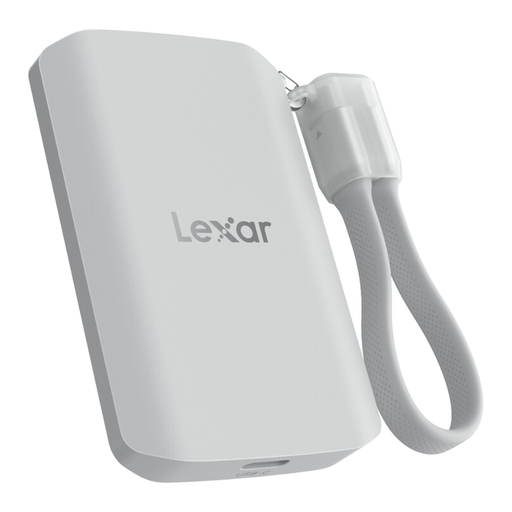 Image unavailable
Lexar ES5 Portable SSD 1TB
Consider this model if a phone-led transfer or recording workflow is central to your choice. Its listing claims MagSafe attachment, IP65 resistance and USB 3.2 Gen 2x2 speeds of up to 2000MB/s, and names iPhone 15/16 Pro and Galaxy S25 recording uses. Check your exact phone, recording settings, power and app requirements; do not assume the headline speed applies to every host.
 Image unavailable
SanDisk Portable SSD 2TB
The stated 2TB capacity is an option to compare with the size of your media library. Confirm the connector, file format and compatibility with the phone or computer that will hold the original files; the capacity alone does not establish that the backup workflow will work.
Common questions
Can an external SSD be my only backup of family photos?
Keep another copy of important photos and videos in a separate safe location. The National Cyber Security Centre defines a backup as a separate copy and advises connecting an offline backup only when needed; a drive left connected can be affected alongside the computer.
Which format should I consider for Mac and Windows?
Apple identifies ExFAT as a Windows-compatible format for a drive used with both Mac and Windows. Check that it suits every device in your workflow, and protect any existing files elsewhere before erasing or reformatting the drive.
Can I connect an external SSD to an iPhone?
Yes, if the particular drive, connection, format and power arrangement meet Apple’s requirements for your iPhone. Apple says external storage accessed by iPhone must have a single data partition and use a supported format, which includes ExFAT.
Can Windows back up my Pictures and Videos automatically?
Windows File History can make regular backups to an external drive or network location after setup. Microsoft says it covers default libraries including Pictures and Videos; check whether folders stored elsewhere need to be added to a library.
Will any portable SSD work for direct iPhone ProRes recording?
No. Direct recording depends on a supported iPhone Pro model and an external-storage setup that meets Apple’s requirements. Apple specifies a minimum storage speed of at least 220 MB per second for applicable ProRes recording; check the requirements for your phone and chosen recording setting before selecting a drive.


