What to check before buying
Start with the files you need to protect and the routine you can maintain. Then check capacity, connection and how the drive will be kept separate from the computer.
| Priority |
What to check |
Your needs |
| Recoverable separate copy |
Check that the drive can be used with your backup software or operating system. Confirm that intended folders are included, and restore a representative file before relying on the copy. |
I want photos and documents to remain accessible if the computer fails, is lost or files are deleted. |
| Capacity and backup history |
Measure the photo, document and video folders first. Leave room for growth and retained versions; for Time Machine, Apple Support advises a dedicated disk with at least twice the Mac’s storage capacity. |
My backup drive needs room for more than today’s visible files, including future photos and earlier backup versions. |
| Protection from a shared incident |
Keep at least one copy offline when practical, and keep another copy in a separate location or cloud service. Check which folders a cloud service includes and whether synchronisation has completed. |
I do not want the computer and its only backup to be exposed to the same malware, theft, fire or local damage. |
| Connection and portability |
Match the drive connection to your computer’s USB-A, USB-C or Thunderbolt ports and check whether an adapter or cable is supplied. For a travelling SSD, read the exact model’s stated resistance conditions. |
The drive must connect directly to the computer I use and fit a routine at home or while travelling. |
Joybuy product options
Joybuy product options for household local backups, covering portable SSDs for drives that travel and portable hard drives for larger home backup sets.
 No image available
Samsung Portable SSD T7 4 TB Grey
A portable SSD option for a larger family photo, video and document backup set that may travel between devices.
Stated 4 TB capacity, USB 3.2 Gen 2 connection, USB-C-to-C and USB-C-to-A cables, and up to 1,050 MB/s read and 1,000 MB/s write speeds. The fastest speeds require a compatible USB 3.2 Gen 2 host connection. Check that 4 TB covers your files, future growth and retained versions, and keep another offline or offsite copy.
Joybuy
 No image available
Samsung MU-PE1T0S 1 TB Portable SSD Black
A compact SSD to consider when a defined backup set is carried between home, work or relatives’ homes.
Stated 1 TB capacity, USB-C, USB 3.2 Gen 2 performance up to 1,050 MB/s read and 1,000 MB/s write, and IP65 testing with up to 3 m drop resistance. Samsung’s stated resistance conditions do not cover every loss event, and liquid and dust damage are not covered by warranty. Check capacity before buying and retain a separate copy.
Joybuy
 No image available
Western Digital My Passport Ultra 5 TB Blue
A portable hard drive route for a growing home-computer library of photos, documents and videos.
Stated 5 TB capacity, USB-C connection and a USB-C-to-USB-A adapter. It is pre-formatted for Windows; macOS use requires reformatting, which can erase existing content. Avoid moving, dropping or exposing a mechanical drive to liquid while it is operating, and keep an additional offline or offsite copy.
Joybuy
 No image available
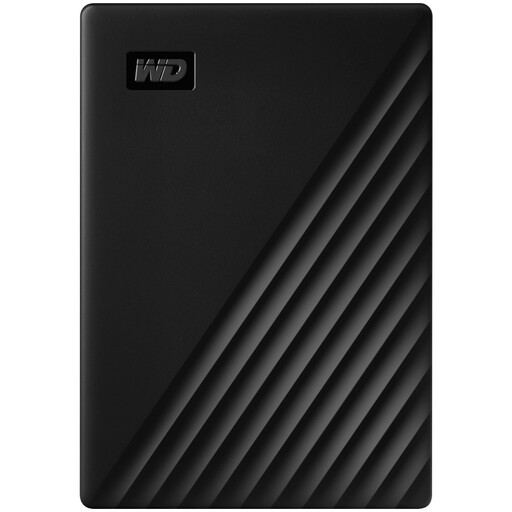
Western Digital My Passport 1 TB Black
A portable hard drive for regular backups of a defined photo and document collection on a household computer with USB-A.
Stated 1 TB capacity, USB 3.2 Gen 1 connectivity, bus power and automated-backup software. macOS 11+ read/write use requires a downloadable driver according to the supplied product information. Check that 1 TB leaves room for growth and backup history, and do not rely on this drive as the only copy.
Joybuy
 No image available
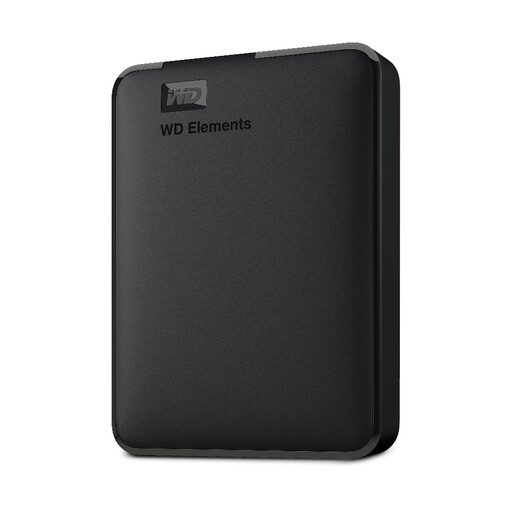
WD Elements 2 TB Portable External Hard Drive Black
A straightforward portable hard drive option for a local copy of photos, videos and important documents.
Stated 2 TB capacity, USB 3.0 connection and USB 2.0 backward compatibility. Confirm the delivered capacity, cable arrangement and formatting for your computer before purchase. Measure your folders first, allow for future files and retain an additional offline or offsite copy.
Joybuy
Frequently asked questions
How should I work out the capacity I need?
Measure the folders and libraries you need to protect, including photos, documents and videos, then allow room for expected growth and retained versions. For a Mac using Time Machine, Apple Support advises a dedicated backup disk with at least twice the Mac’s storage capacity. This is a Mac-specific guideline rather than a universal rule for every Windows PC or manual-copy workflow.
Should I choose an external hard drive, SSD or USB flash drive?
Choose a portable hard drive for a dedicated local backup destination that mainly stays at home. Choose a portable SSD when the drive travels frequently or when the exact model’s stated transfer and physical-resistance features suit your routine. Reserve USB flash storage for a small, bounded set of essential files rather than the only copy of a growing photo and video library.
What routine turns a removable drive into a real backup?
Keep the originals while you copy or back up files, use scheduled backups where your operating system supports them, check that the intended folders are included and practise restoring a file or folder. National Cyber Security Centre and NI Cyber Security Centre guidance also supports keeping a removable backup disconnected when practical and retaining another copy in a separate location or cloud service.
Can I use the same drive for ordinary storage and Mac Time Machine backups?
Apple Support advises using a Time Machine backup disk only for Time Machine backups, not for ordinary file storage. If you want both storage and backups, use a separate drive or confirm that your planned partitioning and backup setup is supported before erasing or reformatting anything.
What should I do with an old external drive in the UK?
Treat it as electrical and electronic equipment rather than ordinary household waste. UK WEEE guidance from the Office for Product Safety and Standards and the Department for Environment, Food & Rural Affairs supports recovery, reuse and recycling; remove or securely erase personal data before handing over a drive.


