Who is this for?

Older-laptop users adding a screen

If your laptop has an older HDMI, DisplayPort or VGA connection, check its supported number of independent displays before choosing a dock. Microsoft Support notes that a display adapter can be the reason a second or third monitor will not connect.

Fixed-desk workers connecting peripherals

A dock may make it easier to connect screens and desk peripherals together. Confirm its display support for your laptop, and check laptop charging as a separate requirement.

People using a managed work laptop

A DisplayLink device uses software on the laptop. If you cannot install drivers yourself, ask your employer’s IT team whether the device and software are allowed before choosing that route.

What should you check first?

Native video connection

Choose when: The exact laptop supports your intended number of independent displays through its available video outputs.

Trade-off: An extra socket on an adapter or dock cannot, by itself, raise the laptop’s native display limit.

DisplayLink USB dock

Consider when: Native outputs are insufficient, the dock supports the intended screens and the required driver is permitted on the laptop.

Trade-off: This software-based route depends on a suitable USB connection and should be checked against the work applications you use.

Concern What to check Who this matters to
Laptop display capability Check the exact laptop model’s supported independent displays and the video function of each port. A USB-C socket alone does not establish native video support. If I want another screen, I need to know whether my existing laptop can drive it before choosing a connection. Roughly 36% of consumers put this capability check first.
Two-screen desk connections Check whether the proposed setup supports extended displays, and match each monitor input with the intended output and cable. Keeping two work screens and desk peripherals connected without rearranging leads is my priority; around 29% of consumers put a repeatable desk connection first.
USB graphics software Confirm that the exact device is DisplayLink-capable, supports the intended displays and has a driver your employer permits. If native outputs cannot cover my screens, I need a USB graphics route I am allowed to use at work. Approximately 21% of consumers put that route first.
Workstation arrangement Check desk space, screen position and glare; use your employer’s workstation assessment process where it applies. I want the added screen to fit my regular desk work without making the layout awkward. About 14% of consumers put workstation arrangement first.

Mistakes to avoid

  • Counting dock sockets instead of supported displays

    Multiple video sockets do not establish that an older laptop can run the same number of independent screens. Microsoft Support notes that the display adapter may prevent a second or third monitor from connecting.

    Identify the exact laptop model, graphics hardware, ports and desired screen settings before selecting a dock or adapter.

    A connection that does not match the chosen screen may also call for a different cable or adapter.

  • Assuming every USB-C port carries video

    USB-C describes the connector, not every function available through it. A simple USB-C video adapter needs a laptop port that supports the relevant native video output.

    Check the documentation for the exact laptop port. If it does not provide native video, assess an explicitly DisplayLink-capable USB graphics device instead.

  • Choosing DisplayLink before checking software permission

    Synaptics describes DisplayLink as using host software, and DisplayLink’s installation guidance covers the required software setup. A physically connected dock may therefore be unusable on a locked-down work laptop.

    Ask IT about driver approval, then check the exact dock’s operating-system and display requirements against your intended work applications.

    IT approval or setup can take time before the dock is usable.

  • Treating another monitor as a complete desk adjustment

    An extra screen also changes where you look and how the desk is arranged. The Health and Safety Executive advises assessment of the whole workstation for workers whose display-screen use meets its criteria.

    Plan screen placement, desk depth, lighting and cable routing, and use your employer’s workstation assessment process where applicable.

Brands for reference

No brand profiles to display.

External monitors on Joybuy

These monitors are choices for adding screen space to an older laptop; they are not docks or adapters. Before choosing one, match its input and cable to the laptop’s available video output, then check whether the laptop supports your intended display count and settings.

ASUS PROART PA278CV IPS WQHD monitor

ASUS PROART PA278CV IPS WQHD monitor

A separate screen for a desk-based laptop setup. Its name specifies an IPS panel and WQHD resolution; check the connection and display settings supported by your laptop before choosing it.

View on Joybuy

AOC Q32V4 31.5-inch 2K IPS monitor

AOC Q32V4 31.5-inch 2K IPS monitor

A 31.5-inch option for adding a screen at a fixed desk. The product name identifies an IPS panel and a 2K display; confirm the exact input, cable and display mode needed for your laptop.

View on Joybuy

CRUA 32-inch 1500R curved QHD monitor, black

CRUA 32-inch 1500R curved QHD monitor, black

A curved additional screen if its size and shape suit your desk. The named variant specifies 2560 × 1440 resolution, 165Hz, HDMI and DisplayPort connections, and VESA 100 × 100mm mounting. Check which settings your laptop and chosen connection can actually support.

View on Joybuy
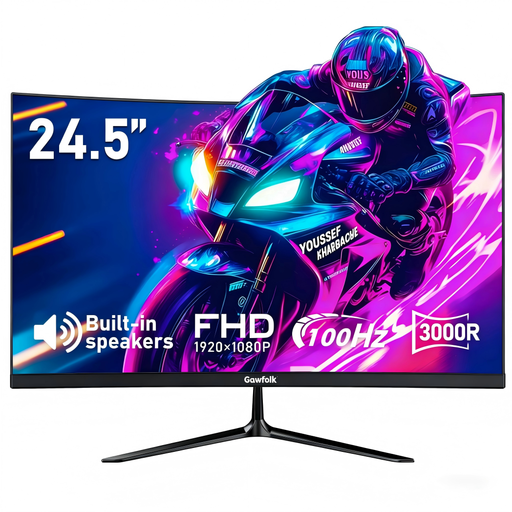
Gawfolk 24.5-inch 3000R curved FHD monitor

Gawfolk 24.5-inch 3000R curved FHD monitor

A 24.5-inch additional screen to consider when the desk layout calls for that size. Its name specifies a 3000R curve, FHD resolution, 100Hz, HDMI and VESA 75 × 75mm mounting. Match the laptop output and cable, and confirm the display settings it can provide.

View on Joybuy
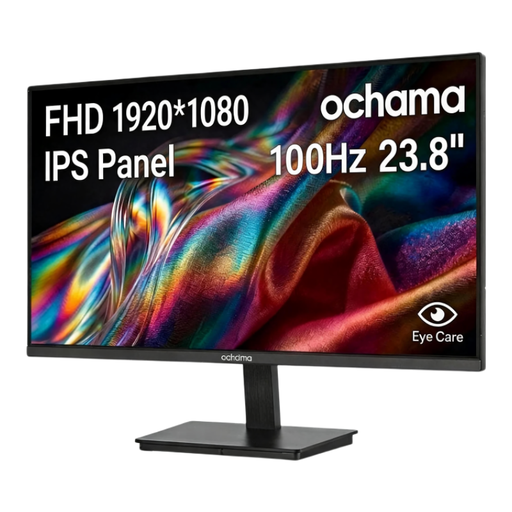
ochama 23.8-inch 1080P office monitor, 100Hz

ochama 23.8-inch 1080P office monitor, 100Hz

A 23.8-inch screen for adding a display to a work desk. The product name specifies 1080P resolution, 100Hz and narrow bezels on three sides. Confirm its input connections and the cable required before matching it to an older laptop.

View on Joybuy

Questions about extra screens

Will a USB-C-to-HDMI adapter add a monitor to my older laptop?

Only if the laptop’s USB-C port supports the native video output the adapter requires. Check the exact laptop’s documentation for video capability, such as DisplayPort Alt Mode, Thunderbolt or USB4; a data-only USB-C port will not gain native video output from a simple adapter.

Can a USB-A dock run two external monitors?

A suitable DisplayLink-capable USB-A dock can, if its specifications support two extended displays with your laptop, operating system, driver and USB connection. Check the exact model’s requirements rather than treating an ordinary USB hub as a graphics device.

Can I use a DisplayLink dock with a work-issued laptop?

You can use one only if the required device and software are permitted on that laptop. DisplayLink’s installation guidance describes software setup; ask your employer’s IT team about approval if you cannot install drivers yourself.

Will a USB-A DisplayLink dock charge my laptop?

Do not assume that a dock supplying displays also charges the laptop. Check both devices’ power specifications and whether the laptop must keep using its separate charger.

Does adding a monitor meet home-workstation requirements?

Buying a monitor does not, by itself, address the whole workstation. The UK Health and Safety Executive says employers must assess workstations for workers who use display screen equipment daily for continuous periods of an hour or more; the assessment considers the workstation, the work and individual needs.