Choose backup storage around the files your household needs to recover: an external hard drive can hold a growing local archive, a portable SSD suits frequent transfers, and a USB stick makes more sense for a deliberately limited set of essentials. If several devices need access, cloud storage can work alongside a separate removable copy, but account access and synchronisation should not be your only recovery path. Whichever route you choose, check capacity, device compatibility and how you will restore the files.
Who needs which backup?
The right storage depends on whether you are protecting one growing archive, moving files regularly or keeping a recovery copy for several devices.
Households with a growing photo archive
If most photos, videos and documents live on one computer, make room for the files you need to recover and for future additions. A repeatable backup routine matters as much as the drive itself: the National Cyber Security Centre advises keeping a copy of important data in a separate safe location.
Families moving files between devices
A portable drive may fit regular transfers between a computer and other compatible devices. Check the connections on each device before choosing one; a drive that is convenient to carry still needs a separate, safe place to live between backups.
Multi-device households needing another recovery path
Cloud backup can make photos available on signed-in devices, while a removable copy provides a separate route to important files. Check account storage and backup settings, then make sure someone in the household knows how to restore the removable copy.
What matters when choosing?
Decide what must be recoverable before choosing the storage format. The National Cyber Security Centre describes a backup as a copy kept in a separate safe location; a drive used only to move files is not automatically a dependable recovery plan.
External hard drive
Consider it when: A mainly home-based computer needs regular local copies of a growing collection of photos, videos and documents.
Keep in mind: A drive stored beside the computer does not protect the copy from every event affecting that location.
Portable SSD
Consider it when: You frequently transfer files and want to carry a compact local copy between compatible devices.
Keep in mind: Advertised transfer rates depend on the particular drive, host device and connection; portability also makes safe storage important.
USB flash drive
Consider it when: You have deliberately selected a small set of essential documents and irreplaceable files to copy.
Keep in mind: Manual selection can leave out files, so do not mistake a curated set for a complete household archive.
Cloud plus removable storage
Consider it when: Several devices need access to files and you also want a separate local recovery copy.
Keep in mind: Cloud access depends on the account, available storage and settings; keep the removable copy separately and check how to restore it.
| Concern |
What to check |
Who this matters to |
| Room for a growing archive |
Measure the files and devices to protect; allow for future additions and any backup versions you intend to retain. |
If I need to recover our whole photo and document collection, a copy containing only recent files will not do. Around 31% of consumers put full-archive capacity first. |
| Frequent portable transfers |
Check the ports and cable needed for each device, plus the exact drive's rated connection and compatibility. |
Moving new photos between devices regularly makes a drive I can carry and connect easily more useful to me. For around 23% of consumers, portable transfers are the primary concern. |
| A limited essentials copy |
Define the folders to copy, check that they fit and set a routine for opening restored files. |
I may only need a recoverable copy of selected documents and irreplaceable photos, not a whole-device backup. Keeping that essentials set manageable comes first for around 15% of consumers. |
| Recovery across devices |
Confirm cloud backup settings and available account storage; plan a separate removable copy and protect any recovery credentials. |
When our files are spread across devices, I want another way to recover them if a device or account becomes inaccessible. Around 31% of consumers chiefly prioritise that separated recovery path. |
Backup mistakes to avoid
-
Relying only on a synchronised cloud folder
Cloud photo backup depends on account access, available storage and the right settings. The National Cyber Security Centre also warns that a cloud service may synchronise files after malware has replaced them with encrypted copies.
Keep a separate removable copy of important files and practise restoring from both routes.
-
Leaving the only external backup connected
A drive that remains connected to an affected computer may be exposed to malware too. A local backup is more useful when it remains available for recovery.
After a backup finishes, safely eject or disconnect the removable drive when practical, and check that you can restore files from it.
-
Assuming one drive setup works with every computer
Microsoft Support says Windows File History can use an external drive or network location. Apple Support says Time Machine cannot back up to a Windows-formatted disk without reformatting it, which removes existing data.
Check the ports, file system and backup software required by each computer. Copy existing files elsewhere before reformatting a drive.
-
Encrypting the drive but losing the recovery credentials
Encryption can help protect files on a lost drive, but an unavailable backup password or recovery key can also prevent the household from restoring them. Apple Support and Microsoft Support both identify credentials needed for their respective encrypted-backup workflows.
Keep the appropriate credentials securely and separately from the drive, and check that an authorised household member can restore a file.
Brands to consider
These brands illustrate different external-drive ranges; features and suitability depend on the exact model and your backup setup.
Seagate
Seagate positions its Expansion portable and desktop hard-drive ranges for local storage, including backups of personal files.
- Its portable and desktop ranges give households formats to consider for a home-based archive.
- Check the chosen model's capacity, connection, power requirements and backup workflow; features described for one range do not establish what every model includes.
Samsung
Samsung's T7 and T7 Shield ranges are portable SSD options for compatible devices.
- Samsung states that the cited T7 model offers an AES 256-bit encrypted-password option and a rated sequential read speed of up to 1,050 MB/s.
- Speed depends on the host setup. Samsung's physical-resistance claims for the T7 Shield apply to stated models and test conditions, not to keeping a backup in a separate location.
SanDisk
SanDisk positions its Extreme Portable SSD range for carrying and organising files, including photo and project copies.
- SanDisk lists multiple capacities and model-specific protection and encryption features within its cited product material.
- Check the exact model number, device connection and applicable features rather than treating a range-wide description as the specification of every variant.
Joybuy product choices
These portable hard drives and SSDs are options for making a removable local copy of household photos and documents. Match the capacity and connection to your files and devices, then plan where to keep the copy and how to restore it.
 Image unavailable
Samsung T7 Shield 1 TB portable SSD, blue
Consider this portable SSD if you make frequent local copies of photos and other files.
The product title specifies 1 TB and USB 3.2 Gen 2. Check whether the capacity covers your files and retained backups, and whether your device and connection can support the transfers you need. Its enclosure does not replace a separately stored backup.
View on Joybuy
 Image unavailable
Western Digital My Passport Ultra for Mac 5 TB, silver
This portable hard drive is an option for a household keeping a growing local archive primarily with a Mac.
Compare its stated 5 TB capacity with the files and backup versions you intend to retain. Check the file-system workflow before using it across operating systems, and confirm the applicable warranty period because the product details give conflicting durations.
View on Joybuy
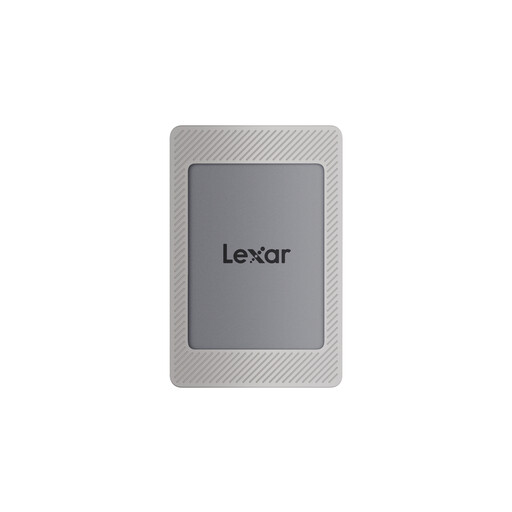 Image unavailable
Lexar ES4 2 TB portable SSD with magnetic set
Consider this portable SSD for frequent file transfers where its stated device connections fit your setup.
The title specifies 2 TB, USB 3.2 Gen 2 and rated speeds of up to 1,050 MB/s read and 1,000 MB/s write; achievable speeds depend on the connected device. Check the required case or ring arrangement for magnetic attachment with an iPhone 15 or 16. Confirm that 2 TB covers the files you need to recover.
View on Joybuy
 Image unavailable
Western Digital My Passport 2 TB portable hard drive, black
This portable hard drive is an option for keeping a local copy of selected household files.
Check whether 2 TB will hold the intended files and backup versions. Confirm the drive port and included cable against your devices before buying: its connector descriptions conflict. If you plan to use backup or encryption software, check compatibility and keep recovery credentials separately.
View on Joybuy
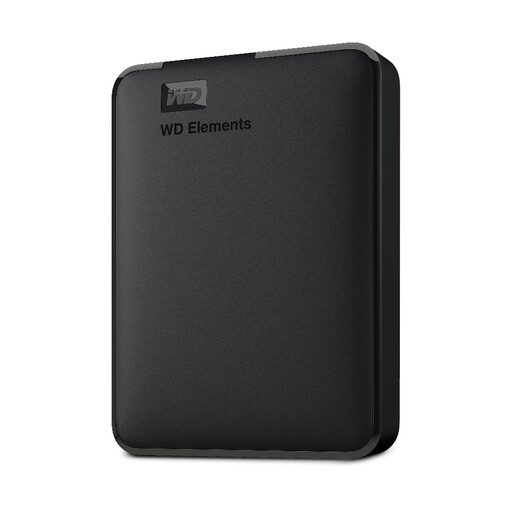 Image unavailable
WD Elements 2 TB portable hard drive, black
This drive is an option for a computer-connected local copy of photos and documents.
Its title specifies 2 TB and USB 3.0. Compare that capacity with your protected files, and confirm the file system needed by your computer and backup tool before use. Establish a copying routine and test that you can open restored files.
View on Joybuy
Frequently asked questions
How much capacity does a family backup drive need?
Choose capacity by measuring the photos, documents and other files you intend to recover, then allowing for future additions and any backup versions you want to keep. A drive for selected folders has a different job from one intended for a whole-computer backup; check the scope before settling on a capacity.
Can one external drive work with Windows File History and Mac Time Machine?
Do not assume the same drive setup will work for both. Microsoft Support says File History can use an external drive or network location, while Apple Support says Time Machine cannot back up to a Windows-formatted disk unless it is reformatted. Check the file system and both computers' requirements, and copy existing files elsewhere before reformatting.
Should I encrypt a family backup drive?
Encryption is worth considering when the drive contains sensitive documents or travels away from home, provided you can keep the password or recovery key accessible to authorised household members. Apple Support says an encrypted Time Machine backup needs its password for restoration; Microsoft Support says BitLocker recovery may require a recovery key and that manual BitLocker drive encryption is available on Windows Pro, Enterprise and Education editions.
When should I disconnect and test an external backup?
Test restoration after setting up the backup and periodically afterwards by restoring representative files to a safe location. The National Cyber Security Centre advises knowing how to restore files and not leaving removable backup storage permanently connected to the computer.


