What should you check before choosing?
Start with the files you would need to recover and the devices that hold them. Then choose a backup routine you can maintain and test, whether it uses cloud storage, removable media or both.
| Priority | What to check | Your needs |
|---|
| Recovery |
Check which files are copied, where the separate copy is held and how to restore a sample file. For cloud storage, check deletion and version-history limits for your plan. |
I want to retrieve photos or documents if a device fails, goes missing or a file is deleted. |
| Backup routine |
Check whether your devices and chosen software can back up the intended folders automatically, or whether you will need to copy them manually. |
New photos and documents arrive regularly, so I need a routine that keeps the copy current. |
| Capacity and accounts |
Compare current file use with the available allowance and room for growth. Check which services and household members share cloud storage. |
There must be room for our files as well as any photos or email counted against the same allowance. |
| Device fit |
Confirm cloud access on each required device, or check a drive’s connector and operating-system compatibility. Test access before relying on a new setup. |
Our phones and computers may not all use the same connections or accounts. |
| Keeping the copy safe |
Protect a cloud account with 2-step verification. Store removable media securely and disconnect it when it is not in use, as the National Cyber Security Centre advises. |
I do not want a lost device or a problem affecting connected storage to take away the only usable copy. |
Relevant services and storage brands
These examples help identify account and device checks; a brand mentioned here is not necessarily represented in the Joybuy products below.
Apple
iCloud+ is worth examining when family files are mainly created on iPhone, iPad and Mac devices.
- Apple describes iCloud as keeping photos and files available across devices.
- Check the plan allowance, family-sharing arrangements and access from any non-Apple devices before relying on one account setup.
Google
Google One is relevant to households already using Google Photos, Drive and Gmail.
- Google says each standard account includes up to 15 GB of storage shared across those services.
- Files and email draw on the same allowance, so check combined use and the terms of any larger plan.
Microsoft
OneDrive is relevant when household documents and photos are already kept in a Microsoft account.
- Microsoft documents a whole-OneDrive restore feature for Microsoft 365 subscribers covering actions within the last 30 days.
- Check the exact plan, files selected for backup and available recovery period rather than treating the feature as permanent file history.
Seagate
Seagate’s One Touch HDD line is a removable-storage reference for computer-based local copies.
- Seagate documents Toolkit backup support for important computer files.
- Its documented Toolkit Backup activity is Windows-only and excludes several types of system content; check the workflow against the files you need.
SanDisk
A SanDisk USB flash drive may suit a manually maintained copy of selected files.
- SanDisk provides model-specific support materials covering backup and other drive features.
- Check the exact connector, device compatibility and available software for the model rather than assuming every USB drive works the same way.
Removable storage options on Joybuy
These drives and the USB flash drive are options for making a local copy of household files. They do not replace a cloud subscription if you also want an online recovery route; choose by the files, devices and backup routine you intend to use.
 No image available
Samsung MU-PG4T0B 4 TB USB Type-C
A 4 TB local destination for a household photo and document copy. The product name specifies USB Type-C and USB 3.2 Gen 2x2; check how you will back up and restore files with your devices. Store the copy securely and disconnect it between updates.
View on Joybuy
 No image available
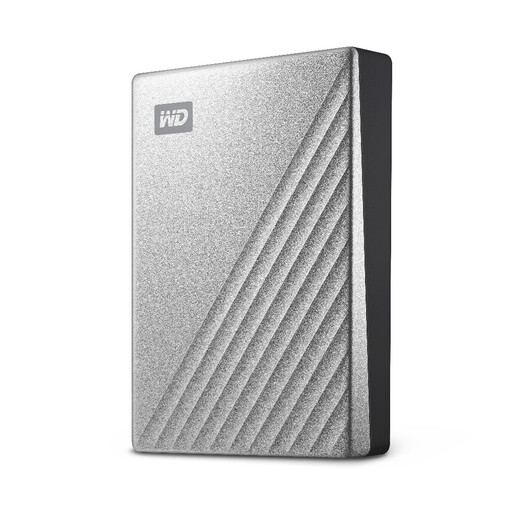
Western Digital My Passport Ultra 4 TB Silver
This portable external hard drive offers a 4 TB destination for a local file copy. Check its connection and backup software against your computer, including the steps needed to restore selected files. Disconnect and store the drive securely when it is not in use.
View on Joybuy
 No image available
Western Digital Elements portable 4 TB Black USB 3.0
A removable 4 TB option for copying photos, videos and documents from a computer. Check formatting and compatibility with the computer you will use, then plan how to update the copy and test a restore. Disconnect it after use.
View on Joybuy
 No image available
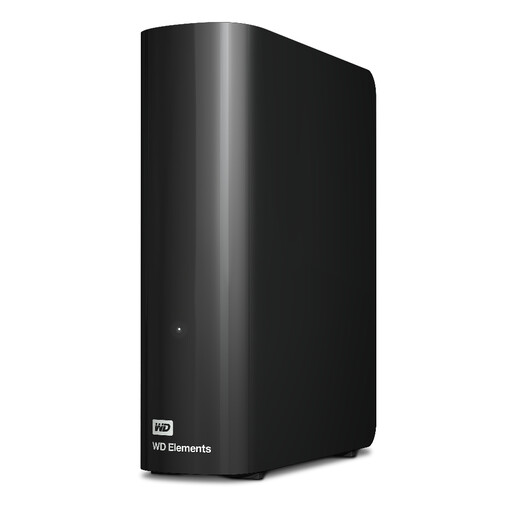
Western Digital WD Elements 12 TB USB 3.2 Gen 1 Desktop
This 12 TB desktop drive is a local storage option for a substantial file collection when a stationary setup suits the household. Check power, computer compatibility and the backup and restore routine before using it for important files. Disconnect it when it is not needed.
View on Joybuy
 No image available
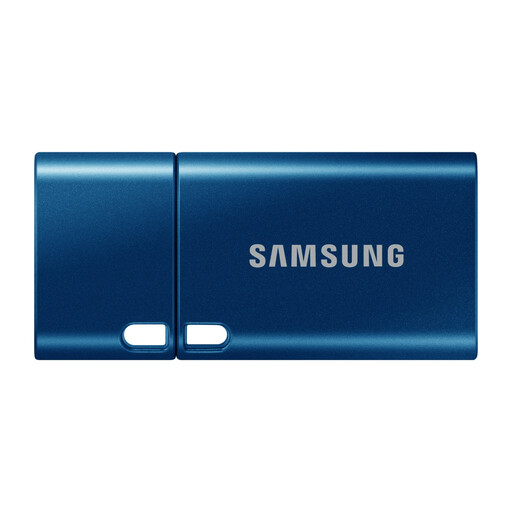
Samsung MUF-512DA 512 GB USB Type-C Blue
This USB flash drive can hold a manually maintained copy of selected files rather than serve as the household’s only recovery route. Its name specifies 512 GB and USB Type-C 3.2 Gen 1; confirm compatibility with the devices you will use, and update and test the copy regularly.
View on Joybuy
Common backup questions
Is cloud storage itself a backup?
It can be, if it holds a separate copy of the files you need and you can restore them. Check what your account actually backs up and how its deletion or version-history features work; synchronising a folder does not, by itself, promise access to every earlier version.
Should an external drive stay plugged in?
Disconnect it when you are not backing up or restoring files, and store it securely. The National Cyber Security Centre warns that viruses can affect storage connected to an infected computer.
Is a USB flash drive enough for household files?
A USB drive can hold a separate copy of selected files if you update, store and test it. For files that would be difficult to replace, consider another recovery route as well, so that losing the drive does not leave you without a copy.
How do you check that a backup will restore?
Restore a few representative photos, documents and folders to a safe test location after setting up the backup, then repeat the check periodically. Confirm that your chosen software copied the intended content: Seagate, for example, says its Windows Toolkit Backup activity excludes program files, application data and certain system items.


