Laptop-based calendar users
If you use a USB-C laptop for coursework, a connected monitor can keep the shared calendar in view alongside your work. Check the laptop’s video output and charging needs before planning around one cable.


For a student room where the same screen will show coursework and a family calendar, start with a monitor that fits the desk and connects to the computer you already use. A USB-C connection is convenient only if the laptop supports video through that port and the monitor supplies enough power for charging. A smart monitor is worth considering if you want functions without leaving the study laptop connected, but check that your particular calendar service, sign-in and editing method work on it before choosing that route.
If you use a USB-C laptop for coursework, a connected monitor can keep the shared calendar in view alongside your work. Check the laptop’s video output and charging needs before planning around one cable.
When the screen must fit a compact study desk and remain comfortable for daily work, its dimensions with the stand and available position adjustments matter as much as its diagonal size.
If you want to access the schedule without routinely connecting your study laptop, consider a smart monitor only after checking the intended calendar service, account requirements and method for entering events.
Choose it when: A compatible laptop will normally run the calendar alongside coursework.
Trade-off: The laptop or another connected device still runs the calendar, and one-cable charging depends on its requirements.
Choose it when: An existing computer can stay connected and a separate laptop-charging connection is acceptable.
Trade-off: The monitor cannot show or update the schedule without a compatible source device.
Choose it when: You also want its supported smart functions without routinely using a computer.
Trade-off: Smart apps alone do not establish that your particular calendar can be viewed and edited on the monitor.
| Concern | What to check | Who this matters to |
|---|---|---|
| Device and calendar compatibility | Match the computer’s video output to the monitor’s input. For one-cable use, check USB-C video support and the laptop’s charging requirement. | I want to keep the calendar beside my coursework without discovering that my laptop cannot drive the screen as planned. Roughly 42% of consumers put this connection and workflow need first. |
| Desk fit and positioning | Measure the available depth against the monitor’s dimensions with its stand; check height adjustment or mounting options if needed. | My desk has to accommodate both the screen and everyday study work, so I need a viewing position that does not crowd it. For around 33% of consumers, comfortable placement is the primary concern. |
| Access without a study laptop | Confirm the exact calendar service, UK app access, sign-in requirements and method for adding or editing events. | If I take my laptop away, I still want a workable way to access the family schedule. About 25% of consumers prioritise this reduced reliance on the laptop. |
A USB-C socket alone does not establish that a laptop can send video through it or receive sufficient charging power from a monitor. The requirements vary by laptop and monitor.
Check the laptop’s USB-C video capability and charging requirement against the exact monitor’s connections and power-delivery rating.
If the setup does not meet both requirements, you may still need the laptop charger, a separate video cable or an adapter.
Samsung says app availability can vary by country or region and keyboard and mouse compatibility can vary by app. Its M5 M50F also needs internet access and a Samsung Account for full smart functionality.
Check your exact calendar service and how you will sign in, type and edit events before relying on a smart monitor without a computer.
A screen that looks compact by diagonal measurement may still leave too little room for a keyboard once its stand is on the desk. The Health and Safety Executive advises placing the top of the screen at eye level and the screen about an arm’s length away.
Measure the desk and the monitor’s full dimensions with its stand, then check whether its adjustment or mounting options allow a workable position.
A riser or alternative mount may be needed if the supplied stand cannot achieve that position.
The Dell Pro 24 Plus P2425HE is a conventional USB-C monitor to consider for a laptop-led study desk.
The LG 24BA750 is a conventional desktop-monitor option for a fixed study space.
The AOC 24B3CF2 is a compact conventional-monitor option for a compatible USB-C laptop.
The Samsung Smart Monitor M5 M50F represents the smart-screen route rather than a conventional monitor alone.
The BenQ GW2490TC is a conventional study-display option where positioning matters.
These choices include conventional monitors for a connected study computer and one smart-monitor option. Check desk fit and the exact calendar workflow before settling on a screen.
 No image available
Consider this conventional monitor for a laptop-led study desk where the calendar will share a screen with coursework. Check the laptop’s video connection, charging needs and the monitor’s full desk footprint before choosing a one-cable arrangement.
 No image available
This conventional USB-C model is worth considering when positioning the display in a small room is a priority. Check the dimensions and fit of the mounting arrangement you intend to use, as well as laptop video and charging compatibility; the calendar still needs a connected source.
 No image available
For a study desk with a connected computer, this conventional QHD display can show coursework and the family calendar. Check the stand footprint and confirm that the laptop supports the video connection and any charging arrangement you plan to use.
 No image available
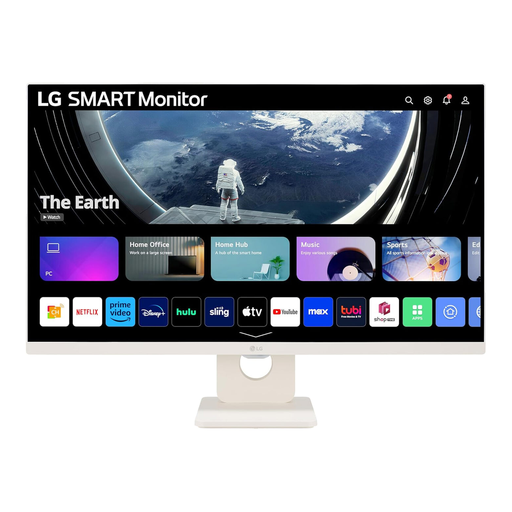
Consider this webOS smart monitor if you want to explore calendar access without routinely connecting your study laptop. Its product name lists Wi-Fi, Bluetooth, built-in speakers and a remote control, but those features do not establish that your calendar can be signed into and edited as intended. Check that workflow and the screen’s fit on your desk.
 No image available
This conventional monitor suits a setup with a connected computer if a 27-inch screen fits the study desk. Check its stand depth against the space available and confirm the connection you will use; do not rely on USB-C video or laptop charging without checking those functions for this model.
No: a conventional monitor needs a compatible laptop, desktop or other connected source to show and update the calendar. If you want to use a smart monitor without routinely connecting a computer, check whether your exact calendar service supports the sign-in and editing method you need.
Only if the laptop supports video through its USB-C port and the monitor’s power delivery suits its charging requirement. Compare both devices’ specifications before planning around one cable; for instance, Dell UK lists up to 90W for the P2425HE, while BenQ UK lists 20W for the GW2490TC.
Allow space for the monitor’s full stand depth, your keyboard and a comfortable viewing distance, rather than judging fit by screen size alone. The Health and Safety Executive advises placing the top of the screen at eye level and the screen about an arm’s length away, so check whether the stand or mounting arrangement lets you position it accordingly.
Ask the retailer how to use its electrical-waste take-back service when ordering the replacement. GOV.UK describes take-back for waste equipment of the same type as the item being purchased; confirm the retailer’s arrangement for returning your old monitor before choosing delivery or collection.