What matters when choosing one?
Decide what the screen’s main job will be before comparing sizes or features. These three approaches put household planning in different places within the device’s day-to-day use.
Dedicated family calendar
Choose it when: Several people need a fixed view of schedules and, where offered, chores or meal plans.
Trade-off: Calendar-focused controls do not necessarily provide the entertainment or wider smart-home functions of a general display.
General smart display
Choose it when: Reminders, calls, entertainment or compatible smart-home controls matter alongside the schedule.
Trade-off: Amazon’s Echo Show calendar appears through widgets, so check whether the available layout keeps plans prominent enough for your household.
Configurable dashboard
Choose it when: You want to arrange a calendar and other information on a screen you select. DAKboard describes this dashboard approach.
Trade-off: Selecting the display and configuring the layout can involve more decisions than buying an integrated calendar.
| Concern |
What to check |
Who this matters to |
| Shared-calendar syncing |
Check support for each calendar service your household uses, plus account permissions and phone-based updates. Cozyla documents Google, Apple and Outlook connections for Calendar+ 2. |
If our plans start in different personal calendars, I need them to appear together without losing track of changes made away from home. Around 36% of consumers put shared-calendar syncing first. |
| Chores and routines |
Check whether the exact model offers the chores, lists or meal-planning tools you would use, and whether desired features require a separate plan. |
When appointments are only part of organising our day, I want recurring tasks and meal plans visible too. For around 29% of consumers, those household routines are the primary concern. |
| Uses beyond scheduling |
Check the available widgets and whether you would use calling, entertainment or compatible smart-home controls. Amazon describes these wider functions for Echo Show devices. |
If the screen takes up space in a shared room, I want it to do useful jobs besides showing dates. Around 21% of consumers place multi-use functions first. |
| Privacy and accounts |
Review calendar permissions, data-sharing settings and the maker’s stated security-update period. The Information Commissioner’s Office advises these checks for smart products. |
With family appointments and routines on a connected screen, I want clear control over who can see or change them. Account control comes first for around 14% of consumers. |
Relevant brands and approaches
These brands illustrate different ways to put a family schedule on screen. Check features and purchase conditions for the particular model rather than assuming they apply across a range.
Skylight
Skylight presents a dedicated touchscreen calendar for schedules and household planning.
- Skylight describes colour-coded schedules, chores, lists, dinner plans and updates through its app.
- Check the chosen model’s calendar-account compatibility, placement requirements and which desired functions, if any, need an optional plan.
Cozyla
Cozyla combines a family calendar with a broader touchscreen planning dashboard.
- Cozyla describes Calendar+ 2 as a 15.6-inch touchscreen with Google, Apple and Outlook calendar syncing; its support pages also cover tasks, chores and meals.
- Confirm the precise model, supported accounts and any plan terms for the functions your household intends to use.
Dragon Touch
Dragon Touch presents dedicated calendar displays with schedules and household-planning features.
- Dragon Touch describes chore, reward and meal-planning functions and says its digital calendar does not require a subscription; its setup guidance uses the eCalendar app and Wi-Fi.
- Check the selected size’s placement options, plug configuration, retailer terms and feature details before ordering.
Amazon Echo Show
Echo Show is a general smart-display approach to viewing household calendars and reminders.
- Amazon describes Calendar and Reminders widgets; its Echo Show 15 listing also describes a 15.6-inch Full HD display, Fire TV and video calling.
- Check the particular model’s calendar connections, widget layout and the household’s preferences for voice or camera features.
DAKboard
DAKboard offers a configurable display approach for calendars alongside photos, news and weather.
- Its dashboard approach allows buyers to consider a screen and layout suited to their own space.
- Check the screen, power, mounting and configuration requirements, as well as the plan needed for the intended layout.
Joybuy family calendar displays
These TABWEE models are dedicated digital calendar displays for keeping family plans visible. Compare their stated screen sizes and planning functions, then check calendar-service compatibility and placement requirements for the model you prefer.
 No image available
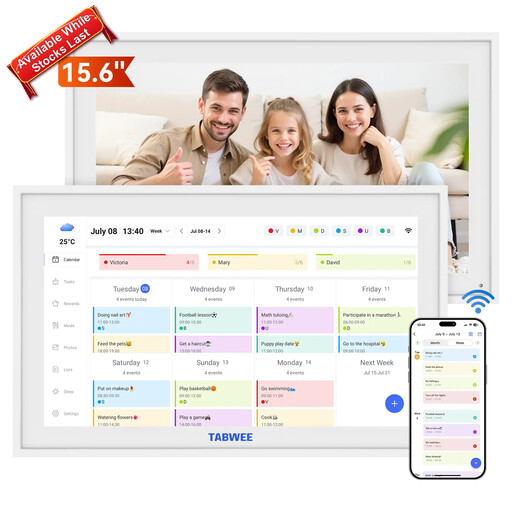
TABWEE P15 15.6-inch Wi-Fi touchscreen digital calendar
Consider this model if you want appointments and meal planning on a family calendar display.
Its title specifies a 15.6-inch touchscreen and weekly and monthly planning. Before buying, check support for your calendar accounts, any chore features you need and the mounting hardware required for your chosen location.
View on Joybuy
 No image available
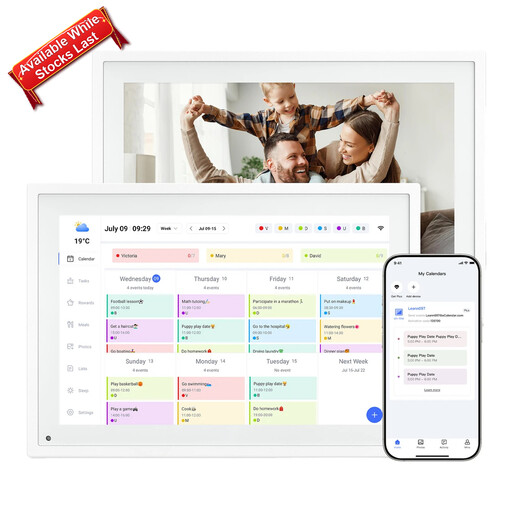
TABWEE P10 10.1-inch Wi-Fi digital calendar
Consider this model if you want a family schedule board with updates through a mobile app.
Its title specifies a 10.1-inch display and two-way schedule syncing via the app. Check whether it connects to your calendar services and whether its controls, placement options and planning functions suit your household.
View on Joybuy
Questions about family calendar displays
What should I check before buying a shared family calendar display?
Start with the calendar services your household already uses, then check connections and editing permissions for the exact display. Also choose a practical location with power nearby and establish who will manage the household account. Cozyla documents Google, Apple and Outlook connections for Calendar+ 2, while Skylight and Dragon Touch describe app-based workflows.
Should I choose a smart display instead of a dedicated family calendar?
Choose a general smart display when you would regularly use its other functions as well as the schedule. Amazon describes Echo Show calendar and reminder widgets alongside entertainment and communication features; if the schedule and chores must remain central, compare the dedicated calendar workflows first.
Will a family calendar display need Wi-Fi and an app?
That depends on the model and the functions you need. Dragon Touch’s setup instructions call for the eCalendar app, Wi-Fi and activation. If a connection might be interrupted, check what the exact device can still display or edit while offline.
How can I keep a displayed family calendar private?
Control both what appears on the screen and who has access to its connected accounts. The Information Commissioner’s Office advises checking smart-product data collection, sharing, permissions and the maker’s stated security-update support; consider microphone or camera controls where the chosen display has those features.
Do family calendar displays require a subscription?
Subscription terms depend on the product and the functions you want. Dragon Touch describes its digital calendar as subscription-free, but check the exact model’s terms and whether any desired planning or dashboard feature uses an optional plan.


