Choose a portable HDD if the family computer has a large collection to preserve and the drive will mainly stay in one place. Consider a portable SSD if it will travel frequently or you need a model and computer connection suited to repeated large transfers. In either case, measure what must be backed up, check the computer and backup method, and plan how the handover copy will be accessed and retained.
Who is this for?
Full-family-library handover buyer
You need to preserve photos, videos, documents and other selected files before the computer changes hands. Define what the copy must contain, then choose capacity against that amount; the National Cyber Security Centre distinguishes a backup from simply keeping files on the computer itself.
Low-maintenance Windows backup user
You want a routine the recipient can continue, rather than a one-off file transfer. Microsoft Support describes using an external drive with File History; check that the chosen drive, connection and backup method fit the computer.
Privacy-conscious handover organiser
The copy may contain family or client personal information while it is carried or stored. The Information Commissioner’s Office advises protecting personal information on backup media and planning what happens to data when it is no longer needed.
What matters when choosing a drive?
Decide what the backup must contain before choosing capacity. Then check how the computer will create and restore it, and who will control the copy after handover; HDD or SSD is only part of that decision.
| Concern |
What to check |
Who this matters to |
| Backup scope and capacity |
Measure the selected files and check the exact drive capacity; allow room for further versions if backups will continue. |
If I need the family’s photos, videos and documents available after handover, I want to know the copy includes them all. Around 50% of consumers put backup completeness first. |
| Setup and restore |
Check the operating system, available port, disk format and intended backup method; test restoring a folder. |
A drive full of files is not enough if I cannot use the intended backup method or retrieve a file later. Roughly 30% of consumers primarily need a workable backup-and-restore routine. |
| Personal-data protection |
If personal information is included, decide how to encrypt the copy, pass on access details and manage retention or deletion. |
When the drive travels or remains with someone after handover, I need to limit who can open its contents. Around 20% of consumers place protection and control of the copy first. |
Handover mistakes to avoid
-
Choosing capacity before defining the backup
A drive that holds the documents may not hold the photos, videos and other files needed for handover. The National Cyber Security Centre describes backups that cover selected files or a wider set of data, so capacity depends on the scope you choose.
List what the recipient will need, measure that data before buying, and test a restore before handing over the copy.
-
Assuming a Windows-formatted drive is ready for Time Machine
Apple Support says Time Machine cannot back up to a disk formatted for Windows. Toshiba says its cited Canvio Basics line is supplied in a Windows-oriented NTFS format and requires reformatting for macOS.
Identify the computer and backup method first, then configure a Mac backup disk before placing handover files on it.
Reformatting a drive can erase files already stored on it.
-
Treating a password as the whole security plan
Encryption can help protect personal information if a drive is lost, but the recipient also needs a secure way to obtain access. A retained copy needs an agreed owner and end point.
Where personal information is included, arrange encryption and pass on access details separately from the drive. Agree who keeps each copy and when it should be securely deleted, in line with the Information Commissioner’s Office guidance on backup media and data disposal.
Relevant brands and product lines
Western Digital
The My Passport Ultra line is a portable-HDD option to consider when capacity and a repeatable backup routine matter more than choosing an SSD route.
- Western Digital describes capacities of up to 6 TB, USB-C connectivity and backup and password-protection features for the cited line.
- Check the selected capacity, connection, software entitlement and disk format for the exact variant before planning the handover.
Seagate
The One Touch family is relevant if a scheduled-backup workflow is a priority.
- Seagate describes one-click or scheduled backups for its cited One Touch external-drive line.
- Check the backup and security features on the particular model; a software routine does not replace testing that files can be restored.
Samsung
The Portable SSD T7 Shield line is worth considering when a compact drive will be carried for handover or used for large file transfers.
- Samsung rates the cited 2 TB T7 Shield at up to 1,050 MB/s read and 1,000 MB/s write with a USB 3.2 Gen 2 host, compatible cable and UASP.
- Samsung’s IP65 and drop-resistance statements are based on controlled internal tests; its product information says liquid, dust and drop damage are not covered under warranty. Physical protection is not a substitute for another safe copy.
Toshiba
Canvio Basics is a portable-HDD line to consider for a Windows-first file-copy or backup setup.
- Toshiba describes capacities of up to 4 TB and a USB-powered drive that is ready to use with Windows without software installation.
- Toshiba says the cited line is NTFS-formatted and requires reformatting for macOS. Configure it before using it for a Mac backup.
Joybuy drive choices
These portable HDD and SSD options cover different capacities and handover needs. Choose against the measured backup size and the computer’s intended backup method, rather than assuming any drive will be ready to restore on that computer.
 No image available
Western Digital My Passport Ultra for Mac 5TB, Silver
Consider this portable HDD for a larger selected backup that fits its 5TB capacity. For a Mac handover, confirm the drive’s format and compatibility with the intended backup method before copying files.
View on Joybuy
 No image available
Samsung Portable SSD T7 2 TB, Blue
This portable SSD is an option when the selected backup fits 2 TB and the drive will be carried or used for repeated transfers. Its title specifies USB Type-C 3.2 Gen 2; check the computer’s port and the disk format needed for your backup method.
View on Joybuy
 No image available
Samsung T7 Shield Portable SSD 1 TB, Blue
Consider this portable SSD if a 1 TB drive holds the backup you have defined and the copy needs to travel. The variant name specifies USB 3.2 Gen 2; check the computer connection and backup setup before the handover.
View on Joybuy
 No image available
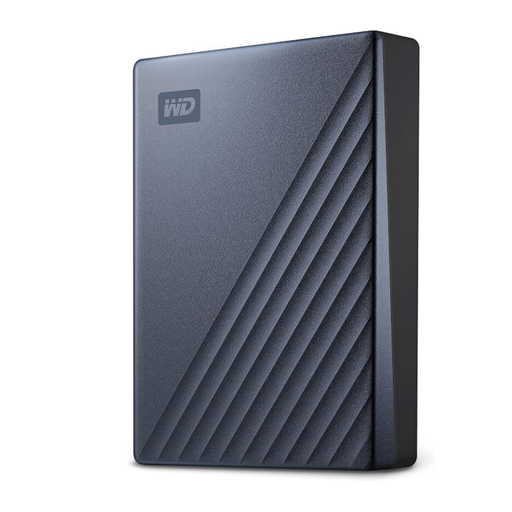
Western Digital My Passport Ultra 5TB, Blue
This portable HDD is a capacity-focused option if the selected family files fit within 5TB. Check its actual format against the handover computer, particularly if you plan to use Time Machine.
View on Joybuy
 No image available
Western Digital My Passport 2TB, Black
Consider this portable HDD for a defined backup that fits within 2TB. Confirm its format, connection and intended backup method before putting handover data on it.
View on Joybuy
Frequently asked questions
Is one external drive enough for a family-computer handover?
Do not rely on the presence of one copy as proof that the files are recoverable. The National Cyber Security Centre describes a backup as a copy kept in a separate safe location; retain a separate copy of important data and test that the files the recipient needs can be restored.
Can I use the same drive for Windows File History and Mac Time Machine?
Only after planning how each backup will use the drive. Microsoft Support says File History can use an external drive, while Apple Support says Time Machine cannot back up to a Windows-formatted disk. Check formatting and the intended backup arrangement before placing handover data on a shared drive.
What should happen to the backup after the client handover?
Agree who keeps each copy, how long it is needed and how it will be securely deleted. The Information Commissioner’s Office advises small organisations to plan for destroying data when client work ends; remember that a backup may retain information after it has been removed from the computer.


