What should you check?
Start with the files and devices you need to recover, then choose a storage arrangement you can maintain and restore from.
| Priority | What to check | Your needs |
|---|
| Recoverable copy |
Identify where a separate copy is stored. Restore a sample file, and check whether a local backup remains disconnected between backup runs. |
I need my photos and documents back if the original device or its files become unavailable, not just a message saying a backup ran. |
| Phones and computers |
Check supported devices and what each feature covers: phone data, photos, files or settings. Distinguish periodic device backup from file synchronisation and check the restore steps. |
Our files are on more than one device, so I want to know what will return when a phone is replaced and what simply appears on another screen. |
| Earlier file versions |
Check whether older versions and deleted files can be restored, and for how long. Microsoft says OneDrive file version history is retained for 30 days. |
If a document is overwritten or a deletion syncs across devices, I need a way to recover the earlier file within the service’s retention window. |
| Storage space |
Measure the current photo, video and document archive; include any device backups and room for growth. For a NAS, check the capacity available after installing drives. |
Our photo library will keep growing, so the chosen drive or cloud allowance needs to accommodate more than today’s documents. |
| Access and security |
Check account-recovery and sharing settings for cloud storage. For a portable drive, check encryption compatibility and how its password or recovery key will be kept. |
I want household members to reach the files they need without losing access to the backup account or an encrypted drive. |
| Local setup |
For an external drive, check connections, computer compatibility and a repeatable backup routine. For a NAS, check drive requirements, access controls, updates and a separate backup destination. |
A single computer may be simple to copy to a removable drive; several household computers may make central storage worth the extra setup. |
Relevant brand references
These services and product lines illustrate different backup arrangements; their features do not establish that a particular service or device is available in the product selection below.
Apple
iCloud is relevant to households using iPhone, iPad and Mac devices.
- Apple distinguishes synchronised content, such as iCloud Photos, from data stored in periodic iCloud Backup.
- Check what each feature covers and set up account recovery. Apple says a recovery contact can provide a code but cannot access the account.
Google
Google’s account and Android backup tools are relevant where household files and phone data are used across devices.
- Google says backed-up Android information can be restored to the original phone or some other Android phones.
- Check the particular phone’s backup coverage, restore compatibility and account-recovery options.
Microsoft
OneDrive is a file-storage and recovery option for households using Microsoft accounts across devices.
- Microsoft says OneDrive version history can restore earlier versions of stored files.
- Microsoft states that file version history is retained for 30 days; its full OneDrive restore feature is for Microsoft 365 subscribers.
Synology
Synology NAS systems offer a route to central local storage and configurable backups.
- Synology says Hyper Backup supports multiple versions and destinations including external devices and public-cloud services.
- Those features require a compatible NAS and configuration; a NAS in the home still needs a separate destination for an off-site copy.
Seagate
Seagate’s external-drive range is relevant to households making removable local copies.
- Seagate describes drives with different capacities and device-compatibility options.
- Encryption, included cables and operating-system support vary by model; check the exact drive before choosing it.
Joybuy storage options
These external drives and a diskless NAS are local-storage options for household backups. Choose the device only after deciding how files will be copied, where another recoverable copy will live and how you will test a restore.
 No image available
Samsung T7 Shield Portable SSD 1 TB, Blue
A portable local-copy option if you back up files from more than one type of device.
The listing specifies USB-C/USB 3.2 Gen 2, compatibility with Macs, PCs and Android devices, and AES-256-bit hardware encryption. Check that 1 TB accommodates your archive and establish a backup and restore routine before relying on the drive.
View on Joybuy
 No image available
Western Digital My Passport 2 TB Portable Hard Drive, Black
Consider this local-drive route for an archive that needs the stated 2 TB capacity and a scheduled copying routine.
The listing describes Acronis True Image for Western Digital software for scheduled local backups and 256-bit AES hardware encryption. Its macOS setup descriptions differ, so confirm the requirements for your computer; test restoration rather than relying on the schedule alone.
View on Joybuy
 No image available
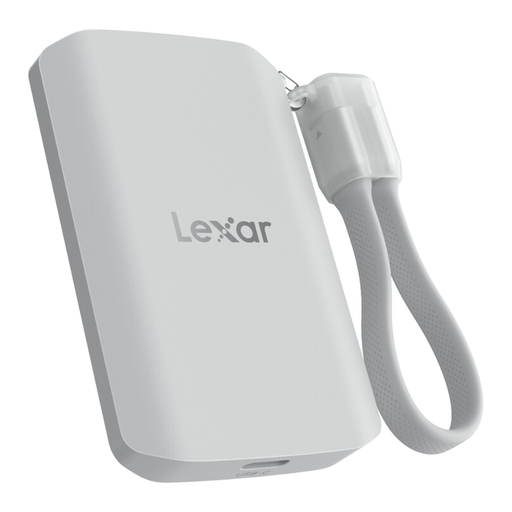
Lexar ES5 Portable SSD 1 TB, USB 3.2 Gen2x2
This local-storage option is worth checking if phone media is part of the household archive.
The listing describes Lexar App media auto-backup and names specific iPhone and Galaxy use cases. Confirm that your phone, files and restore process are covered: the listing says iCloud backup is not supported, so this drive should not be assumed to replace an iCloud device backup.
View on Joybuy
 No image available
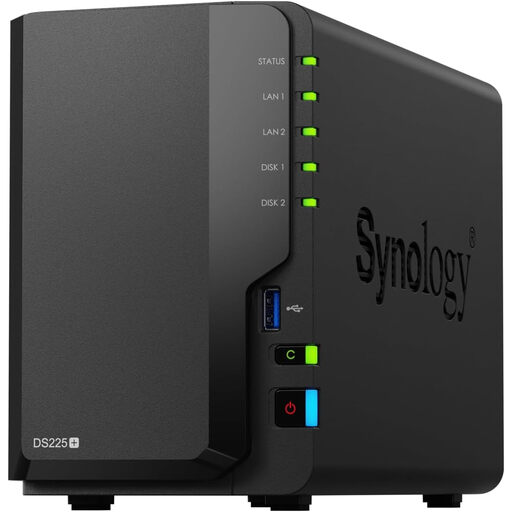
Synology DS225+ 2-Bay Diskless NAS
A central-storage route to consider when several household devices need access to files and a planned backup arrangement.
This is a diskless 2-bay NAS: compatible drives must be obtained and installed before it can store files. The listing describes automated backups to cloud services, external drives and remote NAS devices; check the drive configuration, retention settings and restore steps for your intended setup.
View on Joybuy
Common questions
Is file synchronisation the same as backup?
No. Synchronisation keeps files current across devices and can copy unwanted changes too; a backup is a separate copy you can restore. Apple distinguishes synchronised iCloud content from periodic iCloud Backup, so check both coverage and recovery options before relying on a cloud folder.
How much storage should a household choose?
Measure the photos, videos and documents you intend to protect, then allow space for new files and any device backups. For a cloud service, check what counts towards its allowance; for a drive or diskless NAS, check the capacity you will actually have available.
Should an external backup drive stay plugged in?
Do not leave it permanently connected if it holds your only backup copy. The National Cyber Security Centre warns that ransomware can affect connected backup storage; connect the drive for the backup, check completion, then disconnect and store it safely.
Can I encrypt a household backup drive?
Yes, if the encryption method works with your devices and you can retain its password or recovery key. Microsoft says BitLocker Drive Encryption for manually encrypting drives is available on Windows Pro, Enterprise and Education, not Windows Home. Apple says using Disk Utility to encrypt an external device requires erasing it first.
What should I arrange before relying on cloud backup?
Check what the service backs up, how restoration works, who can access shared files and how you would regain account access. Google recommends adding account-recovery information; Apple says a recovery contact can provide a recovery code without being able to access your account.


