Multi-source record researchers
If you keep a genealogy website, local tree software, scanned records and notes open together, consider the display arrangement and ports you need to work across those sources.


Choose the desktop format around your research desk and the genealogy software you intend to use. A tower gives you more scope for ports and expansion, a mini PC keeps the computer compact while using a separate monitor, and an all-in-one combines the computer and screen. Check the exact operating system, display connections and backup plan before choosing a configuration.
If you keep a genealogy website, local tree software, scanned records and notes open together, consider the display arrangement and ports you need to work across those sources.
If your project includes photographs, certificates and other local files, think about where they will be stored, backed up and exported. Family Historian cautions that its automatic snapshots do not replace backups; FamilySearch describes GEDCOM as a way to retain a portable copy of family-tree information.
A mini PC keeps the computer separate from your choice of monitor, while an all-in-one combines computer and screen. Compare the space available for each setup and how much flexibility you want to change the display later.
Choose it when: You want room for connected equipment or later expansion, particularly if your chosen genealogy program requires Windows.
Trade-off: A tower needs space and a separate monitor. Lenovo describes its tower range as offering more ports and upgrade potential, but the exact connections depend on the model.
Choose it when: Desk space is limited and you want to keep or select a monitor separately.
Trade-off: You need to arrange a compatible display and check the exact model's connections; a compact case alone does not establish how many monitors it supports.
Choose it when: You want the computer and display together at a permanent research desk.
Trade-off: The screen is part of the computer you select. Dell describes this integrated format in its all-in-one range; check the particular screen and stand before committing.
| Concern | What to check | Who this matters to |
|---|---|---|
| Working across research sources | Check that your genealogy program runs on the operating system, then compare display outputs with your intended monitor arrangement. | I want my tree, records and notes accessible at the same desk without choosing a computer that rules out my software. Around 40% of consumers put this multi-source workflow first. |
| Protecting a growing archive | Plan space for project files and media, plus a separate backup destination; check whether your software can export a GEDCOM copy. | When my scans and tree files grow, I need a way to retain them beyond the computer's internal drive. For around 30% of consumers, archive protection is the main concern. |
| Fitting the home-office desk | Measure the space, decide whether you need a separate monitor and confirm the display and peripherals included with the exact configuration. | If my desk is crowded, the space taken by the screen and computer affects what I can comfortably set up. A compact or integrated layout comes first for around 30% of consumers. |
Microsoft states that Windows 10 support ended on 14 October 2025. An older computer's operating system therefore deserves attention even if its other specifications suit your desk.
Check which version of Windows the exact computer includes and, if you intend to upgrade it, confirm its Windows 11 compatibility and licence.
Family Historian says its automatic snapshots are no substitute for backups. A project may also contain media and other files outside the tree information you see on screen.
Set up a separate backup destination and test that you can retrieve the project files and media you expect.
Without an independent copy, rebuilding a local archive from scattered files can take time, and some records may be lost.
FamilySearch describes GEDCOM as a format for transferring family-tree information between compatible products. How accompanying photographs and other files are handled depends on the programs involved.
Keep a backup in your program's native format as well as an export, and test an import into the program you plan to use next.
An all-in-one combines the display and PC, so the screen is part of the computer decision rather than a separately chosen component.
Check the exact screen size, resolution, stand adjustment, ports and included peripherals against your desk and research routine.
Dell is relevant if you are comparing a separate tower and monitor with an integrated all-in-one setup.
Lenovo's IdeaCentre range provides mini PC, tower and all-in-one formats to compare for different desk layouts.
HP is relevant if you want to compare slim and conventional tower formats for a home-office desk.
These tower and compact desktops offer different starting points for a family-history workstation. Match the operating system and display connections to your chosen software and desk setup; plan a separate backup for local records.
 No image available
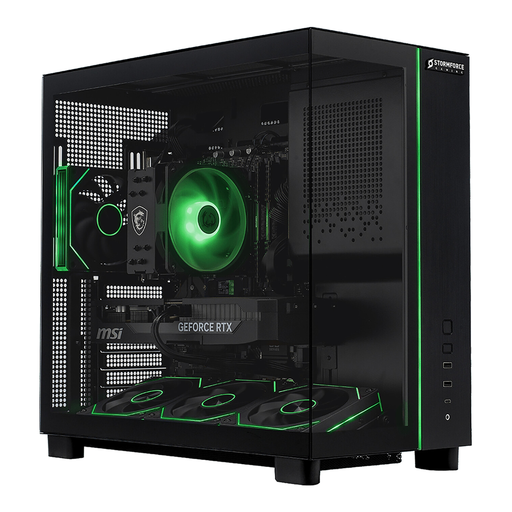
A Windows tower to consider if you also have uses for its listed graphics hardware; check your genealogy program and monitor connections before choosing it for research. The named configuration has 32GB DDR5 memory, a 1TB NVMe SSD and Windows 11 Home. Check the package contents for the monitor, keyboard and mouse you intend to use.
 No image available
This compact PC suits a desk where you want to choose the monitor separately. Its named configuration has an Intel Core 5 processor, 16GB RAM and a 512GB SSD. Check its display outputs against the number of monitors you intend to connect, and confirm which peripherals are included.
 No image available
This Windows tower is an option if you want the listed 2TB of internal SSD storage for local files alongside a separate backup plan. Its name also specifies 32GB RAM and Windows 11. Allow suitable space for the tower, and check the display outputs if you plan to use more than one monitor.
 No image available
This Windows tower is worth comparing if you keep a local archive and use a separate monitor. Its named configuration has 8GB RAM, a 1TB SSD and Windows 11 Home. Check whether 8GB meets the requirements of your intended software and workflow, and confirm the display connections and package contents.
 No image available
This compact Mac is a route to consider only after checking that your chosen genealogy software runs on macOS. Its named configuration has an M6 chip with a 12-core CPU and 12-core GPU, 16GB memory and a 256GB SSD. Family Historian says version 8 runs on 64-bit Windows 10 or Windows 11, not directly on macOS; also assess space for local media and confirm the display and peripherals you will need.
No, not if the services and tools you choose work in your supported browser. If you intend to use Family Historian 8 locally, its publisher specifies 64-bit Windows 10 or Windows 11 and says it does not run directly on a Mac without a Windows emulator; check the requirements of any other program you plan to use.
Choose a gaming graphics card for a separate use that calls for one, rather than treating it as the deciding specification for family-history research. For your research setup, check the intended software's requirements and the computer's display connections, storage and backup arrangement.
Back up the complete project before moving it, including any media you expect to keep. Family Historian warns that its snapshots do not replace backups, while FamilySearch describes GEDCOM as a way to export and import family-tree information between compatible programs; test the transfer before relying on it.
Check who will be able to see identifiable information about living people before you share or publish the tree. The Information Commissioner's Office defines personal data as information relating to an identified or identifiable person; if you plan wider publication or organised sharing, consult its current guidance for your circumstances.