What matters when choosing back-up storage?
Decide how you would recover files after losing a device or access to your home, then size the storage and check that the chosen folders are actually backed up. A portable SSD, an external hard drive and cloud storage address different parts of that job; using a drive alongside cloud storage also means maintaining both copies.
| Concern |
What to check |
Who this matters to |
| Off-site protection |
Confirm that important folders have uploaded to a cloud account or are copied to a drive stored elsewhere. Test a restore. |
If theft or damage at home could affect the computer and its nearby drive, I want another copy beyond the home. Around 31% of consumers put this off-site protection first. |
| Automatic back-up and recovery |
Check folder selection, account-recovery details, available storage and the service’s restore options. |
When files change across devices, I need back-up to run without connecting a drive each time and want to regain access after replacing a device. For around 31% of consumers, that automatic recovery is the primary need. |
| Capacity and ongoing cost |
Measure the library, allow room for growth and back-up history, and check whether household members share a cloud quota. |
With a growing photo and video library, I want enough space without committing to more cloud storage than I need. Capacity and ongoing cost come first for around 23% of consumers. |
| Portability and compatibility |
Match the drive’s connector, cable and file format to the intended devices; treat quoted maximum speeds as conditional. |
If I carry a local copy between computers or move large files regularly, the connection and ease of carrying matter most. Around 15% of consumers prioritise portable transfers. |
External drives for local back-ups
These portable hard drives and SSDs can provide the local-copy part of a household back-up plan. Choose capacity against the files and back-up history you intend to keep; add a separate off-site copy if you also need protection against a loss affecting your home.
 No image available
Western Digital My Passport 2TB Portable Hard Drive, Black
A portable local-copy option for household photos and documents when 2TB accommodates the files and back-up history you intend to keep.
Check the required driver and read/write compatibility before using it with a Mac.
View on Joybuy
 No image available
Samsung Portable SSD T7 4 TB, Grey
A portable local-copy option for a larger library, provided 4 TB allows for the files and back-up history you plan to retain.
The product name specifies USB Type-C 3.2 Gen 2. Check the computer’s port and cable before relying on a particular transfer rate.
View on Joybuy
 No image available
Samsung MU-PE1T0S 1TB Portable SSD, Black
Consider this portable local drive if 1TB covers the photos and documents you need to retain, including back-up history.
The product name specifies USB Type-C 3.2 Gen 2; confirm that the intended device has a suitable connection.
View on Joybuy
 No image available
Western Digital Elements Port. 4TB Hard Drive, Black
A 4TB local-drive option for a household file library; compare that capacity with current storage use and the back-up history you want to keep.
The product name specifies USB3.0. Check file-format requirements before using the drive with a non-Windows device.
View on Joybuy
 No image available
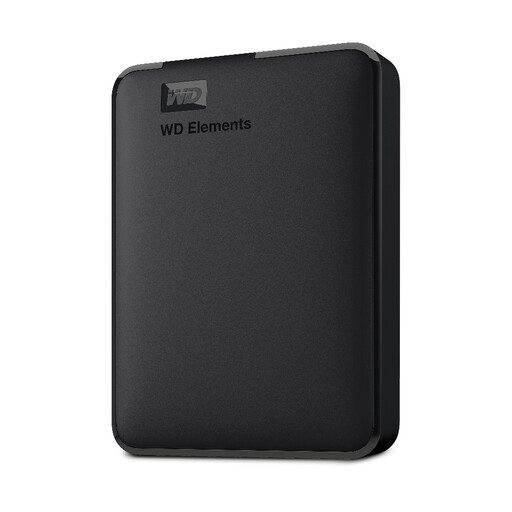
Western Digital Elements 1TB Portable Hard Drive
This 1TB portable drive can serve as a local copy if your files and planned back-up history fit within its capacity.
Check the required file format before using it with a Mac or another non-Windows device.
View on Joybuy
Common questions
How large should an external back-up drive be?
Choose a drive that holds the files you plan to protect, with room for growth and back-up history. For a Mac using Time Machine, Apple recommends a disk with at least twice the Mac’s storage capacity; that is Time Machine guidance, not a sizing rule for every back-up method.
Can cloud sync replace an external back-up drive?
Cloud sync can provide an off-site copy, but do not assume it independently preserves every file or deletion. Check which folders have uploaded and what recovery options apply; Apple advises making an additional archive or copy of information stored in iCloud.
What does Windows Backup copy to OneDrive?
On consumer Windows 10 and Windows 11 devices using a personal Microsoft account, Windows Backup can copy selected standard folders to OneDrive. Microsoft names Desktop, Documents, Pictures, Videos and Music; check the selection and available storage rather than assuming files elsewhere are included.
What should I check before relying on a cloud account for recovery?
Make sure you can regain access to the account as well as the files. Use a unique strong password, enable multi-factor authentication where available, keep recovery details current and check the service’s storage and restore conditions. The Information Commissioner’s Office recommends strong, unique passwords for important cloud-stored files.
Is a cloud-storage subscription an ongoing commitment?
A paid cloud plan involves a recurring charge while you keep that plan. Before choosing one, compare the storage your household uses with the plan’s quota, check sharing arrangements and review the current renewal terms.


