What matters when choosing?
For a phone change, decide how files will reach the new device, then how a separate copy will remain accessible afterwards. Cloud storage, portable drives and NAS differ in the access and upkeep they require; flash storage and cables mainly address the transfer itself.
Cloud storage
Consider it when: Photos need to upload regularly and appear on devices signed in to the intended account.
Allow for: Account access, available storage and completed syncing all affect what can be recovered.
Portable SSD or hard drive
Consider it when: You want a separate local archive, especially one managed through a computer.
Allow for: Manual copying, compatible connections and safe storage of the drive.
Network-attached storage
Consider it when: Several people need a home library with deliberately assigned access.
Allow for: Setup, account administration and an additional backup beyond the NAS.
Flash drive or cable transfer
Consider it when: Both phones are available for a supervised move, or you need to copy selected files manually.
Allow for: Connector and workflow checks, followed by a continuing backup elsewhere.
| Concern |
What to check |
Who this matters to |
| Recovery during a phone change |
Check the last successful backup or sync, what it includes and whether the new phone can access the intended account before erasing the old one. |
If I am handing over my old phone, I need to know the new one can reach my photos and files before the old copy disappears. Around 36% of consumers put this low-friction recovery need first. |
| Private access and selective sharing |
Check which account receives each person's uploads, whether a family plan shares capacity or files, and who can access selected albums. |
When several people use household storage, I want my own library kept private while choosing what to share. This is the primary need for around 29% of consumers. |
| Archive capacity and a local copy |
Check the size of the existing library, the drive's stated capacity, compatible computer connections and where a second copy will be kept. |
If our videos and photos form a growing archive, I want enough room for a copy I can keep locally. Around 21% of consumers place that need ahead of the other concerns here. |
| Direct manual transfer |
Check both phones' connectors and the exact drive, adapter, file format and transfer workflow; open copied files before deleting originals. |
For a quick move of selected files, I would rather connect a drive or cable and inspect the copies myself. Direct transfer comes first for around 14% of consumers. |
Joybuy options for local copies
These portable SSDs, flash drives and a hard drive cover local-copy and manual-transfer approaches. Match the device connection and available capacity to your household's files, and keep a separate continuing backup when changing phones.
 No image available
Samsung Portable SSD T7 4 TB, grey
Consider this for a sizeable local photo and video copy managed through a compatible device.
Portable SSD with 4 TB capacity and a USB Type-C 3.2 Gen 2 connection.
Check the exact phone's connection, storage format and power requirements before planning a direct transfer. Keep another copy before erasing the old phone.
View on Joybuy
 No image available
Samsung T7 Shield Portable SSD 1 TB, blue
Consider this for a portable local copy during a phone handover, subject to confirming how your phone will connect.
Portable SSD with 1 TB capacity and USB 3.2 Gen 2.
Samsung says the T7 Shield's maximum stated transfer speeds require a compatible host and cable with UASP enabled. Check phone compatibility and retain a separate backup.
View on Joybuy
 No image available
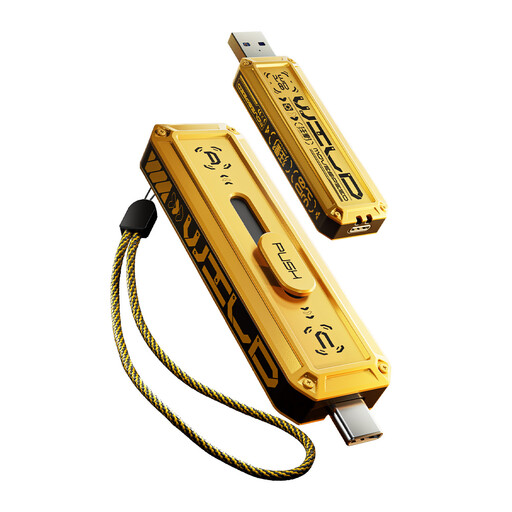
MOVESPEED YSUWD10-1TSY 1 TB dual-interface flash drive, yellow
Consider this for manually moving selected files between compatible devices during a phone change.
1 TB flash drive with USB-A and Type-C interfaces and a zinc-alloy housing.
Confirm the exact handset and file-management workflow, then open copied files before removing the originals.
View on Joybuy
 No image available
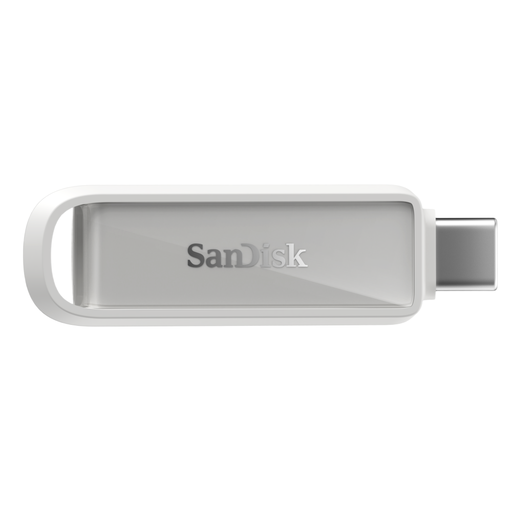
SanDisk Phone Drive with USB-C, 128 GB, Arctic White
Consider this for copying a selected photo set from a compatible USB-C phone rather than assuming it will hold the entire household archive.
USB-C phone drive with 128 GB capacity.
Check the intended iPhone or iPad model, its operating system and any app required for your chosen backup workflow before purchase.
View on Joybuy
 No image available
Western Digital Elements Portable 4 TB hard drive, black
Consider this for a larger household archive copied and checked through a computer.
Portable hard drive with 4 TB capacity and a USB 3.0 connection.
Confirm the intended computer's connection and file-format needs. Do not assume a direct phone connection, and keep another copy of important files.
View on Joybuy
Common questions
Is iCloud Photos the same as an iPhone backup?
No. Apple treats iCloud Photos and iCloud device backups as separate mechanisms: when iCloud Photos is enabled, synced photos are excluded from the device backup, and computer backups also exclude photos already synced to iCloud. Check both photo sync and device-backup status before changing phones.
Can family members share cloud storage without sharing their photos?
Yes, if the family service is set up for separate accounts. Apple says iCloud+ Family Sharing keeps individual photos and documents private, while Google says Google One shares storage without granting other members access to files. Set up any shared albums separately and check each service's family eligibility rules.
What should I check before connecting a drive directly to an iPhone?
Check the iPhone model, its connector and the drive or adapter required. Apple says iPhone 15 and later use USB-C and can connect to external storage, but that does not mean a USB-C drive plugs directly into a Lightning iPhone. Confirm the file-access workflow for the exact combination before buying.
Will photos still upload when cloud storage is full?
Do not rely on uploads continuing once the account reaches its limit. Google says photos and videos may stop backing up when storage is exhausted, while Apple says iCloud photo syncing can show a warning when storage is nearly full or full. Check the relevant account's available space and last successful upload before resetting a phone.


