Phone-first family archivists
If photos and videos are mainly created on phones, the immediate question is whether copying happens automatically for each device and file type. Check where those copies go before replacing or losing access to a phone.


Choose a cloud service if automatic copying from supported devices is your priority, but check which files it covers, the account allowance and how you would regain access. Choose a separately stored drive if you need a local copy or have unreliable internet; for irreplaceable family files, combining an online copy with a securely stored local copy avoids relying on just one route. A home NAS can serve as shared storage, but it needs its own backup.
If photos and videos are mainly created on phones, the immediate question is whether copying happens automatically for each device and file type. Check where those copies go before replacing or losing access to a phone.
A growing library spread across several accounts calls for a check of each account’s allowance, the services sharing it and what happens when that allowance is reached.
If internet access is unreliable or a local recovery copy matters, a removable drive can hold files apart from everyday devices. It still needs a copying routine, secure storage and disconnection between uses.
The National Cyber Security Centre describes a backup as a copy kept in a separate safe location. Choose how files will reach that copy, then make sure the route remains usable when you need to recover them.
Choose when: Supported phones or computers need automatic copying and access across devices.
Accept: Coverage depends on settings, available account storage and continued account access.
Choose when: You want a local copy or cannot rely on a steady internet connection.
Accept: You must copy files regularly, disconnect the drive and store it securely.
Choose when: A deliberately selected, limited set of files needs a removable second copy.
Accept: Copying is manual, so new files will be missed until the next session.
Choose when: Several people need a shared home repository and you are prepared to manage it.
Accept: Setup, access management and a further backup destination remain your responsibility.
Choose when: Important family files warrant both an online route and a separately stored local copy.
Accept: Both copies need attention: check cloud access and capacity as well as local copying and storage.
| Concern | What to check | Who this matters to |
|---|---|---|
| Automatic capture | Check supported devices and file types, then distinguish synchronised files from device backups. | If new phone photos are easy to forget, I want copying to happen without connecting a drive each time. Around 33% of consumers put automatic capture first. |
| Capacity and commitment | Measure the library and check what shares the storage allowance and what happens at its limit. | As our family library grows, I need room for it without committing to unsuitable ongoing storage. For around 25% of consumers, capacity and commitment are the primary concern. |
| A separate recovery copy | Check where each copy is kept, how an account or drive is secured and whether files can be restored. | If the original device is lost, I need another copy I can still reach. Keeping a separate recovery copy comes first for around 25% of consumers. |
| A limited set of files | Check that the selected files fit and set a routine for copying additions. | When only a few documents or chosen photos need preserving, I would rather manage those copies than a larger system. Around 17% of consumers prioritise this simpler, limited-file approach. |
Apple says photos and videos in iCloud Photos synchronise to iCloud and are not included in the daily iCloud Backup. A synced library and a device backup therefore cover different things.
List the files you would need to recover, check where each is synced or backed up, and keep another separate copy where needed.
Apple, Google and Microsoft account allowances can serve more than one kind of file or service. Reaching an allowance can interrupt uploads, syncing or backups, depending on the service.
Measure your library and check shared usage and the effects of changing a plan before relying on automatic copying.
If the shared allowance is too small, continuing to use that cloud route may require a subscription.
The National Cyber Security Centre advises keeping an offline backup digitally disconnected when it is not in use, so an incident affecting a connected device does not also reach that copy.
Check that copying finished, safely disconnect the drive and store it securely away from the original device.
A home NAS remains one storage location. Synology documents ways to copy data from compatible systems to USB, remote storage or cloud services.
Plan a separate destination, schedule copying where supported and try restoring a small selection of files.
A separate NAS backup may need another storage device or destination.
iCloud is relevant to households using iPhones, iPads and Apple devices for photos, files and device backup.
Google Backup and Google Photos are relevant when Android devices and a Google Account are central to household copying.
OneDrive is relevant to Windows-centred households copying selected computer folders through a Microsoft account.
Synology NAS and Photos are relevant to households willing to manage shared storage at home.
These removable drives and the USB flash drive are choices for keeping a local copy of household files. Check capacity and device connections before buying, then plan how often you will copy files and where you will keep the disconnected device.
 Image unavailable
Consider this for a separately stored local copy of a sizeable family file library.
 Image unavailable
Consider this for a portable local copy when its connection suits the devices holding your files.
 Image unavailable
Consider this for a portable second copy of selected household files, kept securely apart from the originals.
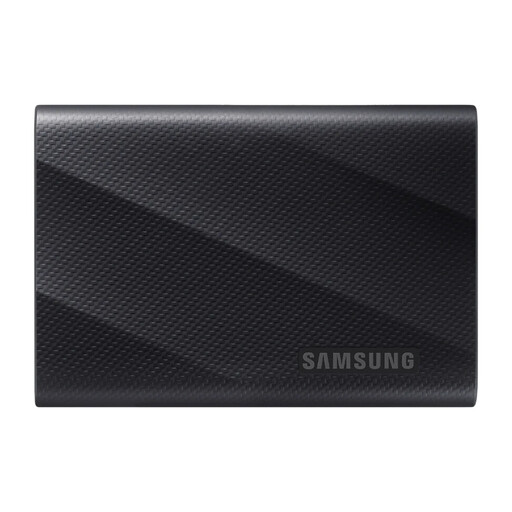 Image unavailable
Consider this for a removable local copy if its stated connection matches the device you will use to copy files.
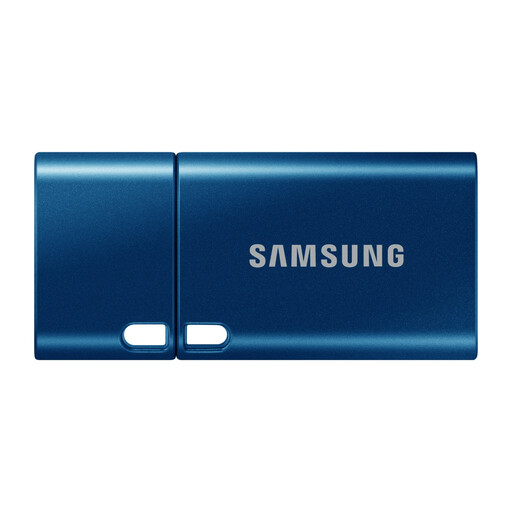 Image unavailable
Consider this for manually copying a selected set of documents or photos rather than managing a household-wide backup.
No: iCloud Photos and the daily iCloud Backup cover different content. Apple says photos and videos synchronised through iCloud Photos are not included in that daily device backup. Check both settings and keep an additional separate copy if you need one.
New copying or syncing can be interrupted, with the effect depending on the service. Apple says a full iCloud allowance can stop new photo uploads and device backups; Microsoft describes restrictions on uploads and syncing when usage exceeds an applicable allowance. Check your existing library and everything sharing the account before relying on automatic backup.
Yes, if you regularly copy the files to a drive kept separately from the originals. The National Cyber Security Centre identifies removable storage as a route where internet access is unreliable; disconnect the drive after copying and store it securely.