What to check before choosing
Start with the files you cannot replace, then decide how automatically they should copy, where the second copy will live and who needs access to it.
| Priority |
What to check |
Your needs |
| Recovery after loss or replacement |
Check that important photos, videos and documents have a copy in a separate location. Confirm how the service or device restores files when setting up a replacement phone or computer. |
I want access to irreplaceable files if the original phone or computer is lost, damaged, erased or replaced. |
| Automatic, current copies |
Check which folders and media types upload automatically, whether uploads need Wi-Fi or power, and whether computer folders need separate backup software or scheduling. |
I do not want protection to depend entirely on remembering a manual copy every time new photos or documents are added. |
| Capacity and growth |
Measure the current library, allow room for future photos and videos, and compare cloud capacity with the size of a removable drive. Check sharing rules where several people use one plan. |
I need enough room for a family library that will keep growing, without relying on a small transfer drive as the only archive. |
| Account and sharing security |
Use a unique password, enable two-step verification for the storage account and recovery email, and review folder-sharing permissions before sending links. |
I want family files to remain recoverable without making the cloud account or shared folders easier for others to access. |
Joybuy storage options
Joybuy product options for keeping a separate removable copy of household photos, videos and documents, including portable SSDs for larger archives and a USB-C flash drive for selected files.
 No image available
Samsung MU-PG4T0B 4 TB USB Type-C SSD
A large local copy for households managing substantial photo, video and document archives across compatible computers and Android devices.
Stated 4 TB capacity, USB 3.2 Gen 2x2, up to 2,000 MB/s read/write, AES-256 hardware encryption, password authentication and USB-C-to-C and USB-C-to-A cables. Confirm device support for USB 3.2 Gen 2x2 and set a manual copying routine; automatic backup scheduling is not described.
Joybuy
 No image available
Samsung MU-PG2T0B 2 TB USB Type-C SSD
A portable local second copy for a growing household archive where USB-C connectivity is useful.
Stated 2 TB capacity, USB 3.2 Gen 2x2, up to 2,000 MB/s transfer speed, AES-256 hardware encryption and password authentication. Check host-port support for maximum speed and whether a USB-A connection is needed, as only a USB-C-to-USB-C cable is listed.
Joybuy
 No image available
Samsung Portable SSD T7 2 TB Grey
A removable archive option for families that can connect a drive periodically and keep another separate copy.
Stated 2 TB capacity, USB 3.2 Gen 2, up to 1,050 MB/s read and 1,000 MB/s write, optional AES-256 password protection, Windows, macOS and Android compatibility, plus USB-C cables. Maximum speed needs compatible equipment, and the drive is not waterproof or dustproof.
Joybuy
 No image available
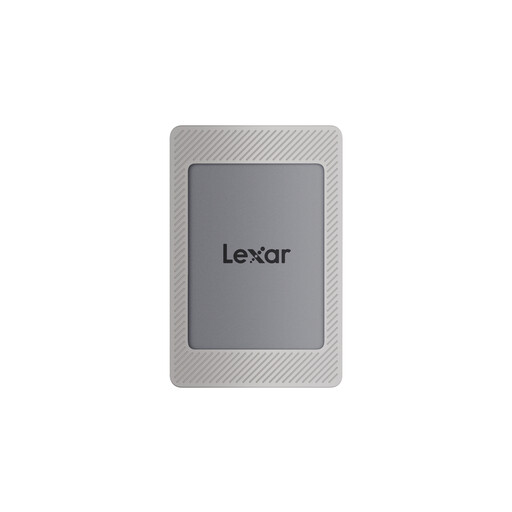
Lexar ES4 Portable SSD with Magnetic Set 2 TB
A portable local-copy option for households moving files between compatible USB-C phones and computers.
Stated 2 TB capacity, USB 3.2 Gen 2 performance up to 1,050 MB/s read and 1,000 MB/s write, AES-256 encryption software and USB-C-to-C and USB-A-to-C cables. The magnetic attachment is specified for iPhone 15/16 series, and MagSafe wireless charging is not supported while attached.
Joybuy
 No image available
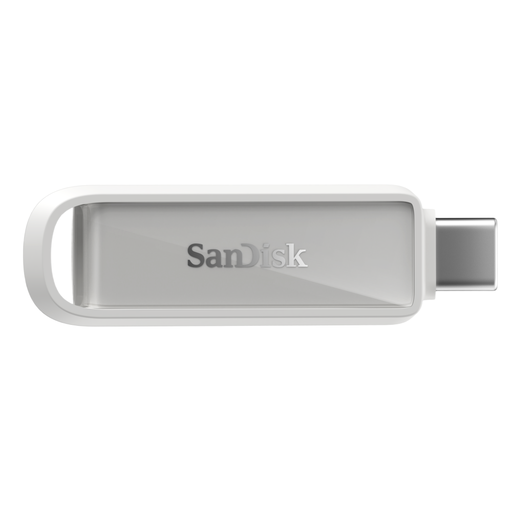
SanDisk Phone Drive with USB-C 256 GB
A compact supplementary copy for selected photos, videos and documents on compatible USB-C Apple devices.
Stated USB-C connector, 256 GB capacity, USB 3.2 Gen 1, up to 150 MB/s read speed and app-based photo and video backup. Confirm the compatible device, app availability, backup scope and restoration steps before depending on it.
Joybuy
Frequently asked questions
Is cloud photo syncing the same as a separate device backup?
Not necessarily. Apple distinguishes iCloud syncing from iCloud Backup: iCloud Photos stays current in iCloud, while data not regularly synced can be stored in device backup. Check the service settings before assuming photos, messages, app data and documents are all covered by one switch.
Can I restore Google-backed photos after changing an Android phone?
Photos and videos backed up through Google Photos can be accessed on devices signed in to the same Google Account, according to Google. Before replacing the old phone, confirm the intended account and the folders included in backup.
How should I secure a cloud backup account?
Use a unique, strong password and enable two-step verification for the cloud-storage account and its recovery email. The National Cyber Security Centre says two-step verification makes account access harder for criminals who obtain a password and identifies cloud storage as an account type to protect.
What should I compare in a cloud-storage plan?
Compare storage capacity, who can use the plan, renewal terms and what data is actually included. Check whether photos, computer folders and device backups draw from the same allowance or use separate settings.
Does a NAS arrive ready to store family photos?
Not always. Synology’s DS223j installation guidance says that at least one 3.5-inch or 2.5-inch SATA drive is required, and installing a drive that already contains data formats and erases it. Choose compatible drives and copy existing files elsewhere before installation.


