For a small desk, start with a portable drive that draws power over USB. Choose a portable HDD if a growing photo and video archive needs more capacity; consider a portable SSD if you regularly move large batches and value a smaller drive, while checking that your computer supports its connection. Whichever you choose, keep another copy of irreplaceable photos elsewhere.
Who these drives suit
Growing family archive keepers
If years of photographs are joined by phone or camera video, check how much space the library already occupies and leave room for it to grow. A portable HDD is worth considering when capacity matters more to you than transfer speed.
Small-desk, occasional backup users
A compact, USB-powered drive can sit beside a laptop during a backup and be put away afterwards. Check the exact model’s connection and setup requirements so the routine is easy to repeat.
Frequent photo importers
If you regularly copy large photo or video batches, a portable SSD may suit the way you work. Check both the chosen capacity and your computer’s USB connection before relying on a quoted transfer speed.
What matters when choosing
Decide how much space your archive needs, how you will make regular backups and whether faster transfers would change your routine.
| Concern |
What to check |
Who this matters to |
| Capacity for a growing archive |
Measure your photo and video folders, then compare the exact drive capacity with the room you want for future files. |
If I have years of photos and videos to preserve, I need space beyond today’s folders. Around 42% of consumers put capacity and headroom first. |
| An easy backup routine |
Check the exact model’s backup tools, operating-system requirements and supplied connection. |
If I back up beside a laptop on a crowded desk, I want a setup I can use regularly. Roughly 33% of consumers prioritise a simple, compact backup routine. |
| Transfers and portability |
Check the drive’s capacity and the USB mode supported by your computer and cable; treat drop or resistance ratings as limited claims. |
When I often move large photo or video batches, transfer time and carrying the drive both matter. About 25% of consumers put speed and portability first. |
Mistakes to avoid
-
Keeping family photos on only one external drive
A drive stored with the computer can be affected by the same theft, damage or malware incident. The National Cyber Security Centre describes a backup as a separate copy kept in a safe location.
Keep multiple copies in different locations or on different devices, disconnect the drive after backing up when practical, and occasionally check that you can restore photos.
-
Choosing capacity from today’s photo folder alone
Videos and new photographs can take up the space you expected to use for future backups.
Measure the whole library, including video folders, and compare capacity variants with enough headroom for your plans.
-
Assuming a USB-C connector guarantees the quoted SSD speed
Samsung and Crucial condition their highest stated portable-SSD speeds on a compatible USB connection. The connector’s shape alone does not establish the speed your computer can deliver.
Check the computer port, drive requirements and cable before choosing an SSD for frequent large transfers.
-
Reformatting before copying off existing files
A file-system change for a computer or backup tool can erase files already on the drive.
Copy those files to another location and check them before reformatting; then confirm the format your backup software needs.
Brands to consider for portable storage
Western Digital
Western Digital positions My Passport as a compact, USB-powered portable HDD line for personal backups.
- Western Digital lists My Passport capacities from 1TB to 6TB, along with backup software, password protection and hardware encryption for the line.
- For macOS, check the selected model’s driver and formatting requirements before using your preferred backup method.
Seagate
Seagate’s Expansion portable HDD focuses on straightforward file storage, while its One Touch portable line offers backup tools.
- Seagate lists Expansion portable capacities up to 5TB; its One Touch portable line includes models with backup tools and hardware encryption.
- Expansion requires reformatting for Time Machine. Check the exact One Touch model’s features and availability if its backup tools are important to you.
Samsung
Samsung’s T7 Shield is a compact portable SSD line to consider when you often transfer files or carry the drive.
- For the T7 Shield model cited, Samsung states sequential speeds up to 1,050MB/s read and 1,000MB/s write, plus IP65 testing and a 3m drop rating.
- The quoted speeds require compatible USB 3.2 Gen 2 and UASP hardware. Resistance ratings reflect specified tests, not protection against every accident.
Crucial
Crucial’s X9 Pro portable SSD is a small-footprint option for photo transfers on a crowded desk.
- Crucial states up to 1,050MB/s read and write speeds and a 65 × 50mm footprint for the X9 Pro.
- Check host compatibility and the file system you need; changing the drive’s format can erase files already stored on it.
Joybuy product choices
These portable HDD and SSD options cover capacity-led family-photo storage, compact backups and more frequent file transfers. Choose the capacity and connection for your own archive and computer.
 No image available
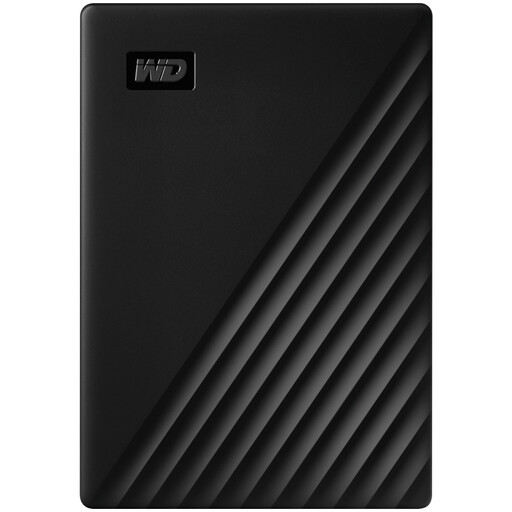
Western Digital My Passport 4TB Portable Hard Drive, Black
Consider this portable HDD if your family-photo library needs 4TB of storage and you prefer a drive you can put away between backups.
For macOS backups, check the setup and formatting requirements for this variant.
View on Joybuy
 No image available
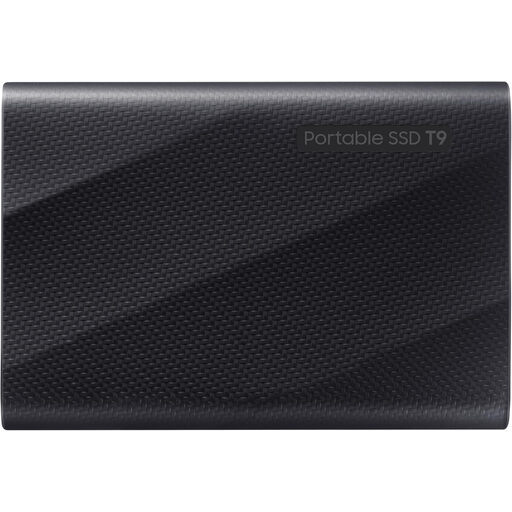
Samsung MU-PG4T0B 4TB USB Type-C Drive, Black
If you regularly transfer large photo or video folders, consider this 4TB portable SSD and check whether your computer supports its USB 3.2 Gen 2x2 connection.
Its product name specifies USB Type-C; the connection at your computer matters when assessing transfer-speed claims.
View on Joybuy
 No image available
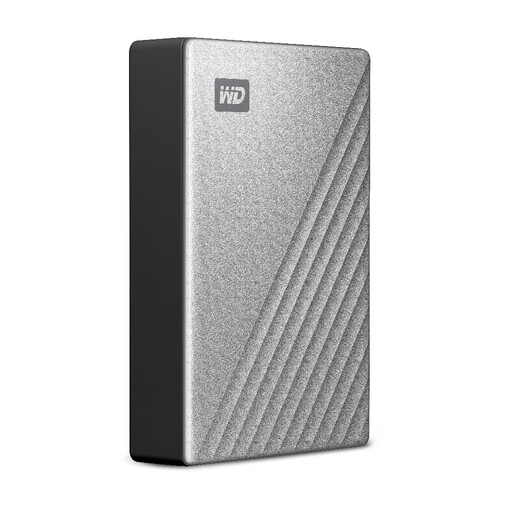
Western Digital My Passport Ultra for Mac 5TB, Silver
This 5TB portable HDD is worth considering for a sizeable photo archive in a Mac-focused setup.
Check its file system against your backup method and confirm the setup needed if you will also use a Windows computer.
View on Joybuy
 No image available
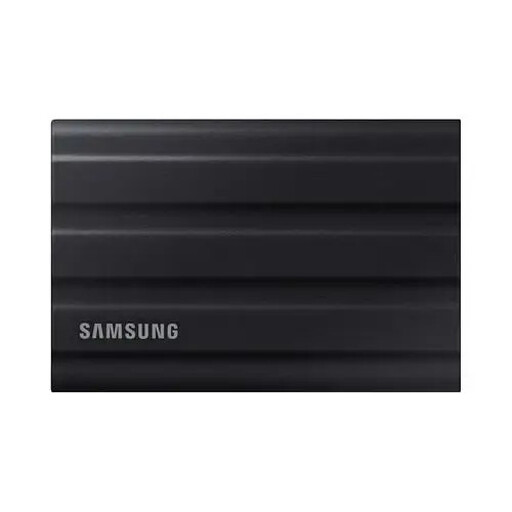
Samsung MU-PE1T0S 1TB USB Type-C Drive, Black
Consider this portable SSD for frequent photo imports if your library and planned additions will fit within 1TB.
The named connection is USB 3.2 Gen 2 (3.1 Gen 2); check your computer and cable before relying on a quoted transfer speed.
View on Joybuy
 No image available
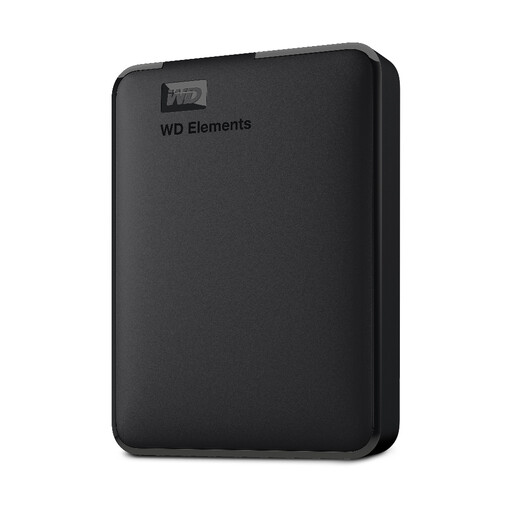
Western Digital Elements Portable 4TB USB 3.0, Black
For occasional photo backups, this portable 4TB HDD is a capacity-led option if it leaves enough room for your growing library.
Check formatting requirements before using it with a Mac or another operating system.
View on Joybuy
Frequently asked questions
Is one external drive enough to protect family photographs?
No: keep another copy somewhere separate from the computer and drive. The Northern Ireland Cyber Security Centre recommends three copies on two different devices, with one kept offline in a different location; test occasionally that you can restore your photos.
Should I choose a portable HDD or SSD for photo backups?
Choose a portable HDD when capacity for a growing archive is your main concern; consider a portable SSD when frequent large transfers and a small drive matter more. Compare the exact capacities, and check that your computer supports the connection needed for any quoted SSD speed.
Can I use the same backup drive with Windows and Mac?
That depends on the drive’s format and the backup method you intend to use. Seagate says its Expansion portable drive needs reformatting for Time Machine, while Western Digital notes additional driver or formatting requirements for My Passport on macOS; copy off existing files before reformatting.
What should I do when I first set up a photo-backup drive?
Copy a small folder, open some photos from the drive and test restoring the folder before settling into a regular routine. Use compatible backup software or a repeatable manual copy process, and disconnect the drive after a backup when practical.


