Choose cloud storage if phone uploads, access away from home and sharing are your priorities; choose an external drive if you can manage a separate local copy yourself. A NAS can serve a shared home library, but it needs setup and does not put a copy outside the home. For photos you cannot replace, combine locations and check that you can restore a file before relying on the arrangement.
Who needs which approach?
Start with where the family photos are now and who needs to reach them.
Phone-first families
If most photos start on household phones, look for a backup workflow that works on each person’s device and makes shared albums accessible to the intended relatives. Check the upload settings on every phone rather than assuming that signing into an account starts a backup.
Households with camera and computer photos
Photos spread across camera cards, computers and phones need an import routine as well as enough storage. A local drive can hold a separate copy, provided someone connects it and keeps the copy up to date.
Households planning for account or device problems
If losing access to one device, account or home storage location is the main concern, decide where a second, separately managed copy will live. Include a trial restore in the routine so that a saved photo is not merely assumed to be recoverable.
What should you check before choosing?
Match the storage route to the way photos enter the collection, then check where its recoverable copy will be kept.
| Priority |
What to check |
Your needs |
| Phone access and sharing |
For cloud storage, confirm upload settings on each phone and sharing access for each household member. Check account access and what happens if the service or subscription is interrupted. |
I take most photos on my phone and want relatives to view them without passing around a drive. |
| A local copy |
For an external HDD or SSD, check capacity, connections and a repeatable copying routine. A drive kept with the original devices is still at the same location. |
My camera and computer photos need a separate copy that I can manage without depending solely on a cloud account. |
| A shared home library |
For NAS, check phone-app support, home-network setup and who will maintain it. Synology describes mobile management in Synology Photos; an off-site copy remains a separate decision. |
Several people need to add or find family photos in one home library, and we can take responsibility for its setup and backups. |
| Storage allowance |
Measure the existing photos and videos, then allow for future imports and other data using the same account. Apple Support lists 5 GB of free iCloud storage; Google One lists up to 15 GB with a Google Account. |
Our collection includes camera imports as well as new phone photos, so I want to size the storage against the whole library. |
| Device and software fit |
Confirm the intended computer, phone or router can use the drive and its file system. Seagate says exFAT is not recommended for Windows File History or macOS Time Machine; its support guidance also identifies possible router and other host-device restrictions. |
I need the copy to work with the backup tool we will actually use, not just fit a USB socket. |
| Recovery from another location |
If a local drive or NAS holds the main library, plan a copy outside that location. For a hybrid local-and-cloud setup, check both destinations and try restoring a photo from each. |
These photos cannot be retaken, so I do not want one device, account or location to be my only recovery route. |
Common backup mistakes
-
Treating a synced cloud library as the only recoverable copy
Account access and retention conditions matter when the cloud holds every photo. Google Account Help says Google reserves the right to delete a personal account and its data after at least two years of inactivity across Google.
Keep a separately managed copy of irreplaceable photos, maintain account recovery details and test that a photo can be restored.
-
Choosing a drive before checking the backup software
A format that permits manual transfers may not suit a scheduled backup tool. Seagate says exFAT is not recommended for Windows File History or macOS Time Machine, and notes that other host devices can impose their own restrictions.
List the computers, backup applications and any router that will use the drive; check their connection and formatting requirements before choosing it.
-
Assuming a home NAS is already an off-site backup
A NAS can bring a household library together, but files on that device remain at home. Synology describes cloud backup and version retention as a separate protection layer for NAS data.
If the NAS holds the main library, arrange a copy outside the home and periodically check that a photo can be restored from it.
Relevant brands and services
These examples illustrate different storage routes; a brand’s service or device still needs to fit the household’s devices and backup routine.
Apple
iCloud Photos is a cloud route to consider when the household already uses Apple devices.
- Apple Support lists 5 GB of free iCloud storage.
- Check total iCloud use, including files and device backups, when choosing an allowance for photos.
Google
Google Photos and Google One are cloud-storage options for households using Google accounts.
- Google One lists up to 15 GB of storage with a Google Account.
- Google Account Help says a personal account inactive across Google for at least two years may have its content and data deleted.
Microsoft
OneDrive is a cloud photo-and-file route for households that also use Windows PCs or Microsoft 365.
- Consider how the same account will hold both photos and other files.
- Microsoft Support says an expired subscription can affect OneDrive access and that files might eventually be deleted; check the applicable account and storage conditions before relying on it as the only copy.
Synology
Synology provides home-managed photo-storage options for households prepared to set up and maintain a shared device.
- Synology lists iOS and Android support for managing photos with Synology Photos.
- Synology describes BeeStation as connecting to a router by Ethernet; keeping an off-site copy is a separate part of the backup plan.
Seagate
Seagate’s drive documentation is a useful reference when assessing a local-copy workflow.
- Its formatting guidance addresses moving files between modern Windows and macOS computers.
- Seagate does not recommend exFAT for File History or Time Machine and advises checking host-device restrictions.
Joybuy options for local copies
These portable storage options cover external SSDs and a hard drive for local copies, plus a USB-C phone drive for a compatible phone workflow. Choose a backup routine and another location for any copy you cannot afford to lose.
 No image available
Samsung MU-PG4T0B 4 TB USB Type-C drive
A 4 TB local-storage option for copying a larger family photo library. Its name specifies USB 3.2 Gen 2x2; check the connection, file system and backup-software requirements of the devices that will use it.
View on Joybuy
 No image available
Samsung Portable SSD T7 2 TB, grey
A portable 2 TB option for a separately managed local photo copy. The name specifies USB Type-C and USB 3.2 Gen 2; confirm that the intended computers and backup application support the connection and file system you plan to use.
View on Joybuy
 No image available
Samsung T7 Shield Portable SSD 1 TB, blue
A 1 TB portable option for a local copy or camera-photo imports. Its name specifies USB 3.2 Gen 2; check the intended connection and backup-software compatibility before making it part of a regular copying routine.
View on Joybuy
 No image available
Western Digital My Passport Ultra portable hard drive 5 TB, blue
A 5 TB external hard drive to consider when consolidating photos stored on a computer. Check its formatting and your chosen backup software against the specific computers in the household before setting up the copy.
View on Joybuy
 No image available
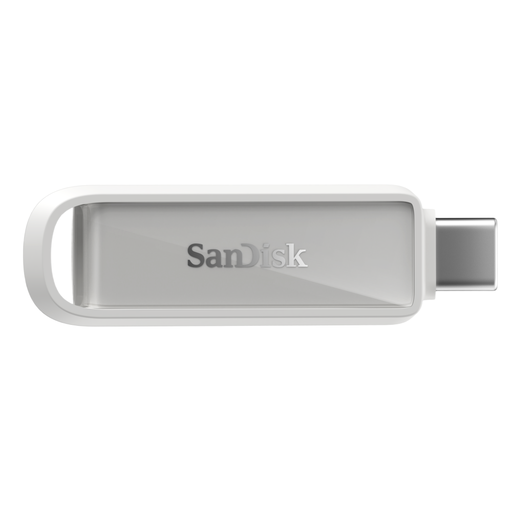
SanDisk Phone Drive with USB-C 128 GB, Arctic White
A 128 GB USB-C drive to consider for an additional phone-photo copy rather than a large household library. Confirm support for the exact phone or tablet and any app-based backup workflow you intend to use.
View on Joybuy
Family photo backup questions
How much cloud storage should a family choose for photos?
Measure the current photo-and-video library and account for future imports and other files using the allowance. Apple Support lists 5 GB of free iCloud storage, while Google One lists up to 15 GB with a Google Account; the number of phones alone will not tell you whether an allowance fits.
What if access to a cloud account stops?
Access and retention depend on the provider and the account’s circumstances, so keep a separately managed copy of photos you cannot replace. Google Account Help says Google reserves the right to delete a personal account and its data after at least two years of inactivity across Google; Microsoft Support describes restrictions and possible deletion following subscription expiry.
Can one external drive work with both Windows and Mac?
A drive formatted as exFAT can be useful for manual transfers between modern Windows and macOS computers, according to Seagate. Seagate does not recommend exFAT for Windows File History or macOS Time Machine, so check the format required by the backup tool you intend to use.
Will a NAS automatically back up every household phone?
No: set up and check a compatible mobile-backup workflow for each phone. Synology lists iOS and Android support for Synology Photos; its BeeStation also needs to be connected to the home router and set up before use. A NAS at home still needs a separate off-site copy if it holds the main library.


