Who needs which backup approach?
The right route depends on where your files live and what you would need to recover if a device stopped working.
Families replacing or upgrading phones
Check whether photos, messages, settings and other important data can be restored to the replacement phone. Apple Support distinguishes data synced through iCloud from information included in iCloud Backup, so the restore steps matter as much as switching backup on.
Households with large computer libraries
If photos and videos mainly sit on a laptop or desktop, compare the library’s size with the capacity of a local drive. Which? describes HDDs as a route for longer-term backup and SSDs as a generally faster option; how often you move or update the copy helps decide between them.
Mixed-device households
A drive or cloud account needs to work with the devices that will create and restore the copy. Check connectors, power and file formats for local storage, and which files each cloud service includes. Seagate and Apple both document device-specific limits for external drives.
What should you check before choosing?
Decide what must be recoverable first, then check capacity, device compatibility and the steps needed to restore it.
Cloud storage
Choose it when: Automatic copying and recovery through your phone or computer account are the main requirements, especially if a copy should be outside the home.
Trade-off: Backup coverage, storage allowances and recovery options vary by service and plan; syncing a file is not the same as retaining an independent copy.
External HDD
Choose it when: A sizeable local archive of computer-based photos and files matters more than frequent transfers.
Trade-off: Which? describes HDDs as slower than SSDs. A drive kept beside the original computer also remains exposed to risks at that location.
Portable SSD
Choose it when: You regularly copy a local library or carry the backup between compatible devices.
Trade-off: Which? says SSDs generally offer faster transfers than HDDs, but compare capacity and connection requirements for the exact drives you are considering.
USB stick
Choose it when: You need to move selected files or keep an additional, clearly managed copy of a small set.
Trade-off: A small removable device can be misplaced; do not make it the only copy of irreplaceable household files.
| Priority | What to check | Your needs |
|---|
| Recovery |
Identify the files and device data included in each backup. Try restoring a selected folder, and check the steps for setting up a replacement device. |
If my phone or computer is lost or replaced, I need to recover the photos and files I value, not merely see that a backup setting is switched on. |
| Capacity |
Compare the size of the files to be copied with available cloud storage or usable drive capacity. Allow room for new photos, videos and copies you intend to retain. |
Our photo and video collection may grow, so I want to know whether the chosen allowance or drive will still fit the files we plan to keep. |
| Compatibility |
For a drive, confirm ports, cables, power and file format on every intended device. For cloud storage, check which accounts, folders and data categories are covered. |
I need the backup to work with the phones and computers that hold our files, including the device we would use to restore them. |
| Deletion and access |
Check a cloud service’s restore window, account access and storage limits. Keep a separate copy so a synced deletion or inaccessible account does not affect every available copy. |
If someone deletes or overwrites a file, I want a recovery route that does not depend on that same changed folder. |
| Storage location |
Decide where the copy will be kept and how often it will be updated. The National Cyber Security Centre defines a backup as a copy of important data stored in a separate safe location. |
A drive beside the family computer would give us another copy, but I also want to consider what happens if both are lost at home. |
Which services and drive brands are relevant?
These references help narrow the service or drive type to check; they do not mean every brand’s products work with every household device.
Apple
iCloud is relevant when family photos and device data are mainly on iPhone, iPad or Mac.
- Apple Support distinguishes iCloud Backup from information already synced through services such as iCloud Photos and iCloud Drive.
- Check which data will be restored and whether it fits the account’s storage allowance; Apple lists 5 GB of free iCloud storage.
Google
Google’s backup and storage services are relevant to Android devices and files kept in Google Photos or Drive.
- Google One Help says Android phones can be set to back up automatically.
- Google lists up to 15 GB of storage for a standard Google Account; check how much of the shared allowance your files and other Google services use.
Microsoft
OneDrive is relevant when household documents and photos are kept through a Microsoft account, particularly alongside Windows computers.
- Microsoft Support describes a whole-OneDrive restore feature for Microsoft 365 subscribers covering changes within the previous 30 days.
- Microsoft lists 5 GB of free personal cloud storage. Check plan eligibility and how storage limits affect the files you need to keep.
Seagate
Seagate’s external-drive guidance is useful when considering a local archive for computer files.
- Its guidance covers USB external drives intended for desktop and laptop computers.
- Seagate warns that other devices can impose restrictions involving format, capacity, power, partitions or USB support.
SanDisk
SanDisk is a reference for portable SSDs when a local copy will be moved or updated frequently.
- SanDisk describes SSDs as typically faster than HDDs; compare stated connections and capacities for the exact models under consideration.
- A portable SSD is still a local copy. Check the chosen model’s connection and keep another independent copy of irreplaceable files.
Joybuy options for a local copy
These portable SSDs and one external HDD are options for copying household files to a local drive. They do not replace the checks needed for cloud backup, direct phone access or a second copy kept elsewhere.
 Image unavailable
Samsung Portable SSD T7 2 TB, Blue
A 2 TB local-drive option for a household photo and file collection. Its name specifies USB Type-C 3.2 Gen 2; check the intended device’s connection and file-format support before relying on direct access.
View on Joybuy
 Image unavailable
Samsung MU-PE1T0S 1 TB SSD, Black
A portable 1 TB local-copy option if the files you plan to back up fit that capacity. The name specifies USB Type-C 3.2 Gen 2; confirm the cable, power and file format needed by your devices.
View on Joybuy
 Image unavailable
SanDisk Portable SSD 2 TB
A 2 TB portable option for keeping a local copy of photos, videos and documents. Confirm its connector and supported file formats for each computer, phone or tablet you intend to use.
View on Joybuy
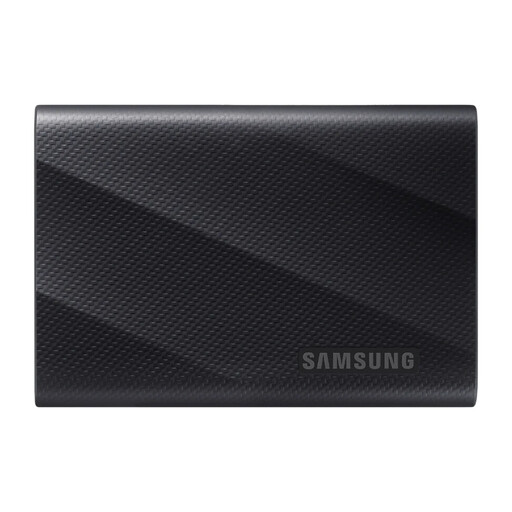 Image unavailable
Samsung MU-PG1T0B 1 TB SSD, Black
A 1 TB local-drive option for files copied regularly between compatible devices. Its name specifies USB Type-C and USB 3.2 Gen 2x2; check host support and file format rather than assuming the connector alone establishes compatibility.
View on Joybuy
 Image unavailable
Western Digital My Passport Ultra for Mac 5 TB, Silver
This 5 TB external HDD is a local-archive option for a sizeable computer-based library. Its name identifies a Mac variant; check the format and any setup required before using it with another computer or a phone.
View on Joybuy
Backup questions answered
Is cloud syncing the same as a backup?
Not necessarily. Apple Support distinguishes information synced through iCloud from information included in iCloud Backup. Check which photos, folders and device settings your service can restore, and keep a separate copy of files you cannot replace.
Can an external drive connect directly to an iPhone?
A compatible drive can be accessed through the Files app, according to Apple Support, but the connection and format must suit the iPhone. Check the adapter, supported format and power requirements; Apple notes that external hard drives often need an external power source or powered USB hub.
Can I use the same drive for Time Machine and ordinary file sharing?
Check the drive’s format and planned setup first. Apple Support says Time Machine cannot back up to a disk formatted for Windows. Make another copy of existing files before changing a disk’s format or partitions, and check how the devices used for file sharing will read it.
What should I do before reducing a cloud-storage plan?
Check how much storage the account uses and make sure you can read another copy of important files. Microsoft Support says that, after a plan is cancelled, usage above the free allowance can prevent new uploads, edits and syncing; the applicable allowance and consequences depend on the provider and plan.


