What should you check?
Decide which files need a separate copy and where that copy will live, then check device coverage, capacity and the restore routine. Cloud storage, external hard drives, portable SSDs and network-attached storage offer different destinations; backup software can schedule copying to a chosen destination but does not provide separation on its own.
| Concern |
What to check |
Who this matters to |
| Coverage across devices |
Check supported phones and computers, included photo libraries and folders, and how to restore files on another device. |
If our photos and documents are spread across devices, I need a routine that will not miss new files when I forget to copy them. Around 36% of consumers would put automatic multi-device coverage first. |
| Separation from the original |
Check whether a copy can be kept away from home or whether removable storage can be disconnected and stored separately. |
If a loss affects both my device and the place it is kept, I need a copy I can still reach. For around 29% of consumers, separation would be the primary concern. |
| Control and account access |
Decide where the copy will be held; check account protection and recovery for cloud storage, or a safe storage routine for a local drive. |
I want to know who can access our files and what happens if we cannot get into an account or reach a drive. Direct control would come first for around 21% of consumers. |
| Library size and transfers |
Allow space for the selected files and future copies; check connector and file-system compatibility before relying on a drive across devices. |
When our photo and video library grows, I need enough room and a copying routine we can keep using. Capacity and practical transfers would lead the choice for around 14% of consumers. |
Joybuy products for local backups
These external drives, portable SSDs and network-attached storage provide local destinations for household files. Choose one alongside a workable copying routine and decide where a further separate copy will be kept.
 No image available
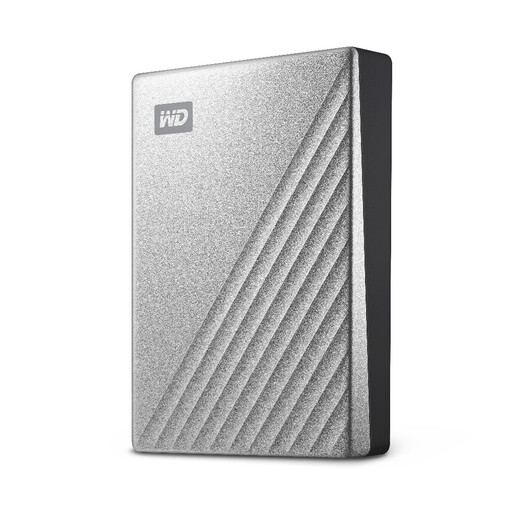
Western Digital My Passport Ultra 4TB External Hard Drive, Silver
Consider this external hard drive for a local copy of a household computer’s files.
The listed capacity is 4TB. Check the backup software and operating-system requirements for the computers you will use, and keep another copy separate from the drive.
View on Joybuy
 No image available
Samsung MU-PG4T0B 4 TB USB Type-C 3.2 Gen 2x2, Black
Consider this portable local-storage option when moving a large file library between compatible devices is part of your backup routine.
The listed capacity is 4 TB and the interface is USB 3.2 Gen 2x2. Check device and file-system compatibility; a separate storage device does not schedule backups or create an off-site copy by itself.
View on Joybuy
 No image available
Samsung Portable SSD T7 2 TB USB Type-C 3.2 Gen 2, Blue
Consider this portable SSD for an additional local copy of photos and personal files.
The listed capacity is 2 TB. Confirm its connector works with each device you intend to use, and establish a copying and restore routine rather than treating the drive alone as a complete backup plan.
View on Joybuy
 No image available
SanDisk Portable SSD 2TB
Consider this portable SSD if a 2TB local destination fits the files you intend to copy.
Check connector and file-system compatibility with your phones, tablets and computers. Plan when you will copy files and where you will keep another separate copy.
View on Joybuy
 No image available
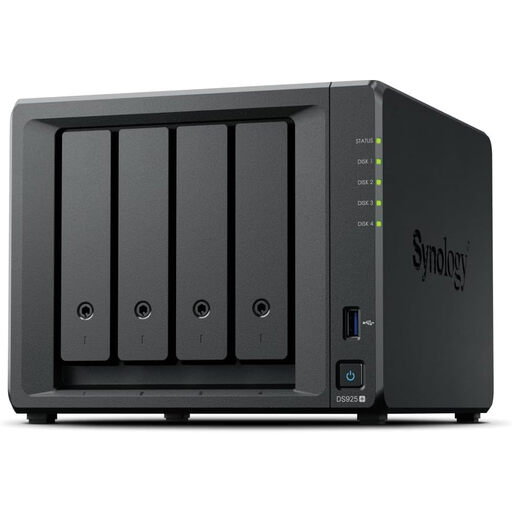
Synology DiskStation DS925+ 4-Bay NAS
Consider this network-attached storage device if your household will manage a shared local destination for files and backups.
It is a 4-bay NAS. Confirm which drives are included, the compatible drive models and the usable capacity of the configuration you choose; plan a further backup destination for its data.
View on Joybuy
Common questions
Is cloud sync automatically a backup?
No: access to synchronised files alone does not tell you whether you can recover an earlier or deleted copy. Check which folders and camera rolls are included, how versions and deletions are handled, and whether you can restore files without the original device.
Should I use cloud storage or an external drive for family photos?
Choose cloud storage if automatic access across devices and a copy away from home are your priorities; choose an external drive if you want a local copy you manage yourself. The University of Edinburgh advises using multiple backup solutions in case one fails, so either choice may form part of a wider arrangement.
How can I reduce the risk to a backup drive?
Disconnect a removable backup drive when it is not needed for copying or restoring files, and keep it separately from the original device. The National Cyber Security Centre warns that connected USB and network storage can be affected in the same incident as original data.
What should I check before choosing a cloud-storage plan?
Check your household’s current storage use, which services share the allowance, which devices and folders are covered, and how account and file recovery work. If you intend to share storage with family, also check whether individual files remain private under the chosen sharing settings.


