Who needs a family photo backup plan?

Households protecting irreplaceable memories

You want a recoverable copy of photos and videos that would be difficult to replace, rather than simply more room on a phone. Three UK’s 2023 research documented losses linked to not backing up, and the National Cyber Security Centre warns that connected storage can be affected by the same incident.

Families using different devices

Your photos are spread across phones and computers, so ports, file formats, backup settings and account access all matter. Apple and Google’s support guidance sets out checks for connecting storage and confirming where photos are backed up.

Households sharing a photo collection

Several people may need access to the same collection, while you still want to manage who can add or delete files. Apple’s sharing options and home NAS systems offer different ways to organise access.

What should you prioritise when choosing a backup route?

Portable drive

Choose it when: you want a local copy and can connect the drive regularly to the devices holding your originals.

Trade-off: it is not available for automatic uploads or household access when it is disconnected.

Network-attached storage (NAS)

Choose it when: several people need centrally managed storage and someone can set up accounts, compatible drives and another backup destination.

Trade-off: you will need to plan for drives, a network connection and ongoing administration.

Cloud storage

Choose it when: automatic phone uploads and access away from home matter, and the household can maintain enough account storage and connectivity.

Trade-off: check which accounts and folders are included; synchronised deletions can affect the library across devices.

Phone or computer accessories

Choose them when: a compatible reader, cable, powered hub or adapter enables a planned drive-based workflow.

Trade-off: an accessory connects devices but is not itself a backup destination.

Concern What to check when buying Who this matters to
Recoverability Identify a separate backup destination and how you would restore a sample of your files. If my only copy is on a phone or synchronised library, I want a separate copy I can retrieve; around 33% of consumers put recoverability first.
Device compatibility Check ports, drive power and format, backup software and the restore path for each device. When our phones and computers use different ports or backup tools, I need a workflow that can move and restore the files; around 27% of consumers prioritise compatibility across devices.
Family access Decide who needs to view, add or delete photos, then check the service’s sharing and permission options. If several family members need the collection, I want to manage who can access or change it; around 20% of consumers put family access first.
Capacity and ongoing commitment Check the collection’s current size, room for growth and the storage allowance or drives required for the full setup. When the photo and video library is growing, I want enough usable space without signing up to a route that does not fit our needs; around 20% of consumers prioritise capacity and ongoing commitment.

Backup mistakes that can leave photos unrecoverable

  • Treating a synchronised photo library as an independent backup

    A deletion or other incident affecting a synchronised library can affect copies across devices. Apple says iCloud Photos deletions synchronise, and the National Cyber Security Centre describes incidents affecting connected backup locations.

    Keep a separate recoverable copy and test retrieving files before deleting originals.

  • Assuming a drive will work because its plug fits

    A matching connector does not confirm that a phone can read the drive, that the drive has enough power, or that a computer’s backup software can use it.

    Check the exact device, connector, drive format, power needs and backup software before transferring files or reformatting a drive.

    A reader, adapter or powered hub may be needed, and formatting a drive for a different backup workflow can erase files already on it.

  • Assuming two NAS bays remove the need for another backup

    A NAS needs compatible drives, and connected storage is still exposed to incidents that affect connected copies.

    Check drive compatibility for the chosen NAS and plan a separate backup destination.

    The complete setup can require compatible drives as well as another destination for a separate copy.

  • Assuming every phone folder has uploaded to the cloud

    A backup account can be set up while a folder or individual file is still not backed up. Google Photos provides separate checks for the account, device folders and backup status.

    Check the relevant settings and confirm that important items have finished uploading and can be accessed from another device.

Relevant brands and what to check

Samsung

The T7 portable SSD line is a local-drive option for transfers between compatible devices.

  • For the 2 TB Titan Grey T7 MU-PC2T0T/WW, Samsung rates sequential read and write speeds at up to 1,050 MB/s and 1,000 MB/s via USB 3.2 Gen 2.
  • Samsung says host configuration affects performance. These are manufacturer ratings, not measured household backup speeds, and the drive alone is not an independent family-wide backup.

Seagate

The Expansion Portable HDD line is a local-drive option; Seagate identifies the STKM4000400 variant as a black 4 TB drive.

  • Seagate’s data sheet specifies USB-powered operation and a USB 3.0 cable for the identified variant.
  • Seagate notes that Time Machine use requires reformatting and that hardware and operating-system compatibility can vary. Check the selected drive and workflow before formatting.

Synology

The DS225+ illustrates a home NAS route for households prepared to manage shared storage and compatible drives.

  • Synology describes device-access and sharing applications and directs purchasers to its drive compatibility list.
  • Capacity and performance depend on the drives and configuration; manufacturer figures are not guaranteed usable backup capacity or independent performance measurements.

QNAP

The TS-233 illustrates a two-bay home NAS route for centrally stored household media.

  • QNAP describes photo management, sharing and remote-access functions; its hardware specifications list two drive bays and one Gigabit Ethernet port.
  • Those functions and specifications do not establish that a particular household’s devices, drive choices or recovery plan are compatible.

Apple

iCloud+ and iCloud Photos are relevant to households using compatible Apple photo-library workflows and account-based access.

  • Apple describes family plan sharing and separate photo-sharing features.
  • Apple says iCloud Photos synchronises deletions and is not duplicated in iCloud Backup; sharing or synchronisation should not be mistaken for an independently retained backup.

Google

Google Photos and Google One are account-based options for households that check each contributing device and account.

  • Google’s guidance identifies backup-account, device-folder and individual-item status checks; Google One lists account storage allowances.
  • An account or shared album does not establish that every intended folder and file has been backed up. Check the status of important items.

Joybuy drives and phone-backup options

These Joybuy options focus on portable local storage for family media, including a phone drive for a compatible USB-C workflow. A portable drive is not, by itself, an independent second backup.

Samsung Portable SSD T7, 4 TB, Grey

Samsung Portable SSD T7, 4 TB, Grey

A local-drive option for keeping a copy across compatible computers and Android devices.

The listing specifies 4 TB, USB 3.2 Gen 2, USB-C-to-C and USB-C-to-A cables, AES 256-bit hardware encryption, and Windows, macOS and Android compatibility. It is not water- or dustproof.

View on Joybuy

Samsung Portable SSD T7, 2 TB, Grey

Samsung Portable SSD T7, 2 TB, Grey

A local-drive option for a household keeping photos and other files across compatible computers and Android devices.

The listing specifies 2 TB, USB 3.2 Gen 2, USB-C-to-C and USB-C-to-A cables, AES 256-bit hardware encryption, and Windows, macOS and Android compatibility. It is not water- or dustproof.

View on Joybuy

Samsung MU-PG4T0B portable SSD, 4 TB, Black

Samsung MU-PG4T0B, 4 TB, Black

A portable local-drive option for storing a photo and video collection across compatible devices.

The listing specifies 4 TB, USB Type-C, USB 3.2 Gen 2x2, USB-C-to-C and USB-C-to-A cables, AES 256-bit hardware encryption, and Windows, macOS and Android compatibility. It is not waterproof or dustproof.

View on Joybuy

Samsung MU-PE1T0S portable SSD, 1 TB, Black

Samsung MU-PE1T0S, 1 TB, Black

A portable local-drive option for compatible PCs, Macs and Android devices.

The listing specifies 1 TB, USB Type-C and USB 3.2 Gen 2. Its IP65 rating is described as protection for temporary water exposure; do not submerge the drive.

View on Joybuy
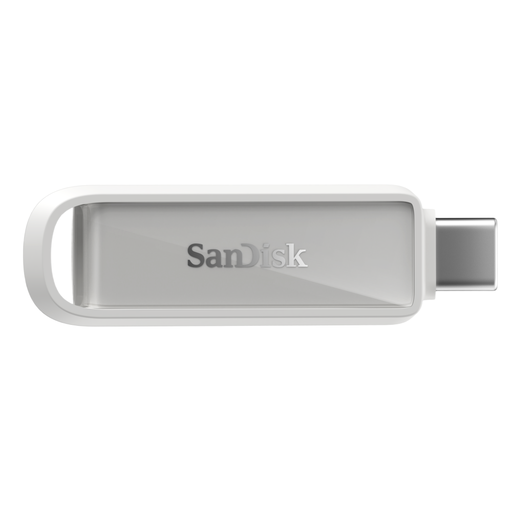
SanDisk Phone Drive with USB-C, Arctic White, 256 GB

SanDisk Phone Drive with USB-C, Arctic White, 256 GB

A local-storage option for a compatible USB-C phone workflow using the SanDisk app.

The listing specifies 256 GB and describes app-based photo and video backup. The described workflow is for compatible USB-C iPhones, iPads and Macs.

View on Joybuy

Frequently asked questions

Will a drive that plugs into my iPhone work for copying photos?

Not necessarily; check the iPhone connector, a compatible reader or adapter, drive power and format. Apple says external storage accessed through Files needs a single data partition and a supported format, and some external hard drives need additional power.

Can I use the same drive for file transfers and a Mac Time Machine backup?

Check the intended workflow before formatting the drive. Apple prefers APFS or APFS Encrypted for a Time Machine backup disk and says choosing a Windows-formatted disk for Time Machine can erase existing data, so do not reformat the household’s only copy.

How can I check whether phone photos have reached Google Photos?

Check the backup account, included device folders and overall backup status, then inspect important items for the backed-up indication. A configured account alone does not confirm that every folder or file has finished uploading.

Does a cloud family plan automatically give everyone the same photo library?

No; shared storage and photo sharing are different features. Check the chosen service’s library, album and account permissions: Apple describes family plan sharing as well as separate Shared Albums and Shared Photo Library features.

What should I set up beyond a NAS enclosure or a cloud plan’s included storage?

For a NAS, check compatible drives, network access and a separate backup destination; Synology directs purchasers to its compatibility list. For cloud storage, compare the household’s current account use and intended uploads with the plan allowance, and check that the relevant folders and files are backed up.