Choose cloud storage if automatic copying and access from another signed-in device matter most; choose an external drive if you need a separate local copy of a computer’s files or a large library. Use both if you want to avoid relying on one storage route, but check what each setup actually copies and practise restoring a file before depending on it.
Who needs which backup?
Families taking photos on several devices
If photos start on phones and tablets but need to be accessible after a device is replaced, automatic cloud copying may suit you. Google and Apple both describe account-based ways to access photos, though you need to check which account and settings cover each device.
Households with large computer libraries
If photos, videos and documents live mainly on a Windows PC or Mac, an external drive can provide a local backup destination. Microsoft’s File History and Apple’s Time Machine have different backup scopes, so choose the drive around the computer, the files to protect and the space needed for backup history.
People protecting irreplaceable files
If losing family photos or important documents would be particularly disruptive, consider keeping a cloud copy and a distinct removable-media copy. The National Cyber Security Centre describes a backup as a copy kept in a separate safe location; maintaining two routes also means checking that both copies can be restored.
What should you check before choosing?
Decide whether your priority is access from another device, a local copy, older versions or two separate routes. Then check the files and devices each arrangement will cover.
| Concern | What to check | Who this matters to |
|---|
| Automatic access |
Check the signed-in account and whether every intended photo folder, file type and device is included. |
If family photos are taken on a phone, I want them available when I sign in on a replacement device. About 29% of consumers put automatic backup and cross-device access first. |
| Local capacity |
Measure the library and check drive capacity, ports and write-compatible formatting. For Time Machine, Apple recommends a disk with at least twice the Mac’s storage capacity. |
With a large collection on a computer, I need room for a local copy and future backups. Sufficient local capacity is the main concern for about 24% of consumers. |
| Restoration depth |
Decide whether you need selected files, older versions or a broader computer backup; check which folders the chosen tool protects. |
When a document changes or a computer becomes inaccessible, I want to recover more than the latest synced file. About 18% of consumers primarily need older versions or a broader computer restore. |
| Separate copies |
Confirm important files are present in both locations, and test how to restore from each. |
For irreplaceable photos, I would rather maintain two copies than depend on one account or drive. Avoiding reliance on a single storage route comes first for about 29% of consumers. |
Backup mistakes to avoid
-
Assuming syncing is a full device backup
Apple says photos and videos synced through iCloud Photos are not included in the daily iCloud Backup. Other content may depend on separate services and settings.
List the photos, documents and device data you need to protect. Check how each is stored, then try restoring a non-sensitive item.
-
Buying a drive before checking compatibility
A connected drive may still be unsuitable for writing files from a particular device. Apple notes that a Mac may read an NTFS-formatted drive but not write to it; Samsung says some systems may require its T7 to be reformatted.
Check the ports, cables and file system needed by every device you intend to use before formatting or purchasing a shared drive.
-
Allowing space only for today’s files
Backup history needs room beyond the current photo folder. Apple recommends a Time Machine disk with at least twice the Mac’s storage capacity.
Check how much storage the computer uses now and allow for new files and the backup history you want to retain.
-
Expecting the advertised SSD speed on every device
According to Samsung, the T7’s stated maximum rates require a USB 3.2 Gen 2 host and cable with UASP mode enabled.
Check the actual host port and cable before using a speed claim to choose a drive. For occasional backups, also consider capacity and whether the backup routine is practical to maintain.
Relevant brands and services
Apple
Relevant to households using iCloud for iPhone or iPad data and Time Machine with external storage for a Mac.
- Apple distinguishes iCloud Photos syncing from the daily iCloud Backup and documents Time Machine as a Mac backup route.
- Check each type of content separately; photos synced with iCloud Photos are not part of the daily iCloud Backup.
Google
Relevant to households using Google Photos to copy photos and videos from Android devices to a Google Account.
- Google says backed-up photos and videos can be accessed on devices signed in to the selected account.
- Check the chosen account, device folders, supported files and available storage; photo backup does not establish coverage for every Android file or app.
Microsoft
Relevant to Windows households considering File History for local backups or OneDrive for stored files.
- Microsoft says File History makes regular backups to an external drive or network location and can restore previous file versions.
- Check which folders File History covers. OneDrive version history applies to files stored in the service, not automatically to every file on a computer.
Seagate
Its Backup Plus documentation illustrates a portable hard-drive route for scheduled local copies.
- Seagate describes scheduled backup options for its Backup Plus line.
- Its documentation says Mac use with Time Machine may require reformatting. Check the particular drive and software rather than assuming the same setup applies across the line.
Samsung
Its T7 documentation is relevant when considering a compact external SSD for local file copies and transfers.
- Samsung publishes connection requirements alongside the T7’s stated transfer speeds.
- Maximum rates depend on a compatible USB 3.2 Gen 2 host and cable with UASP mode; device compatibility and formatting also need checking.
External drives for a local copy
These Joybuy drives are options for storing a separate local copy of photos and personal files. Choose capacity and connections around your devices, then establish a backup and restore routine; a drive alone does not copy files automatically.
 Image unavailable
Samsung Portable SSD T7 4 TB Grey
Consider this external SSD if you want a local copy of a sizeable photo or document collection and need to move it between compatible devices. It has 4 TB of storage and a USB Type-C 3.2 Gen 2 connection. Check the required format and backup routine for each device; for Mac Time Machine, Apple recommends a disk with at least twice the Mac’s storage capacity.
Joybuy
 Image unavailable
Western Digital My Passport Ultra 5 TB Blue
This portable external hard drive offers 5 TB for a computer-based local file collection. Its listed connection is USB 3.2 Gen 1 Type-C. The product description says it is pre-formatted for Windows and requires reformatting for macOS; check that the resulting format and your chosen backup software suit the computers you will use.
Joybuy
 Image unavailable
Samsung Portable SSD T7 2 TB Grey
For a separate local copy that fits within 2 TB, this T7 is another portable SSD option. Its listed connection is USB Type-C 3.2 Gen 2. Check the ports and file format of each intended device, and decide how you will run backups and restore files rather than relying on storage capacity alone.
Joybuy
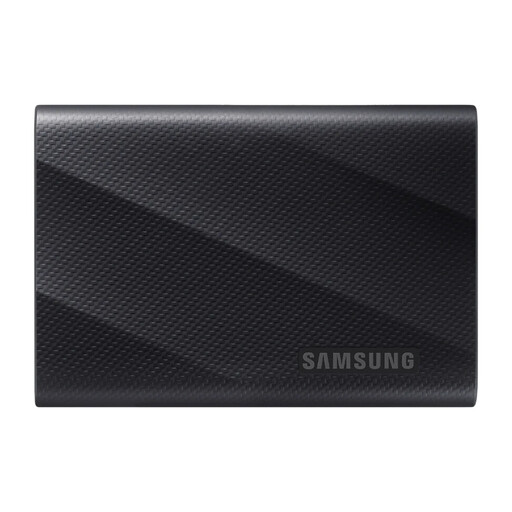 Image unavailable
Samsung MU-PG1T0B 1 TB Black
This portable SSD is an option if 1 TB covers the files you intend to copy locally. Its listed connection is USB Type-C 3.2 Gen 2x2; check whether your computer or other intended device supports that connection before choosing it for transfer speed. Plan a separate backup and restore routine for the files you need to protect.
Joybuy
 Image unavailable
SanDisk Portable SSD 2 TB
This 2 TB portable SSD can hold a separate local copy of selected photos and documents. Before buying, confirm its connector, cable and compatibility with the devices you will use. You will also need a way to copy the intended files regularly and test that you can restore them.
Joybuy
Common questions
Are iCloud Photos also in my daily iPhone backup?
No, not when you use iCloud Photos: Apple says those photos and videos sync to iCloud and are not included in the daily iCloud Backup. Check that the intended library is syncing to the right account, and check other files and device data separately.
Can a Time Machine disk also hold ordinary shared files?
Apple says a storage device set up as a Time Machine backup disk can be used only for Time Machine backups, not ordinary files. If you also need to transfer files between a Mac and Windows PC, plan a separate storage destination and check its format.
Why might an external SSD fall short of its stated speed?
The stated maximum depends on the connection. For its T7, Samsung specifies a USB 3.2 Gen 2 host and cable with UASP mode enabled. Check the SSD model, device port and cable rather than assuming the headline rate applies to every setup.


