Who needs which backup route?
The useful starting point is where the photos are now and how the household would retrieve them after a device change or loss.
Mixed-device households
If photos are spread across iPhone, Android, Windows and Mac devices, choose a transfer routine that accounts for each device’s connection and the formats needed to open the files. A connector that fits one phone does not establish that every device can use the same drive directly.
Families changing devices
Before replacing a phone or computer, check that recent photos have reached the intended backup and that the new device can access or receive them. Keep the original files until the transfer has been tested.
Households wanting an offline copy
A removable drive can hold a separate copy alongside cloud storage. The National Cyber Security Centre advises digitally disconnecting an offline backup when it is not in use, so keeping the drive permanently attached would defeat that part of the plan.
Relevant brand references
These services and product lines illustrate different parts of a backup arrangement; a brand’s inclusion does not establish compatibility with every household device.
Apple
Apple’s guidance is relevant when choosing between iCloud Photos, USB transfer to a computer and direct external storage for iPhone or iPad.
- Apple Support describes photo access through Apple devices, iCloud.com and Windows PCs, as well as USB transfer from iPhone or iPad to a computer.
- For direct iPhone or iPad storage, Apple requires a single data partition and a supported format; Lightning devices may need an adapter. Its external Mac Photos library format requirements are a separate consideration.
Samsung
Samsung’s portable SSD range is relevant to households considering a removable copy or a drive used through a computer.
- Samsung UK describes USB 3.2 Gen 2 connectivity and password protection for its specified T7 Shield product.
- Samsung’s IP65 and drop-resistance statements for that T7 Shield are manufacturer claims for the specified model, not characteristics to assume for every Samsung drive. Direct use with a particular phone still needs checking.
SanDisk
SanDisk’s Ultra Dual Drive Go USB Type-C illustrates a flash-drive route for manual transfers between devices with different USB ports.
- SanDisk describes USB-C and USB-A connectors for moving files between compatible mobile devices, Macs and USB-A computers.
- Two connectors do not establish that a particular phone supports direct storage or that the drive’s format suits every device. Keep another copy of important photos.
Removable drives for a local copy
These Joybuy SSDs and hard drives fit a computer-managed copy of family photos. If you intend to connect one directly to a phone or tablet, check that device’s connection, power and formatting requirements before relying on it.
 Image unavailable
Samsung Portable SSD T7 4 TB, grey
For a substantial removable copy managed through a computer, this portable SSD is listed with 4 TB capacity and USB Type-C 3.2 Gen 2 connectivity. Check the exact phone and drive-format workflow before planning a direct mobile connection.
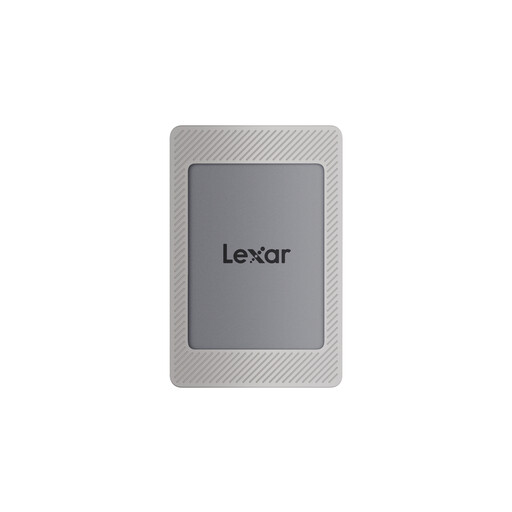 Image unavailable
Lexar ES4 Portable SSD with Magnetic Set, 2 TB
Its listed 2 TB capacity and USB 3.2 Gen 2 connection suit a removable-copy plan. The product name specifies an iPhone 15/16 magnetic set and claimed transfer speeds of up to 1,050 MB/s read and 1,000 MB/s write; confirm the exact phone workflow before depending on direct backup. The listing says MagSafe wireless charging is not supported while the SSD is attached.
 Image unavailable
Samsung T7 Shield Portable SSD 1 TB, blue
This 1 TB USB 3.2 Gen 2 portable SSD is an option for a removable photo copy. If it will connect directly to a phone, confirm that phone’s connection, power and format requirements; do not assume the drive’s connector settles compatibility.
 Image unavailable
Western Digital My Passport portable hard drive, 2 TB
The listed 2 TB capacity suits a local copy made through a computer. Check the intended USB-A computer connection and, if using a Mac, the listing’s driver requirement and your file-transfer workflow. Do not assume direct phone or tablet support.
 Image unavailable
Western Digital Elements portable hard drive, 4 TB
For a computer-managed photo archive, this model is listed with 4 TB capacity and a USB 3.0 connection. Check the intended computer and file-system workflow, particularly if the copy must move between Windows and Mac; confirm compatibility before planning direct phone use.
Questions about family photo backups
Can I copy iPhone or iPad photos straight to an external drive?
Yes, if the device and drive meet Apple’s connection and storage requirements. Apple Support says an external drive for iPhone or iPad must have a single data partition and a supported format, which includes exFAT and FAT32; a Lightning device may need an adapter. Check the exact device and connection before buying a drive for this purpose.
Is a cloud photo library enough on its own?
Cloud storage can provide ongoing access from signed-in devices, provided uploads complete, there is sufficient storage and the account remains accessible. For a separate copy of important family photos, use a removable drive as well, test its files and disconnect it when it is not being updated, in line with National Cyber Security Centre guidance.
Why might iPhone photos not open after I copy them to Windows?
Some iPhone media uses HEIF or HEVC formats. Microsoft Support says files may be stored or previewed through OneDrive but require additional software to open locally on a non-Apple device. Test the Windows viewing method before deleting the phone originals.
Can one external drive hold a Mac Photos library and transfer files to other devices?
Do not assume one drive format suits both jobs. Apple Support specifies APFS or Mac OS Extended (Journaled) for a Mac Photos library on external storage, while direct iPhone and iPad storage supports several formats, including exFAT and FAT32. Decide whether you need an external Mac library, transfers of individual files, or separate drives before formatting anything.


