Who this suits

Families replacing or sharing phones

Keep recent photos, contacts, settings and important files available when a household phone is lost, damaged or replaced. Prioritise automatic backup, enough shared capacity, separate accounts where appropriate and a restore path you have checked.

Households with large photo and video libraries

Balance upload convenience with storage capacity, transfer time and a practical second copy. Measure the library first, allow room for growth and keep an offline drive copy for material you cannot replace.

People protecting irreplaceable personal records

Plan for accidental deletion, malware, theft and drive failure rather than convenient access alone. Protect account recovery details, encrypt portable media, keep one copy separate and practise restoring files periodically.

What to check before choosing

Automatic cloud backup

Choose it when: you need recent photos and files available on replacement phones, computers or through web access.

Keep in mind: it depends on account access, completed uploads, available capacity and the service's billing and recovery terms.

External drive or portable SSD

Choose it when: you want a physical copy, have a large media library or prefer a copy that is not continuously tied to an online account.

Keep in mind: the drive must be copied regularly, compatible with your devices and stored separately when not in use.

Cloud plus an offline copy

Choose it when: losing family photos, videos or documents would be especially disruptive.

Keep in mind: this approach needs capacity planning and occasional restore checks for both copies.

Priority What to check Your needs
Backup scope Check whether photos, videos, documents, apps and device settings are protected by the same service. Confirm which folders and photo sources are selected. I want to restore the files and settings that matter, rather than discovering after a loss that only part of the device was backed up.
Automation and restore Confirm that automatic backup is enabled, uploads have completed and the restore process works for your phone or computer platform. Test a small sample before an emergency. I need recent files to be available even if someone forgets a manual copy, and I want to know how recovery will work on a replacement device.
Capacity and growth Measure the current library, allow room for future photos and videos, and check whether storage is shared with other services or household members. My storage should continue to fit a growing family library without unexpectedly stopping new backups.
Separate copies Keep more than one recoverable copy. For an external drive, copy rather than move files, then disconnect it after backup and verification. I want one problem with a device, account or connected drive not to make every copy unavailable.
Account and media security Protect cloud-account recovery details and use encryption or password protection for portable storage where appropriate. Keep recovery information separately and safely. I need family files to remain accessible to the household while reducing exposure if a drive is misplaced or an account is compromised.

Backup mistakes to avoid

  • Mistaking a moved file library for a backup

    Moving photos to an external drive can leave no intact original if the drive fails, is lost or a transfer is interrupted. Western Digital notes that files moved to an external drive are not a backup unless another copy remains on another device or location.

    Copy files first, open a sample from the destination and keep another recoverable copy before deleting any originals.

  • Leaving the only local backup permanently connected

    The National Cyber Security Centre reports incidents where ransomware affected connected USB and network backup drives, as well as connected cloud backup locations.

    After a completed and checked backup, disconnect the external drive and store it securely. Use an update routine that matches how much recent work you could afford to lose.

  • Choosing cloud storage only by capacity

    Storage needs can change as a photo and video library grows, and access can be affected by renewal, account inactivity, service changes or the time needed to transfer data elsewhere.

    Measure the library, leave growth headroom, check whether capacity is shared across services and duplicate critical files before cancelling or switching.

  • Assuming device backup includes every photo and app file

    Device settings, photo libraries, selected folders and app-specific files can follow different backup routes. Google Photos, for example, can manage photos and videos separately from Android device backup.

    Review backup scope on every family device, enable the required photo or folder backup separately and test recovery of representative photos, documents and settings.

Relevant backup platforms and brands

Apple

Relevant for households using iPhone, iPad and Mac devices that want iCloud Backup, iCloud Photos and Family Sharing-based storage access.

  • Apple states that iCloud Backup can keep an iPhone or iPad backed up for replacement, loss or damage, while Family Sharing can share iCloud+ storage with separate photos and files for each member.
  • Check what the device backup includes and make sure account-recovery access is retained before relying on it.

Google

Relevant for Android households and for people using Google Photos or Google Account storage across Android, iOS and web devices.

  • Google says Google Photos can automatically save photos and videos to a Google Account, and Android data and settings can be restored to the original phone or some other Android phones.
  • Google Photos uses one Google Account at a time; check selected photo folders and do not assume device backup includes every file source.

Microsoft

Relevant for Windows households using OneDrive folders and Windows Backup when moving to a new PC.

  • Microsoft says OneDrive PC folder backup can protect standard folders such as Desktop, Documents, Pictures and Videos across devices, while Windows Backup can transfer files, settings and other selected information to a new PC.
  • Recovery and version-history features have retention limits, so check the applicable plan and terms before treating them as permanent archival storage.

Western Digital

Relevant for households choosing an external-drive workflow for a separate local copy on compatible Windows or macOS computers.

  • Western Digital provides support routes for file and disk backup on compatible storage, including backup and restore software options for eligible devices.
  • Compatibility, formatting, bundled software eligibility and capacity vary by model, so check the exact drive rather than assuming one package applies across the range.

Samsung

Relevant for households considering portable SSDs for cross-device file copies and large media transfers.

  • Samsung UK describes its T7 portable SSD range as compatible with multiple device types, subject to host compatibility and possible reformatting.
  • A portable SSD is still one physical copy unless it is used alongside another copy and stored securely after backup.

Joybuy external storage options

Joybuy external-drive and portable-SSD options for keeping a separate local copy of household photos, videos and documents.
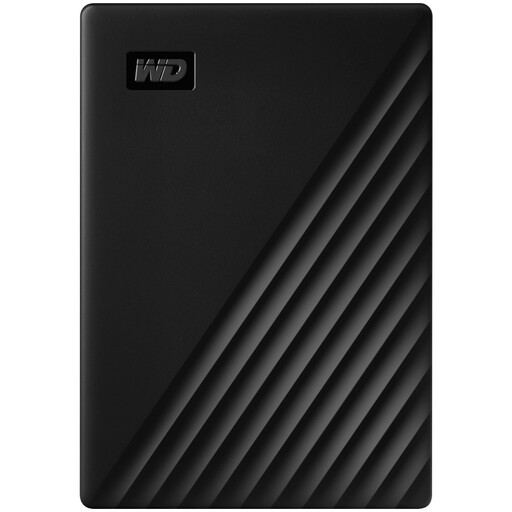
Western Digital My Passport 1TB Black external hard drive

Western Digital My Passport 1TB Black

A portable local-copy option for household computer files and media when scheduled backups are configured.

Stated 1TB capacity, USB 3.2 Gen 1, AES-256 hardware encryption and Windows/macOS compatibility.

Measure the library and future growth before choosing capacity; macOS use requires a downloadable driver. Disconnect the drive after verified backups.

Joybuy
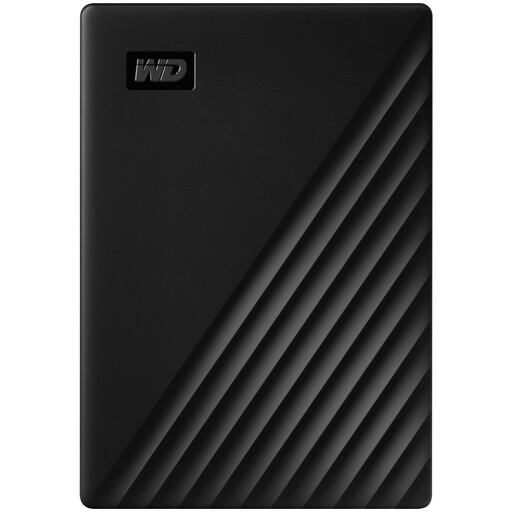
Western Digital My Passport 4TB portable hard drive

Western Digital My Passport 4TB Portable Hard Drive

A local-backup option for larger household media collections where scheduled computer copies are useful.

Stated 4TB capacity, USB 3.2 Gen 1, AES-256 hardware encryption, password setup and Windows/macOS support.

Check the exact computer setup for macOS compatibility and measure the source library before relying on the stated capacity. Keep another recoverable copy.

Joybuy

Western Digital My Passport Ultra 5TB blue portable external hard drive

Western Digital My Passport Ultra 5TB Blue

A portable external-drive route for households that have measured a substantial photo and video library.

Stated 5TB capacity, USB-C connectivity with a USB-A adapter, AES-256 hardware encryption and folder synchronisation that can be set daily, weekly or monthly.

It is stated to be pre-formatted for Windows; macOS use requires reformatting. Keep the drive as a separate copy rather than the only copy.

Joybuy
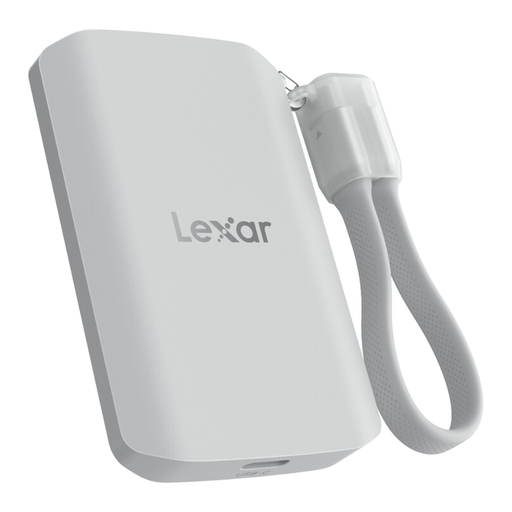
Lexar ES5 1TB portable SSD

Lexar ES5 Portable SSD 1TB

A phone-focused portable copy option for selected iPhone and Galaxy media workflows.

Stated 1TB capacity, USB-C connection, IP65 rating, up to 3-metre drop resistance and automatic media backup through the Lexar app.

The listing states that iCloud backup is not supported. Check the exact handset compatibility and confirm which media and file types the app backs up.

Joybuy

Samsung Portable SSD T7 4TB grey

Samsung Portable SSD T7 4TB Grey

A manual local-copy option for transferring larger media libraries between compatible household devices.

Stated 4TB capacity, USB 3.2 Gen 2, AES-256 hardware encryption, Windows/macOS/Android compatibility and included USB-C-to-C and USB-C-to-A cables.

Check the backup method and restore process before relying on it, then retain a separate recoverable copy and disconnect the SSD after completed backups.

Joybuy

Frequently asked questions

Is cloud sync automatically a complete backup?

Not necessarily. Check which folders, device data and photo sources are included, whether uploads have completed and whether deleted or overwritten files can be recovered within the available retention period. For irreplaceable files, keep a separate offline copy because connected cloud and local backups can both be affected by an incident.

How should a family test that its backup can be restored?

Restore a small, non-sensitive sample such as a photo album and document to a different folder or spare device, then confirm that the files open with the expected quality and dates. Also check that the household can sign in to the cloud account and locate the offline drive; the NI Cyber Security Centre recommends practising restoration before it is needed.

Can an iPhone or Android phone be restored after device replacement?

Yes, if the backup has completed and you follow the platform's setup requirements. Apple provides restore from iCloud or computer backup and notes that an iPhone already set up may need to be erased before an iCloud restore; Google says Android backup data can be restored to the original or some other Android phones, while photos and videos may be handled separately through Google Photos.

Should an external backup drive be encrypted?

Use encryption when a drive could be lost, stolen or accessed by others, especially if it contains family media or personal documents. The Information Commissioner's Office says encryption of personal information on USB or backup media helps protect it from unauthorised access; keep the recovery password or key separately and safely.