What should you check before choosing storage?
External hard drive
Consider it: When one computer can receive the export and you want a direct-attached local archive.
Trade-off: A desktop model stays near a power outlet; a portable model is easier to disconnect and store elsewhere. Neither protects a copy left connected during an incident affecting the computer.
Portable SSD
Consider it: When you will carry the copy or repeatedly transfer large batches between compatible computers.
Trade-off: Advertised maximum speeds depend on the connection. Samsung says its T7 Shield figures require a USB 3.2 Gen 2 host, UASP support and a suitable cable.
Home-storage hub or NAS
Consider it: When several household devices need a shared destination for recurring photo backups.
Trade-off: The hub remains one local device. Keep another copy elsewhere; Synology documents separate USB, remote and cloud backup destinations for its supported NAS software.
Choose the copying workflow first, then check the space, connections and routine it will require.
| Priority | What to check | Your needs |
|---|
| Cloud export |
Test the service’s download or export steps with a small batch. Check whether the resulting files and dates are usable before planning a full copy. |
I need a workable way to copy the library without selecting every photo individually. Amazon says its browser download cannot download entire albums, so an Amazon Photos migration needs its own workflow check. |
| Capacity and working space |
Measure the exported library, including videos. Allow space for future files and, where the workflow needs them, downloaded archives and extracted files on the computer. |
My existing collection and new photos need to fit without treating the drive’s stated capacity as a universal recommendation. |
| Device compatibility |
Check which devices must write to the storage and which ports and cables they use. Apple identifies ExFAT for Windows-compatible volumes over 32 GB, but prefers APFS or APFS Encrypted for a dedicated Time Machine disk. |
Will I use the drive to exchange photo files between Windows and Mac, or dedicate it to Mac backups? Those are different setups. |
| Separate copies |
Keep the cloud originals or another primary library. Check copied files, then disconnect or separately protect at least one backup when it is not being updated. |
I want to recover photos even if the computer and its connected storage are affected by the same incident. |
| Regular updates |
Confirm how new phone photos and computer folders reach the destination, and whether the chosen software can repeat the backup. Check whether older versions matter to you. |
New family photos keep arriving; I need a routine I can maintain, not just a one-off archive. |
Direct-attached drives on Joybuy
These portable and desktop drives are local destinations for copies made through a compatible computer. Measure your export and check the device setup before choosing one; a drive alone does not arrange recurring backups from several phones.
 No image available
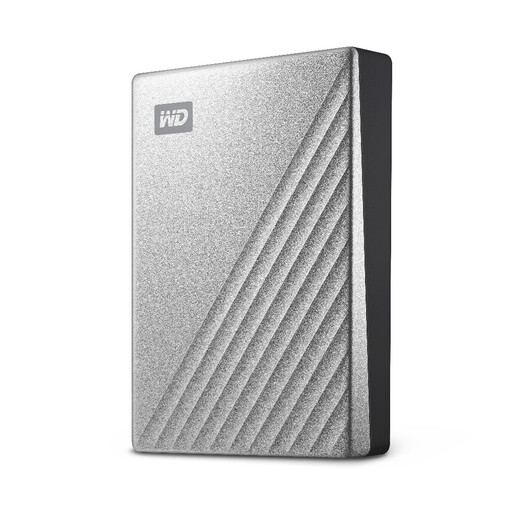
Western Digital My Passport Ultra 4TB portable hard drive, silver
A portable hard drive to consider when one computer will receive the photo export and the copy may need to be stored elsewhere.
Check that 4TB leaves room for the exported library and future photos, and confirm the file-system setup for the computer that will write to it.
View on Joybuy
 No image available
Samsung Portable SSD T7 2 TB USB 3.2 Gen 2, grey
A portable SSD for a local photo copy that will be carried or transferred between compatible computers.
The title specifies USB Type-C and USB 3.2 Gen 2 (3.1 Gen 2). Check your computer’s connection and whether 2 TB leaves enough room for the library to grow.
View on Joybuy
 No image available
SanDisk Portable SSD 2TB
A portable local-copy option if the exported photo and video collection, plus room for new files, fits within 2TB.
Check the connection and file-system requirements of the computer or devices that will write to it.
View on Joybuy
 No image available
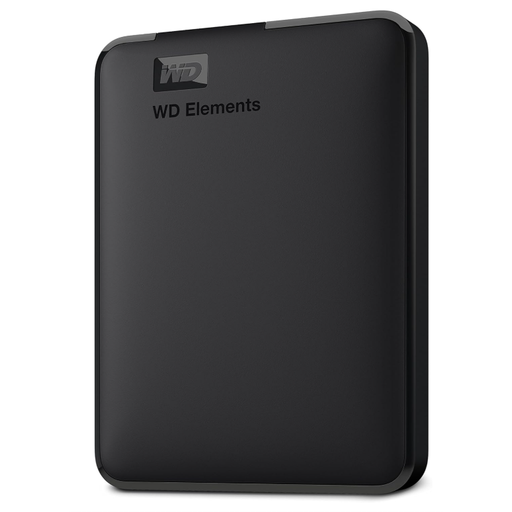
Western Digital Elements Portable USB 3.0 6TB hard drive
A portable hard drive for a photo archive copied from a computer and stored separately after use.
Check whether 6TB suits the measured export and future additions. Confirm the file-system setup before writing from a Mac.
View on Joybuy
 No image available
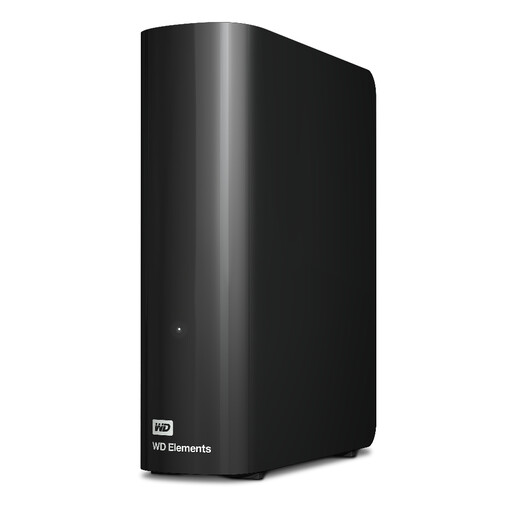
Western Digital WD Elements 12TB USB 3.2 Gen1 desktop hard drive
A desktop destination to consider when the photo export is handled at a fixed computer rather than carried between locations.
Check that the 12TB capacity suits the planned copies and that the drive’s connection, power and file-system setup suit your computer.
View on Joybuy
Photo backup questions
Does downloading photos to an external drive count as a backup?
Yes, if the downloaded files are a usable extra copy and the originals remain available. Check that files open after copying, and keep another copy separately protected or offline when it is not being updated; the National Cyber Security Centre warns that connected backups can be affected alongside original data.
How can I copy a large Google or iCloud photo library?
Use the workflow for your actual service rather than downloading images one by one. Google documents downloadable data archives and says downloading does not delete its server copy. Apple documents downloading iCloud Photos from a Mac to a Finder location or external device. Test a batch and allow working space for downloaded and extracted files.
Can I download an entire Amazon Photos album in the browser?
No: Amazon’s browser guidance says entire albums cannot be downloaded that way. Its documented desktop-app process for adding a folder or external drive sends files to Amazon; it is not a method for exporting the whole cloud library. Check a workable download process for your account before buying a drive specifically for that move.
Should a drive shared by Windows and Mac use the same format as a Time Machine disk?
Not necessarily. Apple identifies ExFAT for Windows-compatible volumes over 32 GB, while APFS or APFS Encrypted is its preferred format for a dedicated Time Machine disk. Decide how the drive will be used before formatting it, because reformatting erases existing files.
Can home storage be the only copy of family photos?
A home-storage hub or NAS can collect photos from several devices, but it remains one local destination. Keep another copy separately protected; for supported Synology NAS setups, Synology documents backup destinations including USB storage, remote NAS and cloud services.


