Choose a backup route around the files you need to recover, the devices you use and whether you will keep the copy up to date. A portable or desktop drive can hold a local archive, a portable SSD suits frequent large-file transfers, a USB stick can hold selected files, and cloud backup can automate an off-device copy; for irreplaceable files, do not rely on just one connected copy.
Who needs which backup?
Household archive keepers
If family photos, videos and documents are spread across devices, measure the files you want to keep before choosing capacity. The National Cyber Security Centre advises keeping important data in a separate, safe location; Seagate describes its Expansion drives as local archive options.
Multi-device families
A drive that plugs into one device will not necessarily suit every backup task. Check the intended Windows, Mac and phone workflows, including connectors, drive format and which files each backup tool can restore.
People who need backups to run regularly
If remembering to copy files is the obstacle, look for a backup tool you can schedule or automate, then check its coverage and restore steps. Cloud storage may involve an ongoing subscription and still calls for account protection.
What should you check before choosing?
| Concern |
What to check |
Who this matters to |
| Current, recoverable copies |
Which folders and device data are copied; how to confirm a recent backup and restore a file. |
If I am unlikely to connect a drive regularly, I need backups that run without repeated manual steps and include the files I care about. About 31% of consumers put keeping a current, recoverable copy first. |
| Capacity and ongoing commitments |
The size of the selected files and likely growth; drive capacity or cloud allowance and subscription terms. |
With a growing family photo and video library, I need room for more than today’s files without overlooking an ongoing cloud subscription. For about 25% of consumers, capacity and that commitment are the primary concern. |
| Device compatibility |
Ports and cables; whether the drive format suits manual sharing or the intended backup tool. |
When our files sit on Macs, Windows PCs and phones, I need a route that works for the particular copies and restores we plan to make. Cross-device compatibility comes first for about 25% of consumers. |
| Portability and separation |
Where copies will be kept; whether at least one can be disconnected when not in use. |
If I carry a drive or worry that one incident could affect the originals and a connected copy, I need somewhere separate to keep a recoverable backup. About 19% of consumers prioritise portability and separation. |
The National Cyber Security Centre advises keeping important data in a separate safe location. A drive or cloud account is useful for recovery only if the required files have actually been copied and remain accessible.
Backup mistakes to avoid
-
Leaving the only backup permanently connected
The National Cyber Security Centre has reported ransomware incidents affecting both original files and connected backup storage.
Keep at least one recovery copy offline or digitally disconnected when practical, and try restoring a few selected files.
-
Formatting a shared drive before choosing its job
Apple says a Windows-formatted disk cannot be used for Time Machine as-is. Reformatting it can permanently remove the files already on it.
Move existing files to another safe location before formatting, and decide whether the drive is for Time Machine or manual sharing.
-
Choosing an SSD by its headline speed alone
Samsung says the T7 Shield’s stated maximum speeds require a compatible host, cable and UASP; they are not speeds to expect from every connection.
Check the ports and cable you will use before making transfer speed the deciding factor.
-
Assuming a free cloud allowance will always fit
A photo library can grow beyond the storage available in a free account, particularly when that allowance is shared with other files.
Compare your current usage and expected growth with the provider’s current allowance and subscription terms.
Brands to consider by product line
Samsung
The T7 Shield portable SSD is relevant to frequent transfers of large files and backups carried between locations.
- Samsung specifies USB-C connectivity and, for the T7 Shield, maximum sequential read and write speeds of 1,050 and 1,000 MB/s with compatible hardware, cable and UASP.
- Its IP65 and drop-resistance claims come from controlled testing. Samsung says liquid, dust and drop damage are not covered by its warranty; these claims do not apply to every Samsung drive.
Seagate
Seagate presents Expansion portable drives for carried local copies and Expansion desktop drives for home-based archiving.
- Seagate lists portable Expansion capacities up to 4 TB and desktop Expansion capacities from 4 TB to 30 TB; choose against the size of your own archive.
- Check the exact model’s connections, warranty and any included recovery service rather than assuming the terms are the same across the range.
SanDisk
The cited Phone Drive line is relevant to moving a limited selection of files between compatible phones, tablets and USB-C devices, rather than assuming it can hold a whole household archive.
- Apple’s listing describes a Phone Drive variant with Lightning and USB-C connectors for compatible devices.
- Connector arrangements and app features depend on the exact variant. Check which devices and files the model you choose can access and restore.
Local storage options on Joybuy
For a local copy of family files, these options include portable and desktop drives, plus a USB-C drive for selected phone files. Choose capacity against the files you intend to copy, and plan how you will keep that copy current and separate.
 No image available
Western Digital My Passport 2TB, Black
A portable local-drive option for a selected collection of household files. Check whether 2TB leaves room for growth, and confirm the Mac read-and-write workflow you need before using it across computers.
View on Joybuy
 No image available
Samsung T7 Shield MU-PE1T0S 1TB
A portable SSD to consider when large files move between compatible devices frequently. Samsung specifies maximum sequential read and write speeds of 1,050 and 1,000 MB/s for this model, conditional on a compatible host, cable and UASP. Check that 1TB fits your backup set and how your preferred software will run backups.
View on Joybuy
 No image available
SanDisk Portable SSD 2TB
A portable local-copy option if a 2TB drive suits the files you plan to carry. Confirm its connector against your devices and decide which backup tool or manual-copy routine you will use.
View on Joybuy
 No image available
Western Digital Elements Desktop 10TB
A desktop-drive option for a large archive kept mainly at home. Allow for a powered desk setup, and confirm the intended Mac or Windows formatting workflow before changing the drive’s format; reformatting can erase existing files.
View on Joybuy
 No image available
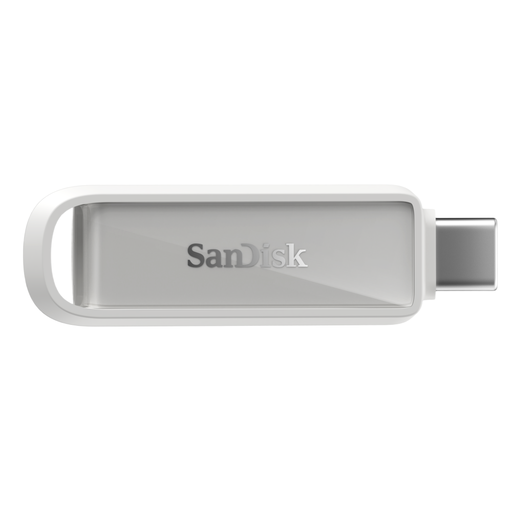
SanDisk Phone Drive with USB-C 256GB, Arctic White
A compact option for selected phone photos and videos rather than an assumed whole-household backup. Check your device’s USB-C connection and which files the intended app can copy and restore.
View on Joybuy
Frequently asked questions
Is cloud storage automatically a backup of my photos?
No. Check which photos and files are copied, whether deleted or earlier versions can be restored, and how you will regain access to the account. The National Cyber Security Centre advises keeping important data in a separate safe location and has reported incidents affecting connected backup locations.
Can I use one drive for Windows File History and Mac Time Machine?
Do not assume one format will suit both workflows. Microsoft says File History can back up to an external drive or network location; Apple prefers APFS or APFS Encrypted for Time Machine and says a Windows-formatted disk must be reformatted for that use, permanently removing its existing data. Decide how you will use the drive before formatting it.
Can an iPhone or iPad use an external drive directly?
Yes, for file access when the device, connection and drive meet Apple’s requirements. Check the connector or adapter, supported format and single-data-partition requirement; some external hard drives also need separate power. Direct file access does not establish that the drive can make a complete device backup.
Will Android backup restore every app and its data?
Not necessarily. Google says not all apps can back up or restore all settings and data. Check the backup categories on your device and any important app’s own export or restore options before relying on that route.


