Choose an external drive if you mainly need a local copy, a portable SSD if you regularly carry or transfer a large library, or cloud storage if access from signed-in devices matters most. For photos and videos you cannot replace, keep independently managed copies in more than one place: Apple Support notes that iCloud Photos synchronises deletions across devices and advises backing up the library separately. Check device compatibility, cloud account recovery and whether each copy can actually be restored.
Who is this for?
Families protecting irreplaceable memories
You want to find and restore family photos if a device is lost, damaged or fails. That calls for a separate backup rather than relying solely on a synchronised photo library; Apple Support advises backing up a Photos library even when iCloud Photos is in use.
Mixed-device households
Your photos need to work across some combination of Windows PCs, Macs, phones and tablets. Check the drive format and backup software, or the cloud service’s device and account requirements, before making it the household’s main library.
Frequent video importers and travellers
You move large video files regularly or carry a local copy away from home. The drive’s size, connection and handling requirements matter, but a portable drive still needs another independently managed copy.
What matters when choosing?
Decide how you will keep a recoverable second copy before choosing where the library is easiest to access. An external drive and a cloud account can serve different parts of that plan, provided you check that uploads and local backups complete.
Portable external hard drive
Consider it when: You usually back up a household library from a computer at home but want to be able to move the drive.
Trade-off: A drive kept beside the computer does not protect both copies from an incident affecting that location.
Portable SSD
Consider it when: You regularly carry a copy or transfer large videos between compatible devices.
Trade-off: Transfer speeds depend on the host and cable; Samsung UK specifies USB 3.2 Gen 2 and UASP conditions for its cited T7 Shield figures.
Desktop external storage
Consider it when: A local backup drive can remain beside the home computer.
Trade-off: It remains on the same premises unless you arrange another copy elsewhere.
Cloud storage
Consider it when: You want to reach photos from several signed-in devices and keep a copy away from home.
Trade-off: Access depends on the account, connectivity and available storage; Apple Support says iCloud Photos also synchronises deletions.
Separate local and cloud copies
Consider it when: Recovering family memories matters as much as accessing them across devices.
Trade-off: You must check both workflows and keep the local backup independent of cloud synchronisation.
| Concern | What to check | Who this matters to |
|---|
| Independent recovery |
Keep a copy separate from the main library and test restoring a folder. Apple Support advises a local backup even with iCloud Photos. |
If a phone or computer is lost, I need family photos to remain recoverable rather than disappear with it; around 29% of consumers put independent recovery first. |
| Access across devices |
Confirm device support, account access and recovery methods. Google Photos Help describes access from signed-in devices. |
My household uses different devices, so I want to reach the same library without moving a drive between them; cross-device access comes first for around 29% of consumers. |
| Portability and transfers |
Check the host port, cable and drive connection before relying on a stated transfer speed. |
When I move large videos or travel with a local copy, carrying the drive and transferring files matter most; around 21% of consumers prioritise this need. |
| Room for library growth |
Check current library size, drive capacity, cloud storage use and upload-quality settings. Google Photos Help says original-quality uploads count towards Google Account storage. |
As our videos accumulate, I need space for the library without an unexpected change to what gets uploaded; capacity is the primary concern for around 21% of consumers. |
Backup mistakes to avoid
-
Treating a synced library as an independent archive
Apple Support says iCloud Photos reflects edits and deletions across devices and that those photos are not duplicated in iCloud Backup. Synchronisation therefore does not replace a separately managed backup.
Keep another copy outside that sync workflow and test whether you can restore the photos you need.
-
Choosing an SSD by its maximum speed alone
Samsung UK says its cited T7 Shield transfer figures require a suitable USB 3.2 Gen 2 host and cable with UASP enabled; actual performance can vary.
Check the ports on the devices used for backup and use a compatible cable before relying on a speed claim.
-
Assuming one drive format suits every backup job
Apple Support says Time Machine cannot back up to a Windows-formatted disk. Reformatting a drive may permanently erase its contents.
Decide whether the drive is for shared file transfers or a dedicated Mac backup, and copy existing files elsewhere before reformatting.
-
Assuming a cloud upload has finished
Apple Support says iCloud Photos syncing can pause when storage is full or connectivity is poor. Google Photos Help says original-quality uploads use Google Account storage.
After a large import, check upload status and available storage before removing files from the source device.
Relevant brands to consider
Samsung
The T7 Shield line is relevant if you want a portable SSD for moving a local photo or video copy.
- Samsung UK specifies USB 3.2 Gen 2 and up to 1,050 MB/s read and 1,000 MB/s write for its cited T7 Shield model under the required host and cable conditions.
- Samsung’s IP65 and 3 m drop claims are model-specific and subject to stated conditions; neither makes the drive a substitute for another copy.
SanDisk
The Extreme Portable SSD range is relevant to households considering a compact local drive.
- SanDisk lists capacities from 500 GB to 8 TB for the cited Extreme Portable SSD range.
- SanDisk’s stated transfer and physical-protection figures apply to the cited models and conditions; check the exact variant and host connection.
Seagate
Its One Touch documentation is relevant if you want a portable hard drive with a managed local-backup workflow.
- Seagate says its Toolkit can set up backup plans and mirror folders for the documented One Touch drive.
- Check software support for the exact drive and computer, then confirm that the intended photo folders can be restored.
External drives on Joybuy
These drives offer local storage for a home photo and video library: portable SSDs, a portable hard drive and a desktop hard drive. Whichever you choose, plan a separately managed copy if the files cannot be replaced.
 No image available
Samsung T7 Shield portable SSD, 1 TB, blue
Consider this portable local drive if you carry photo or video files between locations.
The named variant has 1 TB of storage and a USB 3.2 Gen 2 interface. Check the host connection, cable and intended backup format; keep another copy separately.
View on Joybuy
 No image available
Samsung Portable SSD T7, 4 TB, grey
Consider this portable local drive when the household library needs 4 TB of storage.
The named variant specifies USB Type-C and USB 3.2 Gen 2. Confirm device and backup-software compatibility, and maintain a separate copy.
View on Joybuy
 No image available
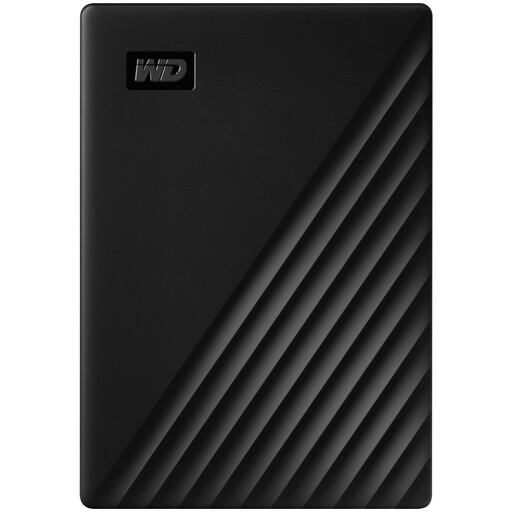
Western Digital My Passport portable hard drive, 4 TB, black
Consider this portable hard drive for a 4 TB local copy of a household library.
Check the format and the intended Mac or Windows backup workflow before use. Handle the drive carefully when carrying it and keep another copy elsewhere.
View on Joybuy
 No image available
SanDisk Portable SSD, 2 TB
Consider this 2 TB portable SSD if you need to carry a local photo or video copy.
Check its connector, interface and file format against the devices and backup workflow you intend to use. A carried copy still needs an independent backup.
View on Joybuy
 No image available
Western Digital Elements desktop external hard drive, 10 TB
Consider this 10 TB desktop drive when the library stays beside a home computer rather than travelling.
Plan for its external power adapter. Check the required format for a Mac backup before reformatting, and keep a copy away from the drive’s location.
View on Joybuy
Frequently asked questions
Is a synced cloud photo library a separate backup?
Not on its own if changes to the library also change your other copies. Apple Support says iCloud Photos synchronises deletions across devices and is not duplicated in iCloud Backup; keep an independently managed backup and check how to restore it.
What should I check before relying on a cloud account for family photos?
Check who controls the account, enable two-step verification and retain recovery methods you can access. Microsoft Support warns that losing contact methods can prevent access or delay recovery, while Google Account Help describes backup codes as a recovery option.
Can one external drive be used with both Windows and Mac?
A drive may work for ordinary file transfers on both, but that does not mean it suits both backup systems. Apple Support says Time Machine cannot back up to a Windows-formatted disk, so decide whether you need shared file storage or a dedicated Mac backup before formatting it.
Can a Mac photo library and its Time Machine backup live on the same external drive?
Use separate storage destinations for the Photos library and its Time Machine backup. Apple Support warns against placing both on the same device; photos referenced from outside the library also need a backup plan.


