Who needs which backup approach?
Start with the size of the library, where family members need access and what would remain available if a device, account or home backup were lost.
Families with a multi-terabyte library
Measure the photos and videos already stored, then allow for new files and any other data that will use the same drive or cloud allowance. A drive for a computer kept at home and a shared cloud account solve different access needs.
Households using several devices
If photos need to be available on family phones, tablets and computers, compare the sharing rules and storage allowances of the services those devices use. Check whether each person has a separate allowance or draws on shared storage.
Families safeguarding irreplaceable memories
Plan for more than a failed computer. The National Cyber Security Centre warns that ransomware incidents have affected connected backup drives; a separately stored copy and a protected cloud account address different points of failure.
What should you check before choosing?
A desktop hard drive suits a library kept mainly at home, while a portable SSD addresses a need to move a local copy. Cloud services add access away from home, and combining a local copy with a separately protected cloud copy reduces reliance on either route alone.
| Priority | What to check | Your needs |
|---|
| Capacity |
Measure the present library and allow for growth. Check the exact drive capacity or cloud allowance, including other files that consume it: Google says Google One storage is used across Photos, Drive and Gmail. |
Our videos take up substantial space, so the backup needs room for future additions as well as today’s files. |
| Local-drive format |
For a desktop hard drive, check mains power, USB connection and compatibility with the computer. For a portable SSD, check its capacity, connector and the devices it must work with. |
I mostly copy files from a computer at home; alternatively, I may need to carry a copy between locations. |
| Restoring files |
Find out how to retrieve a full library, not just an individual photo. For cloud services, check the restore method and how long changed or deleted files remain recoverable; test a small restore. |
If a device fails, I need to know how the family will get its photos and videos back. |
| Separate copies |
Keep at least one copy beyond the reach of the everyday computer where practical. The National Cyber Security Centre reports ransomware incidents involving connected USB and network backup drives. |
A drive beside our computer would not cover every event that could affect the home or the connected devices. |
| Cloud access |
Check how household members sign in, share files and use their allowances. Microsoft lists 1 TB per person for specified Family plans for up to six people; that is not one pooled multi-terabyte allowance. |
Different family members need access, and I want to understand whose account holds each part of the library. |
| Account and file protection |
Review sharing permissions and account-recovery methods. Enable two-step verification for cloud accounts; for a drive that travels, check the available encryption method and how its password will be kept. |
Private family files should not depend on an easily compromised account or a drive whose access details we cannot recover. |
| Ongoing commitment |
Check a cloud service’s current UK billing terms, storage limits and what happens when the subscription ends. Apple Support says iCloud+ is billed monthly; provider terms and restore arrangements vary. |
I can maintain a subscription if access away from home matters, but I need a workable plan for keeping the library if I stop using it. |
Relevant storage and backup providers
These providers represent different cloud, computer-backup and local-drive arrangements; a provider’s services should be checked against the devices and type of copy your household needs.
Apple
iCloud+ is a cloud-storage route for households that use Apple accounts across iPhone, iPad and Mac devices.
- Apple Support says iCloud+ is billed monthly; check the available storage allowance alongside the family’s existing account use.
- Review sharing and account-recovery arrangements before treating an iCloud library as the household’s only copy.
Google
Google One is relevant when household media is kept in Google Photos alongside other Google account content.
- Google says Google One storage can be used across Photos, Drive and Gmail.
- Measure all content using the allowance rather than sizing a plan from photos alone.
Microsoft
OneDrive is a route for households already organising files through Microsoft accounts and Microsoft 365.
- Microsoft lists 1 TB per person for specified Family plans for up to six people.
- Separate per-person allowances need planning if the family wants to keep one large shared archive.
Backblaze
Backblaze Personal Backup is a computer-backup route for media kept on a computer and connected external drives.
- Backblaze describes backup of user-created data on the protected computer and its connected external drives.
- Check which computer and drives are covered, retention settings and how a large restore would work; this is not the same arrangement as a general family photo-sharing account.
Seagate
Seagate’s Expansion Desktop range represents a mains-powered local-drive route for a backup kept near a home computer.
- Seagate’s UK Expansion Desktop documentation describes an included power supply and USB cable.
- Check the capacity and computer compatibility of the exact variant; a connected drive is not a separately stored copy.
Western Digital
WD Elements desktop drives are a local-storage option for a family library kept mainly at home.
- Western Digital identifies an 8 TB WD Elements desktop model with USB connectivity.
- Check the exact variant and computer setup: a CPC UK listing for an 8 TB WD Elements model specifies reformatting for macOS.
Local drives on Joybuy
These desktop hard-drive and portable-SSD options provide local storage for family photos and videos. Choose capacity against the full library first: a 1 TB drive, for example, cannot hold a multi-terabyte collection as one complete copy. A local drive does not by itself provide a separately protected copy outside the home.
 No image available
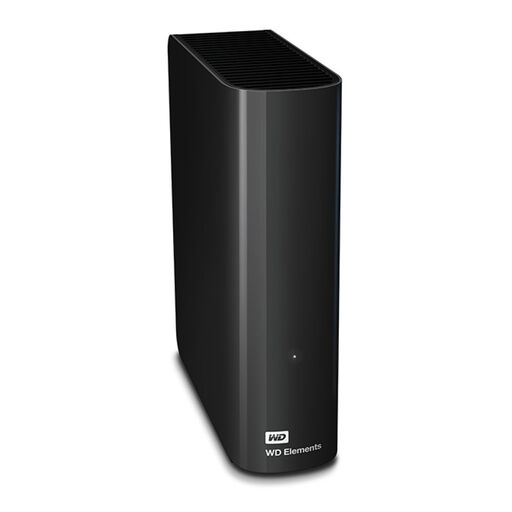
WD Elements External Hard Drive, 8 TB, Black
Consider this 8 TB local drive for a substantial library copied from a computer kept at home. Check the intended computer and file-system setup: the product information specifies reformatting for macOS. Keep another copy separately if the files are irreplaceable.
View on Joybuy
 No image available
SanDisk Portable SSD 2TB
This portable SSD is a local-copy option when the drive needs to move between locations. If your library is already close to 2 TB, measure it before buying and allow for growth; also check compatibility with the devices you intend to use.
View on Joybuy
 No image available
Samsung Portable SSD T7, 1 TB, USB Type-C 3.2 Gen 2, Blue
Use this portable 1 TB SSD for a smaller selection of media or as part of a backup arrangement with enough total capacity. It cannot hold a multi-terabyte library as a complete single-drive copy. If you use encryption, set it up and keep the access details available for recovery.
View on Joybuy
 No image available
Samsung T7 Shield Portable SSD, 1 TB, USB 3.2 Gen 2, Blue
This portable 1 TB SSD can hold a selected portion of family media, but not a complete multi-terabyte library. Check its connection against your devices and follow the product’s water-exposure instructions rather than assuming a portable drive can be submerged.
View on Joybuy
 No image available
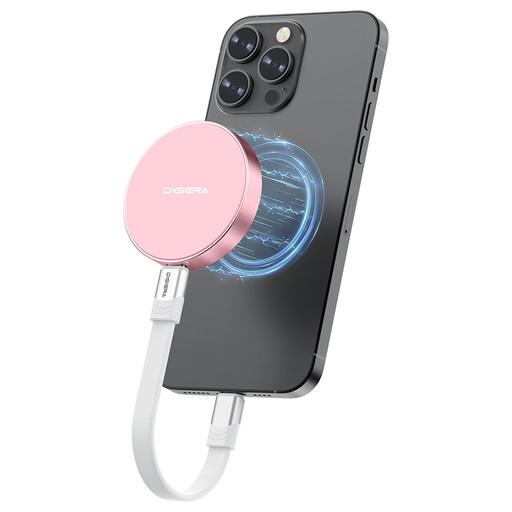
DigiEra LPS2000M-3 Magnetic Portable SSD, 1TB, USB 3.2 Gen 2x2, Pink
This portable 1TB drive is an option for a selected set of files, not a complete multi-terabyte archive. Confirm compatibility with the exact USB-C device you will use; if direct iPhone recording matters, check the supported model and recording conditions before buying.
View on Joybuy
Questions about family photo backups
Is cloud photo storage enough on its own?
Not if you have not checked how changed or deleted files can be recovered. Cloud storage can give you a copy away from home, but account access, syncing behaviour and retention settings affect recovery. For irreplaceable media, keep a separate local copy and test a cloud restore.
What should I do before uploading the whole library?
Measure the library and other files using the account allowance, then confirm capacity, sharing permissions and the full-restore method. Enable two-step verification, secure the recovery email and try restoring a small folder before relying on the service.
How should I use an external drive for backup?
Copy the files, open a selection from the drive to check the copy and store a backup separately from the main computer where practical. The National Cyber Security Centre warns that ransomware incidents have affected connected USB backups, so do not depend on one permanently connected drive for irreplaceable files. Check encryption for a drive that could be lost or stolen.
What if I stop paying for cloud storage?
Check the provider’s current cancellation, over-quota and retrieval terms before subscribing, then plan how you would keep or move the files. Apple Support says iCloud+ is billed monthly; storage arrangements differ between providers, so do not assume the same access or recovery process applies to every service.
What privacy settings matter for family photos in the cloud?
Check who can access the account and whether shared folders are restricted to named people or accessible more broadly. The Information Commissioner’s Office advises checking that a cloud service’s security and availability suit the files you upload; review those settings alongside passwords and account-recovery access.


