For family photos and important home files, keep a local backup and a separate cloud or off-site copy if losing the files would be difficult to recover from. A cloud-first arrangement can suit households that need automatic phone backup and access away from home; an external drive provides a removable local copy without a storage subscription, but only if someone keeps it updated and stores it safely. Shared home storage can help several people use the same files, yet it still needs a separate backup.
Who is this for?
Families with photos they cannot recreate
If a phone or computer were lost or damaged, you would want another copy of its photos, videos and important documents. The National Cyber Security Centre describes a backup as a copy kept in a separate safe location.
Households using different devices
If family members use a mix of iPhones, Android phones, Windows PCs and Macs, check which files each backup app covers and whether every computer that needs the external drive can write to it.
Households sharing local files
If several people need one place for photos and documents, a personal-cloud hub or network-attached storage (NAS) device may meet that sharing need. Plan a backup outside the device as well: Synology says its BeeStation restore points do not replace a full backup to an external location.
What should you check before choosing?
Start with where a recoverable copy will live, then check capacity, device compatibility and the work needed to keep that copy current.
| Priority | What to check | Your needs |
|---|
| Separate recovery copy |
Check which files are copied, when the backup runs and how to restore a few test files. Keep a copy in a separate safe location from the original device, as the National Cyber Security Centre advises. |
I need my photos and documents back if a phone, computer or home storage device is lost or damaged. |
| Capacity and ongoing commitment |
Compare your current photo, video and file use with room for growth. For cloud storage, include email and other files that count towards the same allowance; check the plan’s billing and renewal terms. |
Our library needs space to grow, but I do not want to choose a subscription based on the photo folder alone. |
| Device compatibility |
Check the backup app’s folder coverage and the drive’s file system before use or formatting. Apple says a Mac may read an NTFS drive without being able to write to it; check the exact drive and setup. |
Family members use different computers, so I need to know that the intended device can write a backup and restore it. |
| Sharing and access |
Check who gets an account, which files are shared and whether access away from home is needed. For a NAS or personal-cloud hub, arrange a separate backup destination; Synology says local restore points are not a substitute. |
Several of us want access to household files, without making the shared device our only copy. |
Backup mistakes to avoid
-
Treating a synchronised folder or one connected drive as complete protection
A copy left alongside the original may be affected by the same theft or physical damage. Check what a sync service retains after a deletion or unwanted change rather than assuming an older file can be restored.
Keep a backup in a separate safe location, disconnect a removable drive between backups where practical, and try restoring a few photos and documents.
-
Choosing capacity from today’s photo folder
Videos and new photos add to the library, while a cloud allowance may also cover email, files and device backups. The space left for photos can therefore be smaller than the plan’s headline capacity.
Check total use across the accounts and devices you intend to protect, then leave room for growth before selecting a drive or plan.
Outgrowing the chosen capacity may mean changing the plan or adding storage.
-
Reformatting a drive before protecting its existing files
Formatting can erase files already on the drive. File-system choice also affects whether the household’s computers can write to it; Apple notes that Mac write support for NTFS differs from its support for Windows-compatible formats such as exFAT.
Check the devices and backup software first. Copy existing files to another safe location before formatting, and check whether your backup method needs a dedicated drive.
-
Using NAS redundancy as the only backup
Drive protection and local restore points leave the files at the home location. Synology says BeeStation restore points do not replace a full backup to an external location.
Set up a separate external or cloud destination for the shared files, then test restoring a file from that copy.
A separate destination may require another drive or an ongoing cloud plan.
Relevant brand references
These services and storage approaches address different parts of a household backup arrangement; a brand’s inclusion here does not mean every product or plan works with every device.
Apple
Relevant to households using iPhone, iPad or Mac with iCloud Photos, iCloud Drive or device backups.
- Apple Support lists 5 GB of included iCloud storage and iCloud+ tiers of 50 GB, 200 GB, 2 TB, 6 TB and 12 TB.
- Check storage used by the whole account, not only its photos, and review the current UK plan terms before upgrading.
Google
Relevant to households using Google Photos, Gmail and Google Drive.
- Google One states that a Google Account includes up to 15 GB shared across those services; a Google One subscription increases total storage to 100 GB or more.
- Check how the allowance is used across the account, as well as the sharing and renewal terms of the plan you select.
Microsoft
Relevant to Windows-oriented households considering OneDrive alongside Microsoft 365.
- Microsoft’s UK plan information lists 1 TB for one person with Microsoft 365 Personal and up to 6 TB with Family, allocated as 1 TB per person.
- Check each person’s allocation, which computer folders will be backed up and the renewal terms before choosing a plan.
Seagate
Relevant when choosing a local drive for use with Mac and Windows computers.
- Seagate documents exFAT formatting for specific Expansion portable drives to support Mac and Windows use.
- That formatting does not establish compatibility for every Seagate model. Check the exact drive and backup software before use; reformatting can erase existing files.
Synology
Relevant when several people need shared local photo and file storage.
- Synology distinguishes the simpler BeeStation storage approach from expandable NAS systems with additional multi-user and drive-protection features.
- Synology says BeeStation restore points do not replace a full backup to an external location; plan that separate copy whichever home-storage route you choose.
External drives on Joybuy
These portable SSDs and hard drives are options for making a local copy of family photos and home files. Choose capacity and device compatibility for your household, then decide where the backup drive will be kept; a drive alone does not create a separate cloud or off-site copy.
 No image available
Samsung MU-PE1T0S 1TB USB Type-C 3.2 Gen 2 external SSD
A removable local-copy option for home files. Check whether 1TB covers the files you intend to back up and leaves room for growth; confirm compatibility with your devices and backup software. Store the completed backup separately from the originals and try restoring files from it.
Joybuy
 No image available
Western Digital My Passport Ultra for Mac 5TB portable hard drive, silver
A 5TB local-drive option for a household photo and file library. Because this is the for Mac variant, check its file system, any Windows driver requirements and your backup software before planning to use it across computers. Keep a completed backup separate from the originals.
Joybuy
 No image available
Western Digital My Passport 2TB portable hard drive, black
A portable 2TB option for a local copy of home files. Check your library size and expected growth; if a Mac will use the drive, confirm the actual file system and read/write requirements before buying. Store the backup separately and test a restore.
Joybuy
 No image available
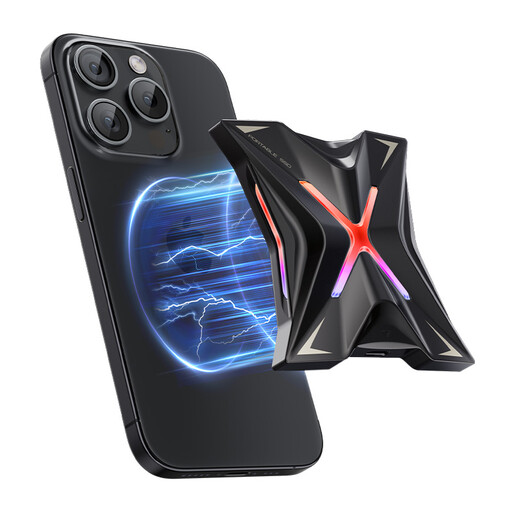
MOVESPEED YSPSRX20M-1TTG 1TB USB 3.2 Gen2x2 magnetic portable SSD
A 1TB portable SSD option for a local copy of files. Its title identifies a magnetic design for iPhone ProRes use; check the exact iPhone and recording requirements if that matters to you. For household backups, also check capacity and backup-app compatibility, then keep a separate recovery copy.
Joybuy
 No image available
SanDisk Portable SSD 2TB
A portable 2TB local-storage option for photos and home files. Check that its capacity covers your library and that its file system and backup software work with the computers you will use. A copy stored away from the originals and a successful test restore remain part of the backup plan.
Joybuy
Common questions
Is cloud storage automatically a backup?
No: putting files online does not by itself tell you which device files are copied or whether an older version can be restored. Dropbox distinguishes cloud backup, which makes up-to-date copies of computer files, from cloud storage used as online file space. Check the service’s folder coverage, deletion behaviour and restore process.
How much free cloud storage do Apple and Google include?
Apple Support lists 5 GB of included iCloud storage, while Google states that a Google Account includes up to 15 GB shared across Drive, Gmail and Google Photos. Check current use across each account before deciding whether its included allowance fits your photos and other files.
Can one external drive work with both Mac and Windows?
It can, if the drive’s format and your backup method support the intended use on both computers. Apple identifies exFAT as Windows-compatible and warns that a Mac may read an NTFS drive without being able to write to it. Check the exact drive before copying files or reformatting it.
Can a home NAS be the only copy of family photos?
A NAS should not be the only copy: it remains equipment at the home location. Synology says BeeStation restore points do not replace a full backup to an external location. Arrange a separate external or cloud copy and test that you can restore from it.


