Buying priorities
Start by mapping where the original files live, then compare recovery, account access and the way each route will be maintained.
| Priority |
What to check |
Your needs |
| Coverage, capacity and compatibility |
List every original-data location; check whether selected folders, a whole device or only photos are covered; compare used storage, future video growth, devices, connectors, file formats and any size limits. |
I want photos, documents, scans and imported files covered rather than assuming a photo-sync service also protects my computer folders. |
| Recovery after deletion, failure or malware |
Check version retention, the method for restoring a file or folder, and whether one copy remains separate from the everyday device. Test a restore before relying on the route. |
I need a usable copy if a device fails, a file is deleted or the main storage is affected. The National Cyber Security Centre notes that connected USB, network and cloud backup locations can also be affected in ransomware incidents. |
| Account access, sharing and continuity |
Check separate household accounts, shared-storage rules, two-step verification, recovery methods, renewal, cancellation and inactivity conditions. |
I want family members to share capacity without automatically sharing private files, and I need a clear route back into the account if someone cannot sign in. |
Joybuy product options
These Joybuy options cover the removable external-drive route for creating a separate local copy of family photos, videos and documents.
 No image available
Samsung Portable SSD T7 4 TB Grey
A local option for sizeable photo, video and document archives that need to stay separate from everyday devices.
The listing states 4 TB capacity, USB 3.2 Gen 2, Windows, macOS and Android compatibility, USB-C-to-C and USB-C-to-A cables, and AES 256-bit hardware encryption.
Measure your library before choosing capacity, confirm the copy workflow for each device and test a restore. The listing states that the drive is not waterproof or dustproof.
Joybuy
 No image available
Western Digital My Passport Ultra 5TB Blue
A larger local backup target for households with extensive photo, video and document collections.
The listing states 5 TB capacity, USB-C connectivity, an included USB-C-to-A adapter, password-enabled AES hardware encryption and selectable daily, weekly or monthly backup schedules.
The drive is pre-formatted for Windows and requires reformatting for macOS according to the listing. Check that the utility covers required folders and restore scenarios.
Joybuy
 No image available
Samsung Portable SSD T7 2 TB Grey
A portable local archive option for photo, video and document copying between compatible devices.
The listing states 2 TB capacity, USB 3.2 Gen 2, Windows, Mac and Android compatibility, USB-C-to-C and USB-C-to-A cables, and AES 256-bit hardware encryption.
Confirm that 2 TB leaves room for future video growth and decide how each folder will be copied and restored. The listing states that the drive is not waterproof or dustproof.
Joybuy
 No image available
Samsung MU-PE1T0S 1TB Black
A portable local copy for households moving files between compatible Macs, PCs and Android devices.
The listing states 1 TB capacity, USB 3.2 Gen 2, IP65 dust and water resistance, compatibility with Macs, PCs and Android devices, and drop resistance up to 3 metres.
Check whether 1 TB covers present and growing files, and test the intended backup and recovery process. The stated IP65 protection is for temporary water exposure, not long-term submersion.
Joybuy
 No image available
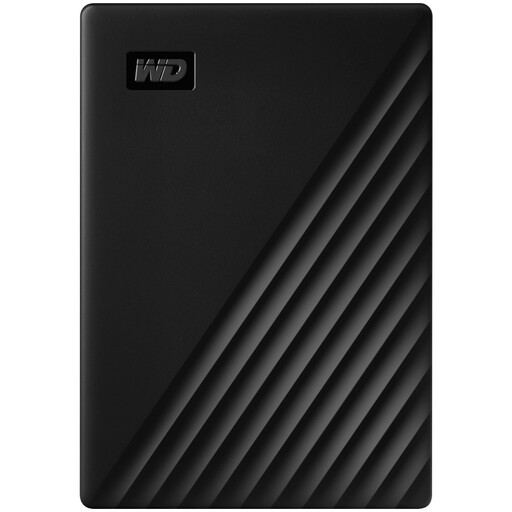
Western Digital My Passport 1TB Black
A portable external-drive route for routine local copies of computer folders, photos and documents.
The listing states 1 TB capacity, USB 3.2 Gen 1, Acronis scheduling software, AES hardware encryption and password protection.
The drive is pre-formatted for Windows; the listing states that macOS 11+ use requires downloadable driver components. Check the intended folder coverage and capacity before relying on it.
Joybuy
Frequently asked questions
What should I inventory before choosing a backup route?
List every device and original-data location: phones, tablets, computers, camera cards, external drives and cloud folders. Separate photos and videos from documents, then check whether a route covers selected folders, a whole device or only a photo library; the National Cyber Security Centre notes that backup scope can range from selected files to an entire phone or computer.
Is a cloud photo library automatically a separate backup?
Not necessarily. Apple says iCloud Photos synchronises changes across devices, so a deletion can be reflected everywhere; it advises keeping backup copies of the library. Treat synchronisation and a separately stored archive as different recovery layers.
How should we protect access to a cloud backup account?
Enable two-step verification on the cloud-storage account and its recovery email, use unique passwords and record recovery methods in a secure household process. The National Cyber Security Centre says two-step verification adds an extra check beyond the password and includes cloud storage among important accounts.
Can a family share cloud storage without sharing private photos and documents?
Often, but check the provider’s current plan rules. Apple says Family Sharing can share iCloud+ storage while members retain separate Apple Accounts and private information; Google says family members can share storage without access to files unless permission is given, subject to its country requirements.
Which cloud subscription terms should I check?
Review storage limits, renewal or price-change notices, cancellation and export timing, account inactivity rules and what happens if payment fails. GOV.UK consumer guidance advises checking service restrictions, renewal notices and the consequences of account suspension or cancellation; confirm the provider’s current terms before relying on the service.


