For a family photo archive, choose a portable hard drive if the copy needs to travel occasionally, a portable SSD if frequent large transfers matter, or a desktop drive if the archive will stay beside a computer. Cloud storage can add an off-device copy and access from signed-in devices, but check its storage limit and any subscription terms; no single drive or account should be the only copy you rely on.
Who needs which backup route?
Start with where your photos are now and how you will make the next copy; that determines which drive connections and backup routine matter.
Families building a home photo archive
If photos and videos are spread across household phones and computers, plan for the collection you have now and its growth. A repeatable way to make another copy matters more to this task than transfer speed alone.
Households transferring files from phones
If most photos begin on an iPhone, iPad or Android device, work out whether you will copy them through a computer or connect storage directly. For direct transfers, check the device, cable or adapter, file format and drive power requirements.
Households wanting a local and an off-device copy
A drive can hold an archive at home while cloud storage provides access from signed-in devices or another place to keep copies. Check that cloud backups continue to run and that the account has enough available storage.
What should you check before choosing?
Measure the existing library first, then choose a transfer route that works with the devices you use. Decide how you will keep a separate copy before treating any new drive as your backup plan.
| Priority |
What to check |
Your needs |
| Archive capacity |
Compare the size of your current photo and video library with the capacity you are considering, allowing for further files. If backups are infrequent, decide whether faster transfers justify choosing an SSD rather than an HDD. |
Our family collection keeps growing, and I want room for the next batches of photos and videos without choosing speed I rarely use. |
| Carrying and transfers |
Decide whether the drive will travel or remain by one computer. For an SSD, check the host USB standard and cable: Samsung UK says the T7 Shield needs USB 3.2 Gen 2 support and UASP to reach its stated maximum speeds. |
I move large video folders regularly, or I need to take a copy between locations. If the drive stays at home, carrying it matters less. |
| Device compatibility |
Check the computer or mobile-device port, cable or adapter, available power and file format. Apple identifies ExFAT as Windows-compatible, while APFS or APFS Encrypted is preferred for a Mac Time Machine backup disk. |
Photos start on my phone, but I may also need to open the archive on both a Mac and a Windows computer. |
| Home setup |
Allow a fixed place and mains socket for a desktop drive. If you plan to connect a hard drive directly to an iPad, Apple says external power is often required. |
A drive beside the family computer suits me, or I need a portable setup that works with the device I actually use. |
| Another usable copy |
Set a routine for copying new files and check that you can open or restore them. Microsoft Support describes external drives and cloud storage as places to hold backup copies; keeping copies in separate locations helps avoid relying on one device. |
I want the photos recoverable if the everyday computer or one backup location is no longer available. |
| Cloud storage |
Check remaining account capacity and the terms of any larger plan. Google One says a standard Google Account includes up to 15 GB shared across Drive, Gmail and Photos; Google says new Photos backups stop when the account reaches its storage limit. |
Access from signed-in devices and an off-device copy matter to me, so I need to keep an eye on the account’s available space. |
Backup mistakes to avoid
-
Choosing an SSD by its connector or headline speed alone
A USB-C connector does not tell you the transfer standard supported by the whole connection. Samsung UK says the T7 Shield’s stated maximum speeds require a USB 3.2 Gen 2 host, compatible cable and UASP.
Check the ports and USB support on the computer, phone or tablet that will receive or send the files.
-
Reformatting a drive that already holds files
A shared Mac and Windows data drive and a dedicated Time Machine disk may need different formats. Reformatting erases files already on the drive.
Decide on the drive’s job before copying the family archive to it. Move any existing files to another location and check that the copy opens before reformatting.
-
Treating one drive or cloud account as the whole backup plan
A drive kept with the everyday computer is not a separate location. Cloud backups can also stop adding files: Google says this happens in Google Photos when the account reaches its storage limit.
Keep another independently accessible copy where the files warrant it. Check both that new backups are running and that saved files can be opened or restored.
A larger cloud storage plan may involve an ongoing subscription.
-
Assuming a portable drive will work directly with a tablet
A drive that runs from a laptop port may need another power source when connected to an iPad, according to Apple.
Before choosing direct-to-device transfers, confirm the exact tablet or phone model, connector, adapter and drive power requirement.
The setup may require an adapter or separate power source.
Brand references for these routes
These examples illustrate different backup routes; a brand name alone does not establish the right capacity, connection or workflow for your household.
Western Digital
My Passport and My Book are portable and desktop hard-drive examples, respectively, in PCMag UK’s September 2026 external-drive coverage.
- The two drive types let you consider whether the archive must travel or remain at a fixed backup station.
- Check the exact model’s capacity, cable and file-format setup rather than assuming those details are shared across drives.
Samsung
The T7 Shield is a portable SSD example for households considering frequent transfers.
- Samsung UK identifies the 1 TB T7 Shield as a USB 3.2 Gen 2 portable SSD.
- Samsung says reaching its maximum stated read and write speeds requires compatible host hardware, cable and UASP; the connector alone does not establish transfer speed.
Google
Google Photos and Google One represent a cloud-copy route to consider alongside local storage.
- A Google Account provides up to 15 GB of storage shared across Google services, according to Google One.
- Google says Photos cannot add new backups once the account reaches its storage limit. Check available space and any larger plan’s terms.
Joybuy drive options
These portable HDDs, portable SSDs and desktop HDD offer ways to make a local copy of family photos and videos. Choose between them by capacity, where the drive will be used and how files will reach it; cloud storage remains a separate option alongside a drive.
 No image available
Western Digital Elements Port 4TB Black
A portable HDD to consider when a family archive needs a local copy that can be carried occasionally. The title specifies 4TB and USB3.0; check the file format for your computers before moving the archive.
View on Joybuy
 No image available
Samsung T7 Shield 1 TB Portable SSD, Blue
This portable SSD is an option for regularly moving photo and video folders; its stated capacity is 1 TB and its connection is USB 3.2 Gen 2. Samsung says its maximum transfer speeds require compatible host hardware, cable and UASP. For direct phone or tablet use, confirm the file format and power setup.
View on Joybuy
 No image available
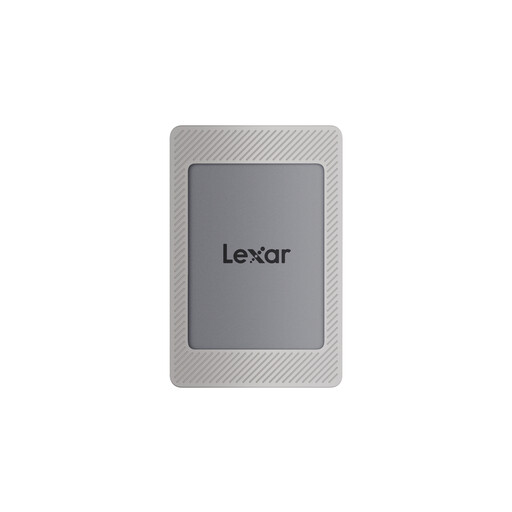
Lexar ES4 2TB Portable SSD with Magnetic Set
The 2TB capacity and USB 3.2 Gen 2 connection suit consideration for a portable photo copy. The magnetic attachment is specified for iPhone 15/16 models: confirm your exact phone and case setup. The product information says MagSafe wireless charging cannot be used while the SSD is attached, and formatting may erase files already on the drive.
View on Joybuy
 No image available
Western Digital My Passport 2TB Black
This 2TB portable hard drive offers a local-copy option for a collection that fits its capacity. If both Mac and Windows computers will use it, confirm the required read-and-write setup before transferring files or changing the drive’s format.
View on Joybuy
 No image available
Western Digital Elements Desktop 10TB
A 10TB desktop hard drive is worth considering for a growing archive kept beside a computer rather than carried around. Plan for a powered location, and settle the required Mac or Windows file format before storing photos on it.
View on Joybuy
Family photo backup questions
Can I copy photos from an iPhone directly to an external drive?
Apple describes workflows for copying files from an iPhone to connected external storage, with a cable or adapter where needed. Check your iPhone model, the app you will use, the drive’s format and its power requirements. If you instead import an iCloud Photos library to a Windows PC, Apple says to download the original, full-resolution files to the iPhone or iPad first.
What drive format works for both Mac and Windows?
Apple identifies ExFAT as a Windows-compatible file format to consider for a shared data drive. A dedicated Time Machine backup is a different task: Apple prefers APFS or APFS Encrypted for its backup disk. Decide which job the drive will do before formatting it, because formatting erases its existing files.
Will an iPad power an external hard drive?
Not necessarily. Apple says external hard drives often need an external power source when used with iPad. Check the drive’s power requirement and the iPad’s connector or adapter before relying on direct transfers.
Will Google Photos keep backing up when my account is full?
No. Google says new photo and video backups to Google Photos stop when the account reaches its storage limit. Because the account’s storage is shared with other Google services, check the total space used as well as the size of the photo library.


