For a photo collection kept mainly at home, a portable HDD offers local storage you can move when needed; consider a portable SSD if you transfer large folders often or carry the drive regularly, and a mains-powered desktop drive if the archive stays at one desk. Cloud storage can help with access across devices, but whichever route frees space on the laptop, keep a separate copy of files you cannot replace and check that you can restore it.
Who needs which kind of storage?
Families with growing photo libraries
If photos, videos and documents would be difficult to replace, plan for a separate, recoverable copy as well as space for new files. The UK National Cyber Security Centre defines a backup as a copy kept in a separate safe location.
Laptop owners running out of space
Moving files to an external drive can clear room on the laptop. Choose a drive you can carry if you need those files away from home, or consider a desktop drive if they will be accessed at one desk.
Households using several devices
If photos and documents need to be available from phones and computers, compare cloud access with a local drive. Microsoft Support describes OneDrive folder backup as a way to make backed-up folders available across devices; still decide how you would recover important files.
What should you check before choosing?
Decide where the files need to be available, then work out the required capacity and how you will keep a separate recoverable copy.
Portable HDD
Consider it when: You want a local photo and document archive that can travel occasionally.
Trade-off: Which? describes SSDs as generally faster than HDDs, so frequent large transfers may favour a different route.
Portable SSD
Consider it when: You regularly transfer large folders or carry the drive between locations.
Trade-off: Its stated transfer speed may depend on the laptop port, cable and other connection requirements.
Desktop drive
Consider it when: The family archive and backup routine are based at one desk.
Trade-off: A mains-powered desktop model needs a power socket and is not a convenient travel drive.
Cloud storage
Consider it when: Access from several devices or automatic copying of changing folders matters most.
Trade-off: Check the storage allowance, account access and recovery process before relying on a subscription for important files.
| Priority | What to check | Your needs |
|---|
| Recoverable copies |
Choose which folders to copy. Keep a copy in a separate safe location and test that you can restore files; the UK National Cyber Security Centre advises against leaving the only local backup permanently connected. |
I need to be able to recover family photos if the laptop or a connected drive fails, is lost or is affected by malware. |
| Capacity and location |
Measure the current collection and allow for future files. Check whether a drive needs mains power; for cloud storage, check how the allowance is shared across services. |
A drive that stays at home could suit my archive, but I need a portable one if the files must travel with me. |
| Transfer connection |
Match the computer port and cable to the drive. Samsung says the cited T7 Shield’s maximum speeds require a USB 3.2 Gen 2 host, a compatible cable and UASP. |
When I move large photo or video folders frequently, transfer time matters; otherwise, extra speed may be less important to my routine. |
| Mac and Windows use |
Confirm the file format and read/write setup for each computer before copying files. Apple says a disk may need erasing and reformatting for Time Machine, which removes its existing data. |
I want to know whether the drive will work with the computers I use, particularly if it will also hold a Mac Photos library or Time Machine backup. |
| Portable-file protection |
Check encryption or password options and how you would retain access to them. Read durability test conditions and warranty exclusions rather than treating a rating as a data-recovery promise. |
If I carry personal records outside the home, I want to limit access if the drive is lost and still have another copy if it is damaged. |
| Access across devices |
Check which folders a cloud service copies, its shared allowance and how account access and restoration work. Google states that its 15 GB account allowance is shared across Drive, Gmail and Photos. |
Photos that change on several devices may be easier for my household to access through a cloud account than through a drive kept at one computer. |
What can go wrong with a backup plan?
-
Moving the only copy and calling it a backup
Clearing the laptop frees space, but files kept only on the external drive could be lost with that drive.
Keep another copy in a separate safe location and test a restore. The UK National Cyber Security Centre also advises against leaving the only local backup permanently connected.
-
Choosing an SSD by its headline speed alone
The cited Samsung T7 Shield’s maximum speed depends on a USB 3.2 Gen 2 host, compatible cable and UASP, according to Samsung.
Check the laptop port and the cable you will use before deciding whether that stated speed is relevant to your setup.
-
Reading a durability rating as a recovery guarantee
Samsung’s T7 Shield water, dust and drop claims refer to stated test conditions; Samsung says damage from liquid, dust or drops is excluded from its warranty.
Carry the drive carefully and maintain another recoverable copy even if its enclosure has a durability rating.
-
Reformatting before checking Mac requirements
Apple says preparing a disk for Time Machine may require erasing it. Apple also says a Photos library cannot be stored on a device used for Time Machine backups.
Decide what the drive will hold, check its required format and copy any existing files elsewhere before reformatting.
Relevant brand references
Western Digital
Its My Passport portable HDD and Elements desktop lines represent different places to keep a local file archive.
- Western Digital UK lists a 3-year limited warranty for the cited 2 TB My Passport USB-C variant.
- Its cited 4 TB Elements desktop variant has a 2-year limited warranty; check the terms for the exact model you choose.
Samsung
The T7 Shield is a portable SSD reference for people considering frequent transfers and a drive they will carry.
- Samsung says its stated maximum transfer speeds require USB 3.2 Gen 2, a compatible cable and UASP.
- Samsung’s durability claims have test conditions, and its warranty excludes liquid, dust and drop damage.
Seagate
The One Touch HDD line is relevant if you want to consider a portable drive alongside vendor backup tools.
- Seagate’s One Touch HDD support page provides Toolkit backup and mirror setup resources.
- Check the software and warranty for the exact configuration; Seagate provides a serial-number warranty check.
Joybuy external drive options
These Joybuy options cover portable SSDs, portable HDDs and a desktop HDD for storing laptop files and family photos. Choose a capacity and connection that fit your devices, then plan a separate recoverable copy.
 No image available
Samsung MU-PE1T0S 1 TB portable SSD, black
A portable option for moving photo and video folders between locations. Its title specifies USB Type-C and USB 3.2 Gen 2; check the laptop port and cable before relying on the connection’s maximum speed. Samsung’s T7 Shield durability claims do not replace a separate backup.
View on Joybuy
 No image available
Samsung Portable SSD T7 4 TB, grey
This portable SSD is an option if a 4 TB capacity fits the files you need to move or store. Its title specifies USB Type-C and USB 3.2 Gen 2; check your computer’s port and cable before making transfer speed a deciding factor.
View on Joybuy
 No image available
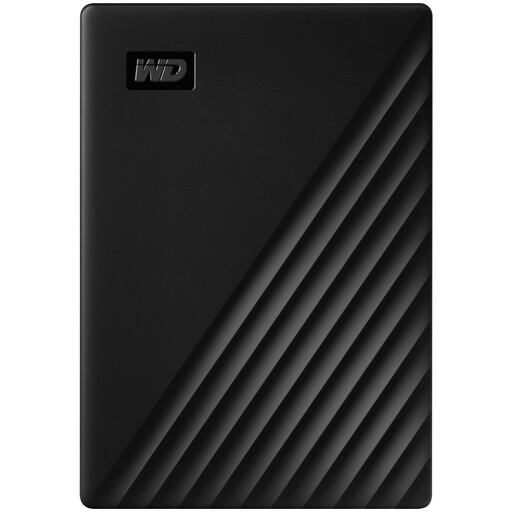
Western Digital My Passport 4 TB portable HDD, black
A portable HDD option for a local photo and document archive. Check that the supplied connection suits your laptop; if you use a Mac, confirm the drive’s format and read/write requirements before transferring files.
View on Joybuy
 No image available
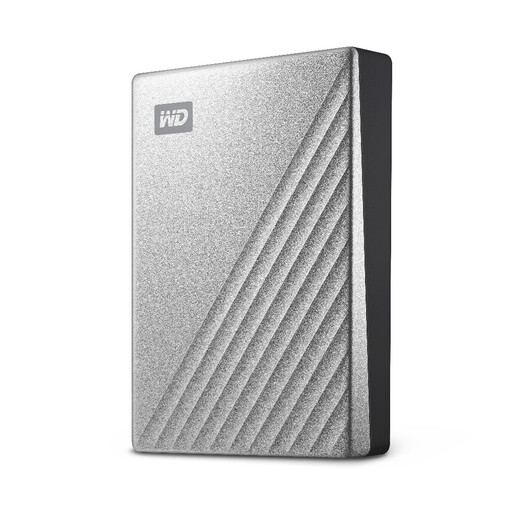
Western Digital My Passport Ultra 4 TB portable HDD, silver
Consider this portable HDD if you want a 4 TB local archive that can move with the laptop. Confirm the connection, any backup software you intend to use and the Mac read/write setup for your devices.
View on Joybuy
 No image available
Western Digital Elements 10 TB desktop HDD
This desktop drive is for a home-based archive rather than regular travel. The Joybuy product information describes a dedicated AC power adaptor; allow for a power socket, and check the file format before using it with a Mac.
View on Joybuy
Common questions
Is it a backup if I move my only photo library to an external drive?
No. Moving the only copy clears laptop space but leaves the files dependent on that drive. Keep another copy in a separate safe location and test that you can restore it, as advised by the UK National Cyber Security Centre.
Should I leave an external backup drive connected all the time?
Not if it is your only local backup. The UK National Cyber Security Centre advises against leaving a backup device permanently connected to the computer; plan when to connect it for updates and how to restore files.
Will a USB-C SSD always reach its stated speed?
No. Samsung says the cited T7 Shield’s maximum speeds require a USB 3.2 Gen 2 host, a compatible cable and UASP. Check the laptop’s port and the cable you will use rather than relying on the connector shape alone.
Can one external drive hold a Mac Photos library and a Time Machine backup?
Do not plan to store the Photos library on a device used for Time Machine backups: Apple says that arrangement is not supported. Check Apple’s storage requirements for each use, and back up existing files before any reformatting.
Should I encrypt a portable drive containing family records?
Consider encryption if the drive holds personal information and could be lost or stolen. The Information Commissioner’s Office identifies encryption of backup media as protection against unauthorised access; keep the password or recovery information somewhere you can retrieve it.


