Choose cloud storage if automatic backup and access across devices matter most; choose an external drive if you can maintain a separate local copy. For family photos and documents that would be difficult to replace, using both gives you two recovery routes. Check exactly what each service saves, whether your photos retain their original quality, and how you will keep the local drive safely apart from your devices.
Who is this for?
Families using several phones and computers
If photos and documents are spread across devices, you need to know which files will be available when a phone or computer is replaced. Apple, Google and Microsoft describe backup or synchronisation routes with different coverage, so check each device and file type.
Households protecting hard-to-replace files
Family photos, long videos, scans and personal records call for a recoverable copy stored separately from the device holding the originals. The National Cyber Security Centre advises keeping important backup data in a separate safe location.
Households sharing storage
When several people use one storage plan, distinguish shared capacity from permission to view one another’s files. Check account access, storage allowances and the sharing rules for the service you choose.
What matters when choosing a backup?
Start with where a recoverable copy will live, then check which devices and files each route actually covers. Cloud storage and an external drive can serve different purposes rather than being interchangeable.
Cloud storage
Consider it when: You want automatic saving and access to files after replacing a phone or computer.
Allow for: Internet and account access, sufficient storage, and service-specific rules about what is backed up or synchronised.
External drive
Consider it when: You want a local copy that can be stored apart from your computer and cloud account.
Allow for: A routine to update the copy, check that files can be restored, and disconnect the drive when it is not in use.
Cloud and local copies
Consider it when: Photos and documents are difficult to replace and you want two distinct ways to recover them.
Allow for: Maintaining both routes and checking that each contains the files you intend to protect.
| Concern |
What to check |
Who this matters to |
| Independent recovery |
Keep a copy apart from the original device; check that you can restore files, not just view them. |
If a device fails or an account becomes inaccessible, I need another way to retrieve family records. Around 36% of consumers put an independent recovery route first. |
| Automatic coverage |
Check supported devices, included folders and any Wi-Fi, power or sign-in requirements. |
With photos and documents arriving on several devices, I do not want recent files left out between manual backups. Roughly 29% of consumers prioritise automatic coverage. |
| Originals and capacity |
Compare the library size with available storage, and check upload quality and supported file types. |
For photos I may edit and videos I want to keep, I need to know whether the original files will fit and remain intact. About 21% of consumers make preserving originals and capacity their primary concern. |
| Ongoing upkeep |
Check storage and sharing allowances, then decide who will update and store any local copy. |
A backup routine only helps my household if we can keep using it and manage the shared storage. Around 14% of consumers put that ongoing commitment first. |
Backup mistakes to avoid
-
Assuming cloud sync and a device backup contain the same files
Apple distinguishes synchronised iCloud content from iCloud Backup. Photos using iCloud Photos are not included in the daily iCloud device backup.
Before replacing or clearing a device, check where its photos, documents, app data and settings are stored and how you would recover each of them.
-
Leaving the only local backup permanently connected
The National Cyber Security Centre warns that malware can affect storage connected to an infected computer.
Once a backup finishes, eject the drive and store it securely away from the primary device. Reconnect it for planned updates and restore checks.
-
Choosing a storage-saving setting without checking photo quality
Google says its Storage saver setting can resize photos above 16MP and videos above 1080p; Original quality retains the captured resolution.
If you need original files for editing or archival use, check the upload setting and whether your storage allowance accommodates them.
-
Confusing shared storage with shared access
A household storage arrangement does not, by itself, establish which folders or albums another person can see.
Set up individual accounts and deliberately choose the files and permissions to share. Check the plan’s privacy and family-sharing rules before relying on it.
Relevant services and brands
Apple
iCloud Photos and iCloud Backup serve different parts of an Apple household’s photo and device-recovery needs; iCloud is also available on Windows through iCloud for Windows.
- Apple says iCloud+ storage can be shared with up to five other people while personal files remain separate.
- Check which content is synchronised and which is included in a device backup; iCloud Photos content is not included in the daily iCloud device backup.
Google
Google Photos offers photo and video backup for Android and iPhone or iPad users signed in to a Google Account.
- Google says backed-up photos and videos can be accessed from devices signed in to the account.
- Check the account selected for backup, supported files and the quality setting; Storage saver can resize larger photos and videos.
Microsoft
OneDrive and Windows File History offer different ways to protect selected PC files, including a cloud route and copies to an external drive or network location.
- Microsoft says OneDrive can back up selected folders and make them available across devices.
- Check which folders each feature includes and whether files are stored locally before relying on an external-drive copy.
Local storage options on Joybuy
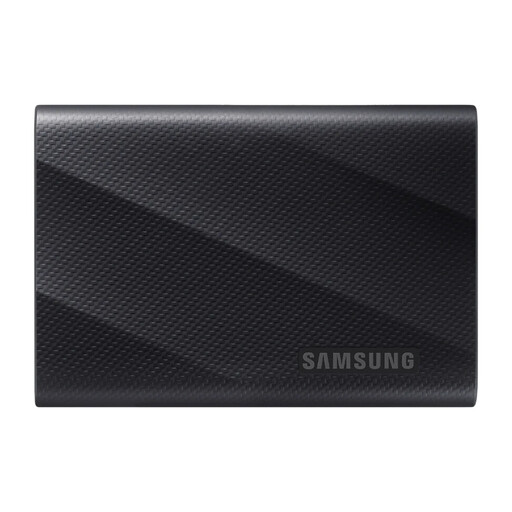
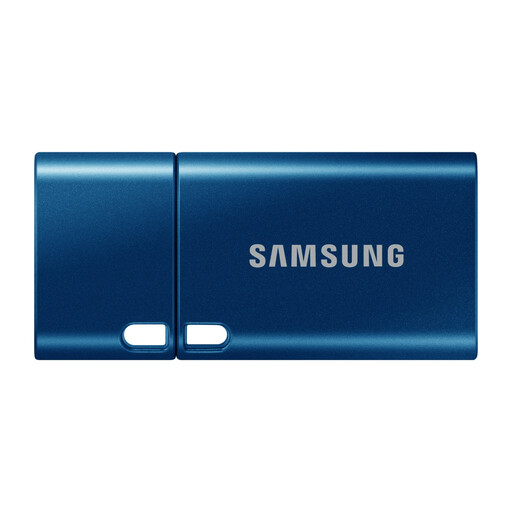
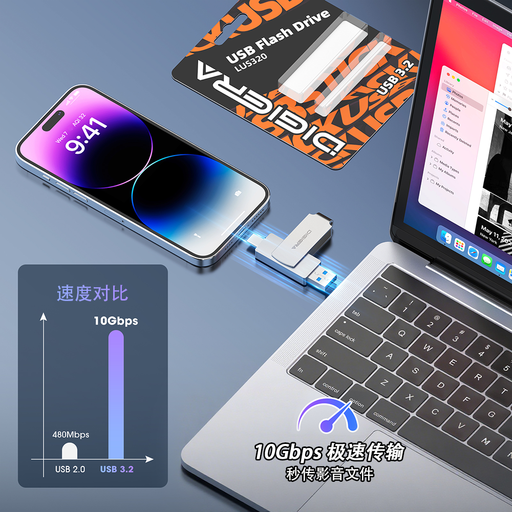
These drives are options for a separately stored local copy: the portable SSD suits a broader file collection if its capacity fits, while the USB flash drives are more suited to deliberate copies of selected files. None replaces checking your devices, available capacity and backup routine.
 No image available
Samsung MU-PG1T0B 1 TB USB-C portable SSD
Consider this external SSD for a local copy of household files if 1 TB accommodates the files you plan to preserve.
The product name specifies USB Type-C and USB 3.2 Gen 2x2. Check your devices’ connections and how you will update and store the backup.
Joybuy
 No image available
Samsung MUF-512DA 512 GB USB-C flash drive
Consider this removable drive for selected photos and documents rather than assuming it will hold a growing household archive.
The product name specifies USB Type-C and USB 3.2 Gen 1. Compare 512 GB with the files you intend to copy, and plan how you will update and store the drive.
Joybuy
 No image available
DigiEra LUS320 128 GB USB-A and USB-C flash drive
Consider this removable drive for a deliberate copy of selected files if 128 GB is enough for them.
Its product name specifies USB-A and USB-C connectors. Check the connections on each device and do not rely on a selected-file copy as the sole archive for all household media.
Joybuy
Frequently asked questions
Is cloud sync the same as a device backup?
No, not necessarily: Apple distinguishes content synchronised through services such as iCloud Photos from information included in iCloud Backup. Check where each category of photos, documents, app data and settings is stored before relying on a restore.
How can we protect a cloud backup account?
Enable two-step verification and keep your account-recovery methods usable. The National Cyber Security Centre recommends two-step verification for cloud-storage accounts because it adds protection if someone learns your password.
Should an external backup drive stay connected?
Disconnect it when you are not updating or checking the backup. The National Cyber Security Centre warns that malware can affect connected storage, so keep the completed copy in a separate secure location.
Can family members share cloud storage without sharing every file?
Yes, where the chosen plan separates shared capacity from access to personal files. Apple says iCloud+ storage can be shared with up to five other people while their personal files remain separate; check the plan’s sharing rules and permissions before setting up a household arrangement.


