Choose the operating system around the family calendar and the student’s required coursework software. A Chromebook Plus can suit browser-based planning and study if the course tools work on ChromeOS; choose a Windows laptop or Mac when the required applications and household workflow call for that platform. In a small room, weigh screen space and monitor connections against desk space, and set calendar-sharing permissions separately from the laptop purchase.
Who this is for
Shared-calendar-first students
If the main task is keeping household appointments and reminders up to date from a student room, account access matters as much as the device. Google says people with access to a family calendar can find it on signed-in devices; review who can see events and who can change them.
Coursework-and-calendar multitaskers
For students using one laptop for schedules, documents, spreadsheets, calls and course applications, check required software against the operating system before comparing hardware configurations.
Small-desk, monitor-optional users
A compact laptop may leave more room to work, while an external display may be useful for viewing a weekly schedule or spreadsheet. Check the exact model’s screen size, display connection and adaptor needs.
What matters when choosing
Settle course-software compatibility before choosing a laptop route; then check how the household will share its calendar and what fits the student’s desk.
Chromebook Plus
Choose when: The household uses a browser-based calendar and the student’s course tools work on ChromeOS.
Trade-off: A required desktop application may make this route unsuitable; confirm the course software before buying.
Windows laptop
Choose when: The student’s required applications call for Windows, subject to the chosen model’s processor requirements.
Trade-off: Windows does not set up household calendar access or sharing permissions for you.
Mac laptop
Choose when: Required study software works on macOS and the household’s existing workflow suits a Mac.
Trade-off: Check adaptor needs if the intended display or accessories use HDMI or USB-A.
| Concern | What to check | Who this matters to |
|---|
| Calendar access and permissions |
Check the household’s calendar service and give each person only the visibility and editing access they need. |
I need relatives to update appointments without giving everyone control over private details or sharing settings. Around 36% of consumers would put controlled calendar access first. |
| Coursework software |
Get the course application list; check operating-system and processor compatibility before choosing a configuration. |
My timetable is only one task: the same laptop must run the applications my course requires. For around 29% of consumers, software fit would be the primary concern. |
| Screen and desk connections |
Compare screen size with available desk space, and verify display-output support if a monitor will be used. |
I have limited room, but still need to see schedules and study documents comfortably. Roughly 21% of consumers would prioritise that balance. |
| Ongoing commitments |
Check existing school licences, subscription renewal terms, accessory needs and the chosen product’s warranty details. |
I want to know which services and accessories I would keep paying for after buying the laptop. That would be the main concern for around 14% of consumers. |
Buying pitfalls
-
Assuming a new laptop fixes calendar sharing
A device cannot correct access settings that let the wrong people see or edit household events.
Set up the calendar and review each person’s permissions, including who can manage sharing. Google distinguishes between viewing availability, seeing details and broader editing access.
-
Choosing ChromeOS before checking course applications
A Chromebook Plus hardware specification does not establish that a particular desktop application will run on ChromeOS.
Ask for the course software list and check its operating-system and processor requirements before committing to ChromeOS, Windows or macOS.
-
Forgetting the monitor connection
A compact laptop and a spare monitor are useful together only if the chosen configuration supports the intended connection.
Check the monitor input and the laptop’s display-output support before selecting accessories.
An HDMI display may require a compatible USB-C adaptor or dock when the laptop has no suitable HDMI connection.
-
Taking out a software subscription unnecessarily
The household may already have a suitable calendar, browser tools or a school licence for the applications it needs.
Check existing access before subscribing. If the household chooses a paid family plan, note its renewal terms and who manages the account.
Brands to consider for these laptop routes
Apple
MacBook Air is a macOS option when the student’s required applications are available for Mac and a compact laptop fits the room.
- Apple lists a 13.6-inch display and two Thunderbolt 4 USB-C ports for its 13-inch M5 MacBook Air.
- Check for a compatible adaptor or dock if the intended accessories use HDMI or USB-A.
Microsoft
Surface Laptop is a Windows option for students whose coursework requires compatible Windows applications.
- Microsoft’s 13-inch Surface Laptop listing includes USB-C, USB-A and a headphone jack for a mix of desk accessories.
- Check the exact configuration and treat manufacturer battery-life figures as test claims, not a promise of individual use time.
ASUS
ASUS Chromebook Plus models offer a ChromeOS route for browser-based scheduling and study.
- The Chromebook Plus CM34 Flip specification includes a 14-inch touchscreen and HDMI connection.
- ASUS says specifications vary by model and market, so check the precise configuration before choosing accessories.
Lenovo
Lenovo’s Chromebook Plus range includes 14-inch ChromeOS options for students using primarily web-based tools.
- Lenovo’s UK Chromebook Plus Gen 10 listing describes a 14-inch display and a camera with a privacy shutter.
- Its listed memory, storage and display details belong to specific configurations, not every Lenovo Chromebook.
Acer
Acer Chromebook Plus 514 configurations are relevant when the student’s study tools work on ChromeOS.
- A Joybuy listing for the CB514-5H specifies a 14-inch 1920 × 1200 display, 8 GB RAM and a 512 GB SSD.
- Check the exact CB514-5H configuration: the products below also include a distinct 256 GB variant.
Joybuy products for this use
These Windows and Chromebook Plus laptops offer different routes for combining family planning with study. Check course applications and calendar access before choosing by screen size, storage or connections.
 No image available
ASUS Vivobook 14 X1407QA-LY003W Copilot+ PC, Quiet Blue
Consider this Windows-route laptop if the student needs one device for schedules and coursework. Its listed configuration has a Snapdragon X processor, 16 GB RAM and a 512 GB SSD; check required course applications for compatibility with this processor before buying.
View on Joybuy
 No image available
Acer Chromebook Plus 514 CB514-5H, Core i3-1315U, 256 GB SSD
This ChromeOS option fits a browser-based calendar and study workflow if the required course tools are compatible. The named variant has a 14-inch 1920 × 1200 display, 8 GB RAM and a 256 GB SSD.
View on Joybuy
 No image available
Acer Chromebook Plus 514 CB514-5H, Core 5 120U, 512 GB SSD
For browser-based planning and coursework, this is a distinct CB514-5H configuration with a 512 GB SSD. Its named specifications also include a 14-inch 1920 × 1200 display and 8 GB RAM; confirm that course applications work on ChromeOS.
View on Joybuy
 No image available
ASUS Vivobook 15 X1504VA, Core 5 120U, 1 TB SSD
Consider this Windows-route model if a larger built-in screen matters more than a compact desk footprint. The named configuration has a 15.6-inch display, 24 GB memory and a 1 TB SSD; measure the available desk space before choosing it for a small room.
View on Joybuy
 No image available
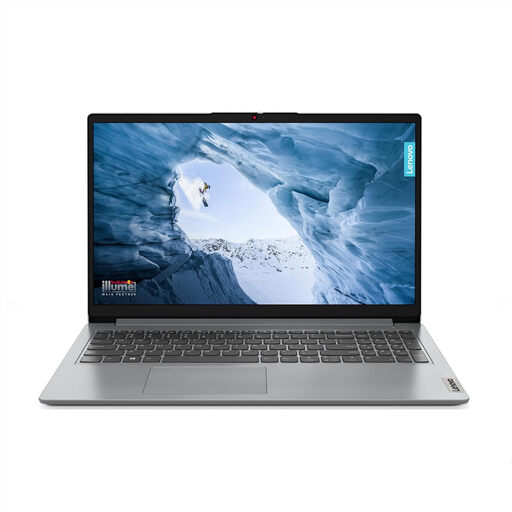
Lenovo IdeaPad 1, Ryzen 3 7320U, Windows 11 Home in S Mode
This Windows-route laptop has a 15-inch Full HD screen, 8 GB RAM and a 128 GB SSD. Before using it for coursework, check whether required applications are available in Windows 11 Home in S Mode and whether switching out of that mode suits your needs. Verify the intended monitor connection separately.
View on Joybuy
Common questions
Can I share a Google family calendar with relatives outside the household?
Yes, Google allows a family calendar to be shared beyond the family group. Review each invitee’s access before sharing, particularly whether they can see event details or make changes.
What if a relative only needs to know when I am free?
Use Google Calendar’s free/busy-only permission if availability is all they need. Google distinguishes that setting from access to event details, editing and sharing management.
Is a Chromebook Plus enough for family schedules and online coursework?
It can be if the household uses browser-based planning tools and the course does not require an incompatible application. Check the actual course software list before choosing ChromeOS; the Chromebook Plus designation alone does not establish course compatibility.
Do I need Microsoft 365 Family to organise a household schedule?
No, not if the household’s existing calendar and document tools meet its needs. Microsoft describes Microsoft 365 Family as a subscription for one to six people across multiple device types; check existing school or household access before taking out a plan.


