A USB-powered portable monitor can avoid a separate monitor plug if your connected device supplies compatible video output and enough power. For a permanent display, a mains-powered USB-C docking monitor may instead charge a compatible laptop from the monitor’s connection. In either setup, plan how the family calendar will be opened, shared and updated.
Who each setup suits
Households short of sockets
If the shared screen cannot have its own plug, a USB-powered portable monitor is worth considering. Check that the device running the calendar can provide both the required display signal and power; a USB-C socket alone does not establish either capability.
Households with a fixed dashboard
If the schedule will stay visible at one station, a mains-powered docking monitor can use its USB-C connection to charge a compatible laptop. The monitor still needs a wall socket.
Families who edit at the screen
A touch monitor is relevant when people need to navigate or change the calendar at the display. Check touch support on the connected device and who has permission to edit the shared calendar.
What to check before choosing
Decide whether avoiding another monitor plug, keeping a screen permanently visible or editing events at the screen matters most; each choice changes the connection you need to check.
| Concern |
Buying checks |
Who this matters to |
| Extra plugs and cables |
Check how the monitor is powered and whether the host provides the required USB-C video output and power. |
I have no spare socket for a monitor adaptor, so I need the connected device to run the screen without one; around 42% of consumers put avoiding an extra monitor plug first. |
| A permanent shared view |
Check the screen’s placement and whether its USB-C connection can charge the laptop you intend to leave at the station. |
If the calendar stays in one place for the household to consult, I need a screen and host device that can remain available; around 33% of consumers prioritise that fixed shared view. |
| Editing at the display |
Check the monitor’s touch connection, host operating-system support and calendar editing permissions. |
When family members need to change events at the screen, I want touch input that works with our device and calendar; around 25% of consumers put direct interaction first. |
Mistakes to avoid
-
Assuming every USB-C port carries video and power
A portable screen may need video output and power functions that the host port does not provide. ASUS UK support also distinguishes DisplayPort Alt Mode connections from DisplayLink connections that require a driver.
Check the exact monitor and host-device specifications for video output, power requirements and any driver before buying.
-
Expecting a standard monitor to run the family calendar itself
A portable monitor displays content from a connected device; that device still needs access to the calendar and the appropriate sign-in and sharing permissions.
Choose where the calendar will run and decide whether that device can stay connected where the screen will be used.
-
Buying touch without checking the connected device
Touch support differs by device and operating system. ViewSonic says TD1655 touch feedback does not apply to iOS or iPadOS, while macOS requires its vTouch software.
Check the complete touch connection for the phone, tablet or laptop you intend to use, not just the monitor’s touch specification.
-
Chaining extension leads to make room
Overloading extension equipment can create a fire risk. Electrical Safety First advises against plugging one extension lead into another.
Use only one socket extension device per wall socket, and keep the combined load within the extension lead’s marked current rating.
Relevant brands to consider
Philips
Its portable and docking models illustrate two different approaches to a shared schedule screen.
- Philips says the 16B1P3302D/00 portable monitor is USB-powered; the 279P1/01 docking monitor specifies 90 W power delivery for a compatible laptop.
- The portable model’s USB-C video requires host DisplayPort Alt Mode support. The fixed docking model needs a mains connection.
ViewSonic
Its portable models are relevant when a screen may move between household locations or touch input is a priority.
- ViewSonic specifies 10-point touch and a USB-C connection for multimedia, touch data and power charging on the TD1655.
- TD1655 touch feedback does not apply to iOS or iPadOS and requires vTouch software on macOS. ViewSonic states that the VA1650 needs an external power adaptor for power charging.
ASUS
Its USB-C connection guidance is useful when matching a portable monitor to an existing computer.
- ASUS UK support explains the distinction between DisplayPort Alt Mode and USB-based DisplayLink connections.
- A matching connector shape does not establish video compatibility; DisplayLink connections can require a driver.
Lenovo
Its ThinkVision M14d is a portable option for a compatible USB-C computer.
- Lenovo UK lists two USB-C ports with DisplayPort 1.2 Alt Mode support and power pass-through up to 65 W.
- The M14d is a display for a connected device, not a standalone family calendar.
Joybuy product choices
These choices cover portable screens for a connected calendar device and a smart monitor for a fixed station. Check each screen’s power arrangement and calendar workflow against the sockets and devices you already have.
 Image unavailable
UPERFECT 14-inch portable touchscreen monitor
Consider this for a movable schedule screen if your connected device supports the intended video, power and touch connections.
Its named variant has a 14-inch touchscreen, 60 Hz refresh rate, VESA compatibility and an adjustable stand. A separate power supply is needed if the intended one-cable connection is unsupported.
View on Joybuy
 Image unavailable
ASUS ZenScreen MB166CR FHD
This portable display is relevant if a connected computer can provide the video signal and power needed for the intended USB-C setup.
The named model is Full HD. Check the host’s video output and available power before relying on one cable; the listed connection does not support HDMI.
View on Joybuy
 Image unavailable
ASUS ZenScreen MB249C IPS USB-C
Consider this for a larger shared display that can stay at a household station while still offering flexible placement.
The named model has an IPS display and USB-C connection. Check whether the host supports its video connection and how the monitor itself will be powered before counting on fewer plugs.
View on Joybuy
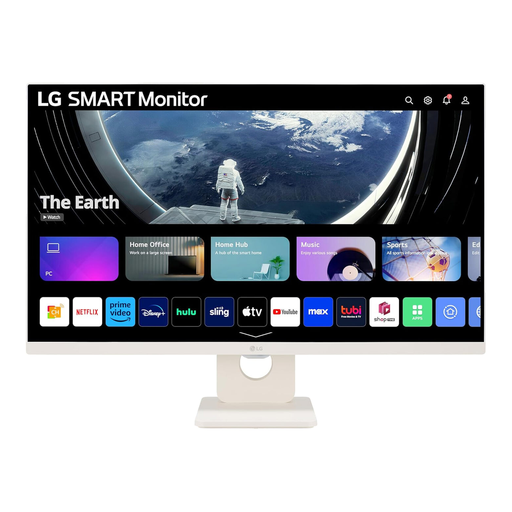 Image unavailable
LG Smart Monitor 27U511SA-W 27-inch Full HD
This is a fixed-station choice if you can dedicate a mains socket and want to check whether its smart services fit your family calendar workflow.
The named variant has a 27-inch Full HD IPS screen, Wi-Fi, webOS and a remote control. Confirm calendar access, sign-in and editing permissions for your household before relying on the smart functions.
View on Joybuy
Common questions
Can a monitor show a shared Google family calendar?
Yes, if the connected device can open the calendar and has the right account access. Google says a Family calendar is created with a Google family; check who can view and change events before leaving the display in a shared space.
Will one USB-C cable work with any portable monitor?
No. Philips specifies that USB-C video on its 16B1P3302D/00 requires a host with DisplayPort Alt Mode, while charging requires Power Delivery support. Check the exact monitor and host; ASUS UK support also notes that DisplayLink connections can need a driver.
Can I edit the calendar by touch from any phone or tablet?
Not with every combination. ViewSonic says TD1655 touch feedback does not apply to iOS or iPadOS and that macOS requires vTouch software. Check the monitor, connected device and calendar permissions together.
Can I chain extension leads if I run out of sockets?
Do not plug one extension lead into another. Electrical Safety First advises using only one socket extension device per socket and keeping the combined appliance load within the lead’s marked current rating.


