Families needing one visible schedule
When school, work and household appointments sit in different calendars, a shared display can give everyone a place to check the day's plan without reaching for each person's phone.


Choose a dedicated touchscreen calendar if family members need to use schedules, chores or lists at the shared display. If an existing screen is suitable and the main aim is to see the calendar at a glance, a bring-your-own-screen setup may make more sense. Check calendar compatibility, placement and feature access before deciding; an ordinary monitor should not be assumed to provide touch controls.
When school, work and household appointments sit in different calendars, a shared display can give everyone a place to check the day's plan without reaching for each person's phone.
If appointments are only part of the job, look for the particular task, chore or list functions your household will use. Check whether those functions can be used at the display or through its companion app.
An existing television, tablet or monitor may be worth considering for an always-visible calendar. The display setup and way to edit it still need to suit the screen you own.
Choose it when: Family members need to interact with the shared schedule or household tasks at the display itself.
Trade-off: The device has a defined display role, but you still need to check which functions require a companion app or subscription.
Choose it when: You mainly want to view a shared calendar and have a suitable screen you can keep in the intended position.
Trade-off: Editing may happen on another device, and a standard television or monitor does not gain touch controls from calendar software.
| Concern | What to check | Who this matters to |
|---|---|---|
| Calendar sync and visibility | Check every household calendar service against the exact device or service, then assess readability from the intended viewing position. | When several people keep separate diaries, I want one place to see their plans without copying appointments by hand. Around 33% of consumers put a visible, combined schedule first. |
| Chores and routines | Check which tasks, lists and routine tools are available at the display, in an app or through a subscription. | If the screen is meant to guide household jobs as well as appointments, I need family members to find and use those tasks easily. Chore and routine support comes first for around 27% of consumers. |
| Screen fit and interaction | Measure the wall or desk space, plan the cable route and confirm whether touch input or a particular orientation is needed. | A calendar near my desk must be visible to the family without getting in the way of work. Around 20% of consumers make placement and interaction their primary concern. |
| Existing hardware and feature access | Check whether your screen can run the chosen setup and which features need an additional plan or device. | Before adding another display, I want to know whether the screen I own can do the job and which features I can continue using. That is the first concern for around 20% of consumers. |
A shared display is less useful if an important work, school or personal calendar cannot be connected as expected.
List the services each person uses and check compatibility for the exact model or calendar service. Support for Google, Apple or Outlook does not establish support for every other account.
Skylight offers Calendar Plus as a separate subscription, so feature access can differ from what a device's general description suggests.
Check the included features against any subscription tier, particularly if meal planning, imports or rewards are central to your choice.
A large calendar may be awkward beside a desk or difficult for the family to use if its mounting position is out of their usual sightline.
Measure the intended space and consider where people will stand to read or touch the screen. Confirm the exact model's mounting and orientation options before planning the layout.
Shared schedules and linked accounts can reveal household routines. The National Cyber Security Centre advises active setup and management of smart devices to protect information at home.
Check the manufacturer's update and support information, use a unique account password and grant access only to the calendars needed for the shared display.
These brands illustrate different approaches to a shared family calendar; check the particular model or service rather than treating a brand name as a specification.
Skylight offers dedicated family-calendar touchscreens on its UK pages, including a 15-inch Calendar and a 27-inch Calendar Max.
Cozyla lists 15.6-inch and 24-inch Calendar+ 2 touchscreens for family and home-office scheduling.
DAKboard is a software-led option for displaying a family calendar on an existing screen.
Dragon Touch describes dedicated family-calendar displays with schedules, chores and lists.
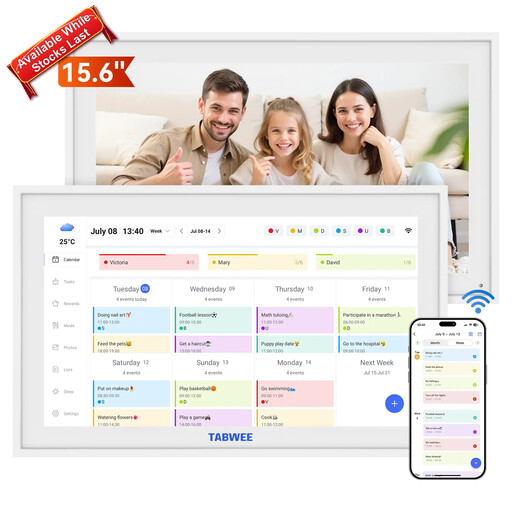
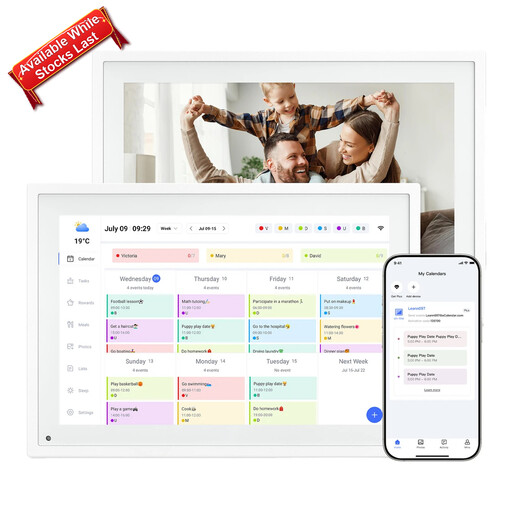
These TABWEE digital calendars are options for a dedicated scheduling display. The P15 is listed as a touchscreen planner; the smaller P10 is listed with mobile-app schedule syncing, so check its interaction method before choosing it for at-screen use.
 No image available
Consider this model if the family needs a dedicated screen for schedules and meal planning with touch interaction.
The product title identifies Wi-Fi connectivity, a 15.6-inch touchscreen, an appointment scheduler and weekly and monthly planning. Check compatibility with each household calendar, along with chore functions, mounting, power and support for the delivered variant.
 No image available
Consider this smaller schedule board if mobile-app schedule syncing suits the way your household plans.
The product title identifies a 10.1-inch display, Wi-Fi and two-way schedule syncing via a mobile app. Confirm the supported calendar accounts and whether this exact model offers touch, chores or lists; also check its power arrangement and support for the delivered variant.
No, not if the main purpose is to view a shared calendar. DAKboard says its service can display an automatically updating family calendar on a television or tablet; choose a touchscreen when people need to interact at the display, and check how everyone will make changes if you use a non-touch screen.
Check every service your household actually uses against the exact model or service. Skylight Max is listed with Google, iCloud and Outlook syncing, while Cozyla's UK page lists Google, Apple and Outlook for Calendar+ 2; those examples do not establish compatibility for another device.
Not necessarily: Skylight offers a separate Calendar Plus subscription for additional features. If chores, meal planning, imports or rewards drive your decision, check which tier provides each function on the exact device.
Some models support wall placement, but suitability depends on the device and the wall. Skylight states that Calendar Max can be mounted in portrait or landscape orientation; check the mount, wall material, cable route and power position for whichever model you choose.
Treat it as a connected device with access to household information, rather than a passive noticeboard. The National Cyber Security Centre advises managing smart devices to protect home information: check update and support arrangements, use a unique account password and review which calendars the shared display can access.