People who need clearer calls and easier reading
Look at whether text, contact photos and call controls are comfortable to see. Adjustable display size, spoken feedback, captions and audio controls may matter more than screen size alone.


For an older person keeping in touch with family, choose the device they can operate comfortably in the places they will call: a smartphone for calls away from home, a tablet for a larger touch display, or a computer if a keyboard, mouse or larger monitor is easier to use. Before buying, check the family’s calling app, the device’s supported software and the particular display, audio or control features the person needs.
Age UK advises that vision, hearing and mobility difficulties can affect how older people use smartphones, tablets and computers; the useful choice depends on which part of a call is difficult.
Look at whether text, contact photos and call controls are comfortable to see. Adjustable display size, spoken feedback, captions and audio controls may matter more than screen size alone.
Repeated tapping, swiping or holding a device may be awkward. Try the controls in a stable calling position and consider whether voice input or a keyboard and mouse would be easier to manage.
Choose a device the caller can use regularly and a calling service their contacts already use. Check who can help with settings, updates and connection problems.
Choose it when: Calls and messages need to travel with the person.
Consider: Check that text, captions and call buttons remain usable on the particular handset’s screen.
Choose it when: Calls are mainly made while seated and a larger touch display is easier to view.
Consider: Check its placement and handling, as well as the connection available where calls will happen.
Choose it when: A larger monitor, physical keyboard and mouse, or a stable desk setup makes calling easier.
Consider: Confirm that the calling app runs on its operating system and that the camera, microphone and speakers are suitable.
Start with the person’s hardest part of making a call, then check the exact device and the service their family uses.
| Priority | What to check | Your needs |
|---|---|---|
| Seeing the call | Try text size, contrast and call controls at a comfortable viewing distance. Check magnification or spoken feedback if enlargement is not enough. | I want to recognise contacts and find the call buttons without struggling to read the screen. |
| Following speech | Check volume and audio settings on the exact device. Test captions where available; hearing-aid streaming needs compatibility on both devices, according to Samsung’s Galaxy guidance. | Captions or suitable audio controls could help me follow what relatives are saying. |
| Managing controls | Try holding or positioning the device and operating it during a call. Compare touch controls with any supported voice input or a keyboard and mouse. | Swiping and tapping may be difficult for me, so I need a way to answer and end calls that I can use consistently. |
| Joining family calls | Identify the family’s app and check its current operating-system requirements. Confirm internet access where calls happen and, for a computer, a usable webcam, microphone and speakers. | The device needs to run the same calling service as the people I want to contact. |
A device can still browse the web while its operating system is too old for a calling app. Zoom Support, for example, lists minimum mobile operating-system versions and supports Windows 10 and 11 for its desktop app.
Find out which app the family uses, then compare its current requirements with the exact device and software version.
Google notes that Live Caption availability can vary by device. Samsung says hearing-aid audio streaming requires support from both the Galaxy device and the hearing aid.
Check the model and software version, then try the required captions, enlarged text, spoken controls or hearing-aid connection where possible.
A larger display will not solve difficulties holding, placing or reaching the device. Internet-based calls also need a working connection in the intended calling spot.
Try the device in the position the person will use, including how they will charge it and reach the call controls.
Zoom Support lists an internet connection, webcam, microphone and speakers among its desktop video-call requirements. Check what the proposed setup actually provides.
Test camera placement, sound and the person’s preferred keyboard, mouse or voice controls before settling on a computer.
A desktop setup may require a separate webcam, microphone, speakers or headphones.
These brands illustrate features worth checking on particular devices; a brand name alone does not establish whether its controls will suit the caller.
Relevant when considering an iPhone or iPad with Apple’s built-in accessibility controls.
Relevant when considering Galaxy devices with Android accessibility settings.
Relevant when a simplified smartphone interface is more useful than a conventional app layout.
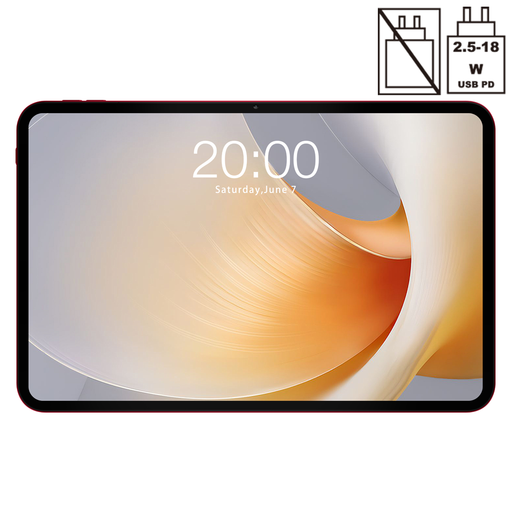
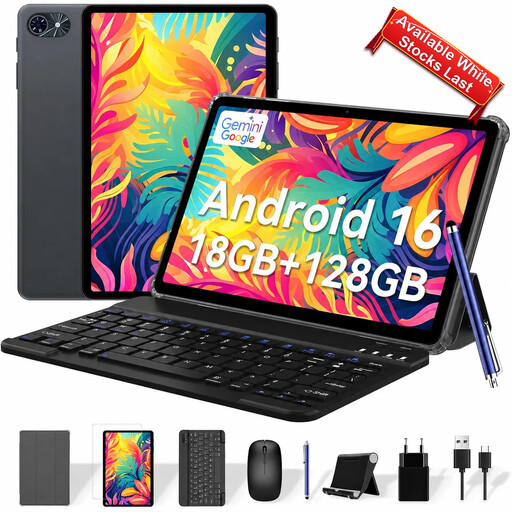
These two Android tablets are options to consider for calls mainly made while seated. Compare their screens and listed configurations, then check the family’s app and the accessibility controls needed on the exact model.
 No image available
Consider its 13.4-inch display for calls made in a settled position. The product name states a 120Hz display, Android 15, Wi-Fi and 8MP + 13MP cameras; confirm the front-camera arrangement, required calling app and accessibility controls on this exact model.
 No image available
Consider whether its 10-inch screen and stated keyboard bundle suit the person’s calling position and preferred controls. The product name states Android 16, Wi-Fi and 5MP + 2MP cameras; check the front camera, keyboard arrangement, family’s app and needed accessibility settings on this model.
Choose according to where they call and which controls they can use: a smartphone travels with them, a tablet offers a larger touch display for seated use, and a computer allows a keyboard, mouse or larger monitor. Try the relevant display, sound and input settings rather than relying on device type alone.
Identify the exact app, then compare its current operating-system requirements with the device’s software version and check the connection where calls will take place. Zoom Support, for example, lists iOS 15 or later, iPadOS 15 or later and Android 9.0 or later for its mobile app, and Windows 10 or 11 for its desktop app.
Captions are worth trying if following speech is difficult. Google says Android Live Caption can caption video calls but that availability varies by device; Microsoft also documents live captions in Windows 11. Check the exact device and calling setup.
Do not assume Bluetooth alone establishes audio-streaming compatibility. Samsung says its hearing-aid streaming feature requires support from both the Galaxy device and hearing aid, so check both models and the hearing-aid manufacturer’s guidance.