What should you check first?
Agree how the family will call, try that route on the equipment already available, then choose hardware around the caller’s controls and usual location.
| Priority |
What to check |
Your needs |
| Calling service |
Confirm the app or browser works on each participant’s device. Decide who will manage accounts, invitations and contacts. For FaceTime links, Apple says an eligible Apple device must create the link; Android and Windows participants can join through Chrome or Edge. |
I want the relative to reach the people they call without switching between unfamiliar apps or waiting for someone to fix an account. |
| Controls and accessibility |
Try answering and ending a call, adjusting audio and using any needed text, voice or touch settings. Test these with the intended caller rather than judging from the screen alone. |
The caller needs controls they can see, hear and operate comfortably during an ordinary call. |
| Computer camera and audio |
Test the built-in camera and microphone before adding an accessory. Google Meet supports a built-in webcam or external USB camera; check the computer, USB connection, selected audio device and app permissions. |
There is already a computer the relative can use, so I would rather establish what needs fixing before replacing it. |
| Connection and data |
Try a call in the usual room and check what else is using Wi-Fi. For calls away from Wi-Fi, check the mobile plan’s data allowance; Age UK warns that video calling can use substantial data. |
Calls need to work where the relative will actually make them, without unexpectedly exceeding a mobile-data allowance. |
| Fixed-display privacy |
For an Echo-based setup, confirm supported Alexa contacts and how the camera and calling controls work. If considering Drop In, agree its use with the relative; AbilityNet highlights the privacy implications of being able to connect at any time. |
A display in the home should make contact manageable without taking control over when the relative is seen or contacted. |
Which brands and platforms are relevant?
These references help narrow down calling arrangements; a brand’s presence here does not mean every device in its range suits the household.
Apple
FaceTime is relevant when family members already use eligible Apple devices and can create call links for others.
- Apple says Android and Windows participants can join a FaceTime link through Chrome or Edge with camera and microphone access and a strong connection.
- An eligible Apple device must create the link. Apple says some features, including SharePlay and screen sharing, are unavailable in the web version.
Samsung
A Galaxy tablet may be worth considering for a touch-screen setup, provided the exact model runs the family’s calling service.
- Samsung lists a 5 MP front camera for the specified Galaxy Tab A11+ variant; that specification does not apply to every Galaxy tablet.
- Check the exact tablet’s operating system, calling app and account requirements before purchase.
Amazon Echo
An Echo screen is relevant to calls made mainly from one place when the family is willing to use Alexa contacts and accounts.
- Amazon describes video calling between supported Echo screens and calling through supported Echo devices and the Alexa app.
- Third-party calling-app support should not be assumed. Discuss contact permissions and any optional Drop In use with the relative.
Logitech
Webcams are relevant when a relative can already use their computer but needs a suitable camera for the chosen service.
- Logitech lists 720p/30 fps video for its C270 webcam and describes operating-system recognition for its webcam setup.
- Those C270 specifications are model-specific. Check the computer, calling app, microphone and room setup rather than assuming a webcam alone will resolve a call problem.
Joybuy options for family calls
These options cover webcams for an existing computer, a tablet for personal touch-screen calls and a smartphone for someone comfortable using a phone. Check each against the family’s calling service and the relative’s usual setup.
 No image available
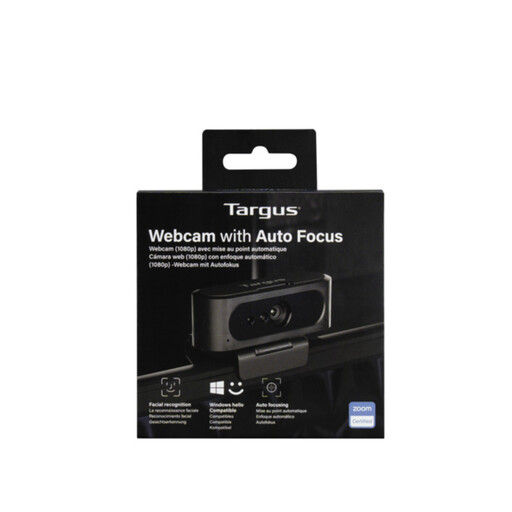
Targus 2K Webcam with Auto Focus
A USB webcam to consider when an existing computer needs a camera and microphone for calls. The listing describes autofocus, a built-in microphone and a privacy slider. The name says 2K while the technical details say Full HD 1080p, so confirm the exact item’s resolution, computer connection and calling-app compatibility before buying.
View on Joybuy
 No image available
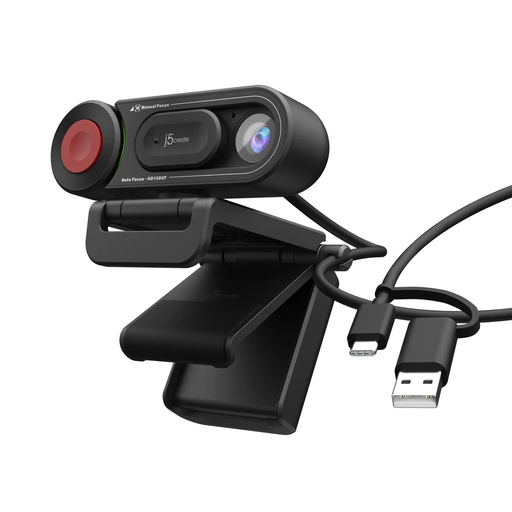
j5create JVU250 HD Webcam with Auto and Manual Focus, Black
For a laptop or desktop that needs an external camera, this USB webcam is listed with 720p video, a built-in microphone and auto and manual focus. Check for a compatible USB-A connection and test the microphone with the intended calling service in the usual room.
View on Joybuy
 No image available
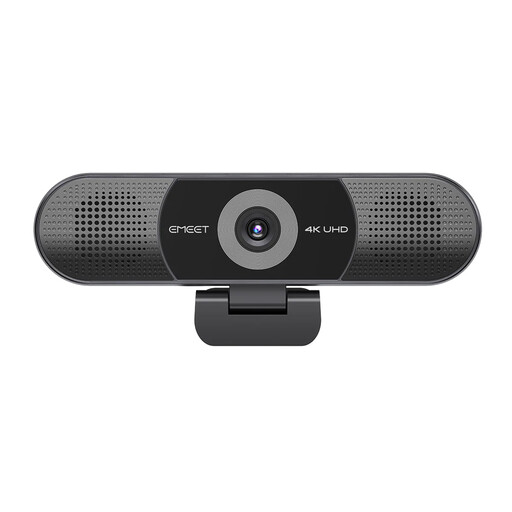
EMEET All-in-One 4K Webcam with Sony Sensor
A computer-accessory option when the setup needs camera and audio hardware together. The listing describes USB connectivity, a four-microphone array, built-in speakers, fixed focus and an adjustable 98° field of view. Confirm compatibility with the exact computer and calling app, then test how it works in the room used for family calls.
View on Joybuy
 No image available
Xiaomi Pad 7 Grey, 8GB RAM, 128GB, with Focus Pen
A tablet option for a relative who wants a personal touch-screen device for calls. The listing specifies an 11.2-inch display, 8 MP front camera, quad speakers and Wi-Fi 6E. Confirm that the chosen calling app runs on this tablet and check its microphone and controls with the intended caller.
View on Joybuy
 No image available
Samsung Galaxy A17 5G A176 Dual SIM, 4GB RAM, 128GB, Grey
A phone option for someone who already handles smartphone calls comfortably or wants to call away from home Wi-Fi. The listing specifies a 6.7-inch display, 13 MP front camera, Wi-Fi and 5G capability. Check the family’s app and account requirements, test call audio and review the mobile-data plan before relying on calls away from Wi-Fi.
View on Joybuy
Family video-call questions
Can the relative use their existing computer?
Yes, if it supports the chosen calling service and has a working connection, camera and microphone. Google Meet allows a built-in or external USB webcam; make a test call and check camera and microphone permissions before deciding whether an accessory or replacement device is needed.
Can someone on Android or Windows join a FaceTime call?
Yes, Apple says they can join through a FaceTime link in Chrome or Edge, with a strong connection and camera and microphone access. Someone with an eligible Apple device must create the link, and not all FaceTime features are available through the browser.
What should I check before choosing a tablet for Google Meet?
Check the exact tablet’s operating system, access to the Meet or Gmail app, account setup and home connection. Google’s stated mobile requirements include Android 5.0+ and iOS 17+; also let the intended caller try the tablet’s controls before relying on it for regular calls.
Will calls on a phone or tablet use mobile data?
They will use mobile data when the device calls over its mobile connection rather than Wi-Fi. Age UK advises using Wi-Fi where possible because video calling can use substantial data and exceeding a mobile allowance may lead to charges.
What should the family agree before using Alexa Drop In?
Agree with the relative whether to enable it, who may connect and when. AbilityNet advises explaining that a connection can occur and discussing the privacy implications; treat it as an agreed contact feature, not a substitute for care or emergency arrangements.


