What matters when choosing?
Start by identifying where the original photos and videos live and how you will make an independent copy. Then compare capacity, the effort of capturing new files, and how you would retrieve them after losing access to a device or account.
| Concern | What to check | Who this matters to |
|---|
| Originals and independent copies |
Check the source service’s original-file export options; restore a sample of photos and videos before changing the source library. |
If my family’s photos live mainly in a phone or cloud account, I need a copy I can open without that account. Around 36% of consumers put an independently usable export first. |
| Capacity for a growing library |
Measure downloaded originals, including videos, and allow room for future files; check whether a cloud quota is shared with other account data. |
When our videos keep accumulating, I want storage that accommodates the full library rather than just what appears on a space-saving phone. Capacity is the primary concern for around 29% of consumers. |
| Routine uploads and retrieval |
Confirm which phones and computers can contribute files automatically, and try retrieving a file through the proposed workflow. |
If several people add photos from different devices, I need a routine the household will actually keep using. Around 21% of consumers prioritise automatic capture and shared retrieval. |
| Carrying and protecting a copy |
Check the exact drive’s connection and available encryption; plan where to keep a separate copy and its recovery credentials. |
If I carry a backup between locations, I need to account for loss as well as being able to open it later. Protection and portability come first for around 14% of consumers. |
Joybuy storage choices
These choices cover portable local copies, a desktop external drive and a diskless NAS for shared home storage. Compare each with the size of your exported library and the way your household will make and restore another copy.
 Image unavailable
Samsung Portable SSD T7 2 TB, Blue
Consider this for a local copy you need to carry between compatible devices. Its listed capacity is 2 TB, and the name specifies USB Type-C 3.2 Gen 2 (3.1 Gen 2); check your device’s port and file-system requirements before relying on it for transfers.
Measure the exported library against 2 TB and keep another copy separately protected.
View on Joybuy
 Image unavailable
Western Digital My Passport Ultra 5 TB, Blue
This portable external hard drive is a local-copy option for a household comparing its photo and video library with a listed 5 TB capacity. If you use a Mac as well as a Windows computer, confirm the intended file-system and backup workflow before copying your library.
Keep a separately located copy rather than relying on the drive alone.
View on Joybuy
 Image unavailable
SanDisk Portable SSD 2 TB
Consider this portable SSD if you plan to carry or rotate a local photo copy. Compare its listed 2 TB capacity with the size of your exported originals, and check connection compatibility and encryption options if either matters to your routine.
A portable copy still needs another separately protected destination.
View on Joybuy
 Image unavailable
Western Digital Elements Desktop 10 TB
This desktop external hard drive suits a backup routine based at a home computer rather than a drive carried between locations. Its listed capacity is 10 TB; compare that with the original library and confirm the intended computer’s backup and formatting requirements.
Arrange another separately protected copy, especially if this drive normally remains connected at home.
View on Joybuy
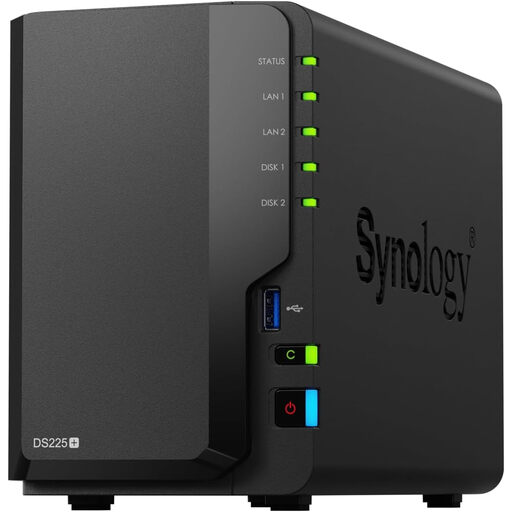 Image unavailable
Synology DS225+ Two-Bay Diskless NAS
Consider this for a shared household photo destination if you are prepared to set up and maintain a NAS. It is a two-bay diskless model: choose compatible drives separately and work out the resulting usable capacity before treating it as storage for your library.
Configure a separate backup destination for the NAS and test that you can restore files from it.
View on Joybuy
Frequently asked questions
Is a cloud-photo library already a backup?
It can hold a copy, but do not assume it gives you an independent way to recover every photo. Google says Photos can automatically upload media to an account, while Apple says deletions in iCloud Photos also remove content from devices using that service. Keep another copy you can retrieve separately.
How can an iPhone household copy original photos to an external drive?
Apple documents an Export Unmodified Originals option that lets you choose an external storage location through the Files app. For an iCloud Photos library on a Mac, Apple also documents Download Originals to this Mac; check copied photos and videos before removing anything from the source.
Will an iCloud Photos transfer to Google Photos keep every feature?
Do not rely on that transfer to preserve every feature. Apple says Smart Albums, Live Photos and some RAW files may not be available at the destination, and changes made during the transfer may not be included. Check important items individually or export originals locally.
Does a NAS remove the need for another backup?
No. A NAS gives a household a central storage destination, but a separate copy is still needed for an incident affecting the home device or location. The National Cyber Security Centre advises keeping copies across devices with one offsite and avoiding a situation where all backups are connected at once.
Should I encrypt a portable photo-backup drive?
Use available encryption if the drive could be lost or stolen, particularly when it contains identifiable family photos. The Information Commissioner’s Office says encryption helps protect stored information from unauthorised access in that situation; keep the password or recovery key separately so you can still restore your files.


